141 © VeEX Inc. All Rights Reserved.
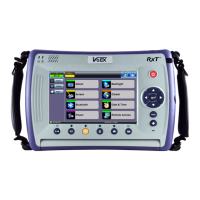
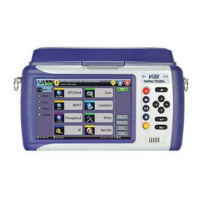
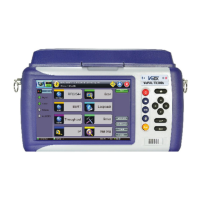
MTX150x Lite Quick
Guide
The test set will take a few seconds to boot up, automatically start the V-TEST (VeEX Internet Speed Test)
application, detect the link, auto-configure and get an IP address. The Basic V-Test defaults to use Ookla's
speedtest.net servers for the speed test.
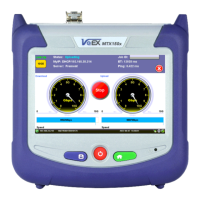
Once ready, the Basic V-TEST screen displays with a GO button in the center. This indicates that the test
set is ready to test.
To turn the test set OFF, press and hold the Power button until two confirmation tones (beeps) are
heard.
By default, the test set always starts in BASE-T copper mode , as indicated by the Test Mode Selec-
tion button. It can detect 10GBASE-T, 5GBASE-T, 2.5GBASE-T, 1000BASE-T and even legacy 10/100BASE-
T automatically.
Changing Test Modes (Copper ↔ Fiber)
By default, the test set starts in copper (RJ45) mode and it can detect 10GBASE-T, 5GBASE-T, 2.5GBASE-T,
1000BASE-T and even legacy 10/100BASE-T automatically.
Changing Test Modes
To change between fiber optics and copper test modes:
1.
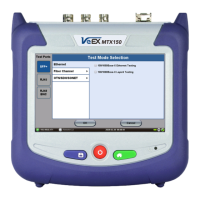
Tap , then tap Test Mode button at the bottom left of the screen to access the Layer4 Test
Mode Selection menu.
2.
For Fiber Optics, tap and for Copper, tap , then select the checkbox for the appro-
priate test mode: 1GE (1000M BASE-X) or 10GE or 1000M/2.5G/5G/10G BASE-T.
3. Press OK and wait for the test application to load.
4. Connect the test cable between the test set and the device under test, then select Speed Test from
the menu and run the test.


 To Next Page