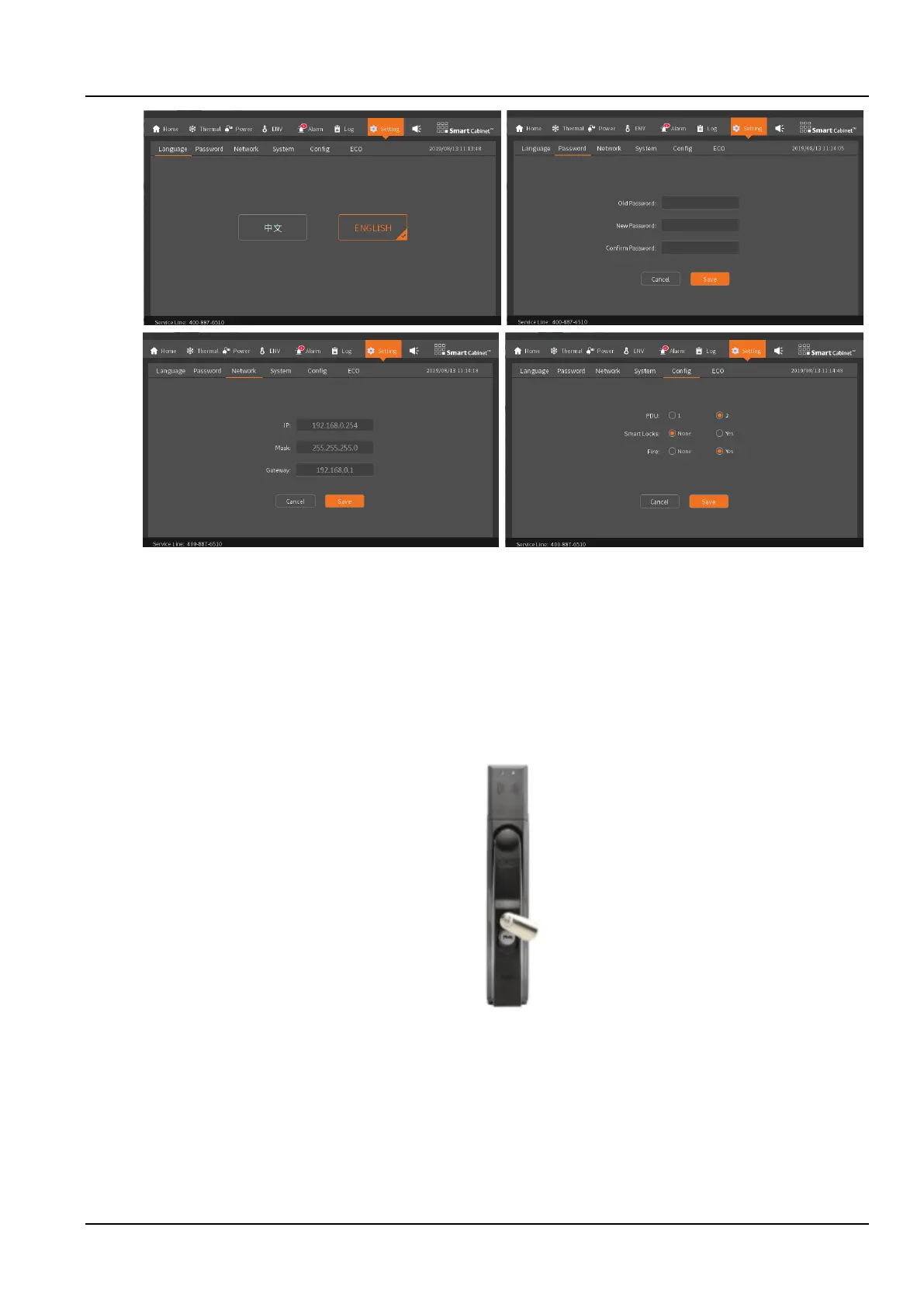
Figure 2-34 Setting screen
3. During the countdown process, the SmartCabinet2-E system will restart the update configuration. After the
configuration update is successful, the LCD interface will automatically jump to the system home page.
4. Check whether each device is in normal operation through the LCD local display.
5. Only after all devices are running normally, can the IT devices such as user servers be turned on.
2.3.6 Smart door lock commissioning
1. SmartCabinet2-E can be equipped with a smart door lock. The door lock is an all-in-one door lock that supports
both the key and the ID card, as shown in the Figure 2-36. The key can be unlocked under any circumstances, so the
key needs to be kept in a safe place.
Figure 2-35 SmartCabinet2-E smart door lock appearance
2. After the smart door lock is powered on, the commissioning personnel can use the ID card to debug the door lock
to confirm that the door lock can be opened normally.
3. Open the door remotely
When you need to open the door remotely, the commissioner logs in to SmartCabinet2-E through the web page, click
"Cabinet Data" -> "Front Door" or "Rear Door" -> "Control ", click " Remotely open door" setting signal, as shown in
the Figure 2-37 for the remote door opening control. After receiving the door lock signal, the field operator can open
the corresponding cabinet door.



 To Next Page