3.2 Remote WEB Intelligent Monitoring Access Interface
3.2.1 Login Preparation
To ensure the normal use of the SmartCabinet2-E intelligent monitoring unit page function, please select and set the
browser options as described in this chapter.
1. Check the IP address
Prior to logging in to the SmartCabinet2-E intelligent monitoring unit via the Web, first confirm the IP address and test
its connectivity. The test method is as follows:
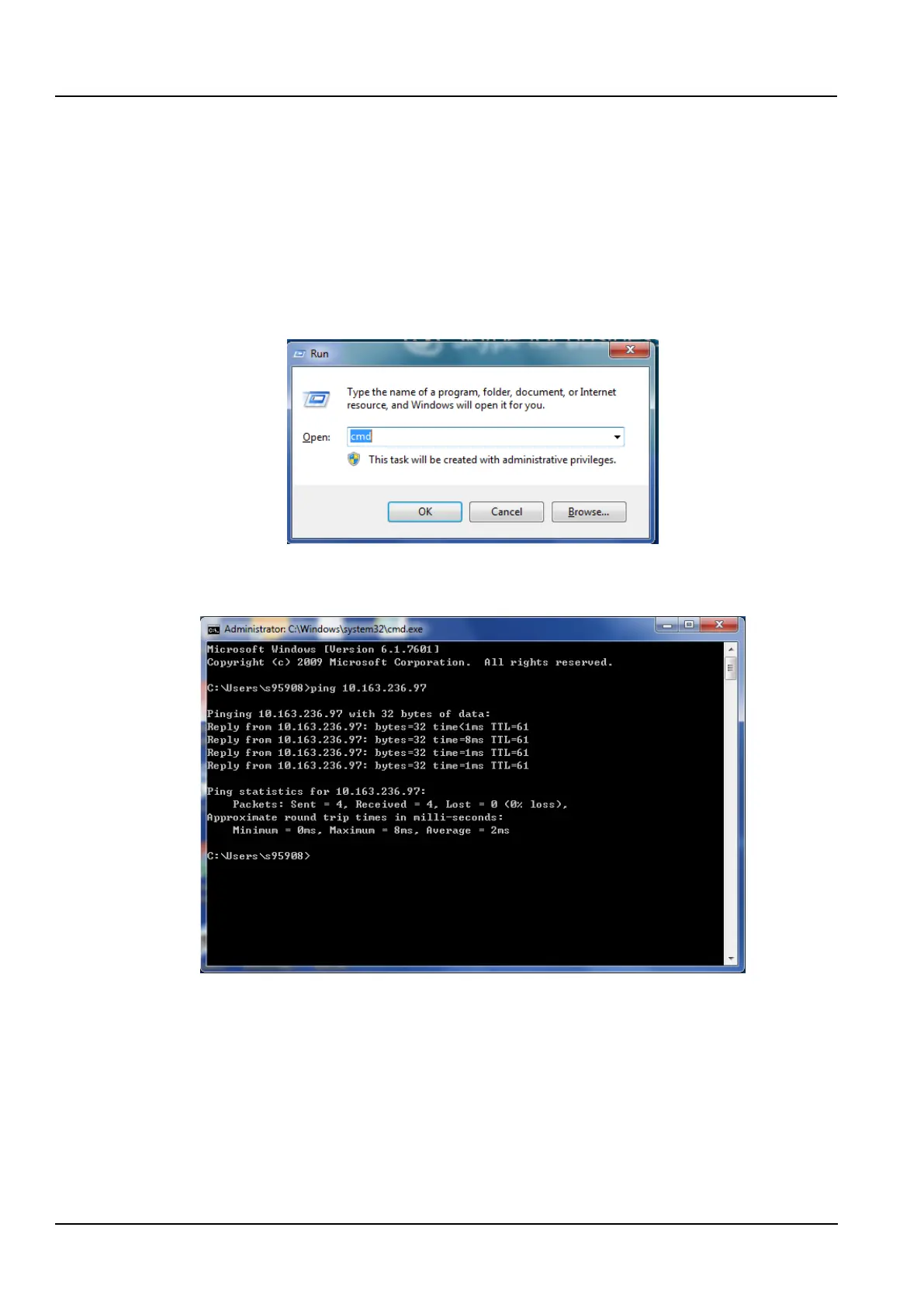
1) Press the “win” + “R” button at the same time to open the “Run” window and enter “cmd” as shown in the
Figure 3-23:
Figure 3-23 Run window
2) Press the Enter key and the page as shown in the Figure 3-24 will pop up. Enter "ping" and IP address on the
command line (for example, ping 10.163.236.95) to see if the communication is successful.
Figure 3-24 Detect network connectivity
2. Check the browser version
Recommended browser versions: IE11, Firefox, Chrome, Safari.
3. Check IE browser settings
1. Check IE general settings
Double-click the IE icon to run the software, click on the menu Tool → Internet Options, click on the Settings (S) in
the General Tab, and change “Check for newer version of stored pages” to “Every time I visit the page”, as
shown in the Figure 3-25:



 To Next Page