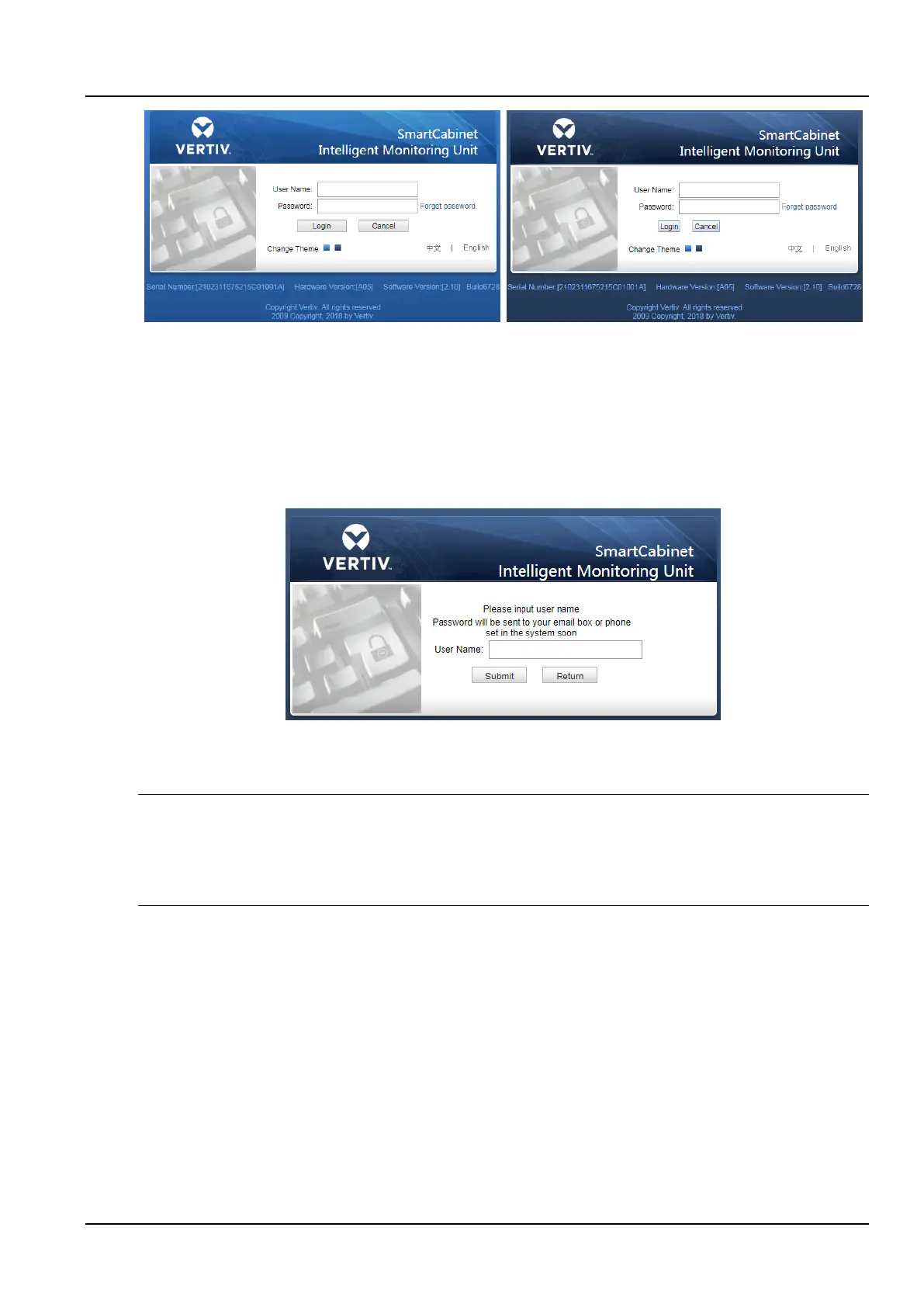
Crystal blue Ocean blue
Figure 3-33 Intelligent monitoring system login page
3) Enter the username and password (default username: admin, default password: Vertiv) to log in to the intelligent
monitoring unit and pop up the home page as shown in the Figure 3-35. If the user name and password are entered
correctly, the home page cannot be accessed. See 3.2.1 3. Checking IE Browser Settings to re-set the IE browser.
2. Forgot your password
1) If you forget the user password, you can click the Forgot Password button on the login page. The screen displays
the Retrieve Password page as shown in the Figure 3-34.
Figure 3-34 Retrieve Password page
2) Enter your username, click the Submit button, your password will be sent to your previously set mailbox or mobile
phone; Click the Return to Login button to cancel the operation.
Notices
You can only receive the passwords sent by the system if you have set the email or SMS parameters correctly in the SMS
Module and Email Server Configuration page. For details, see 3.2.4 c) Alarm Notification Configuration in Alarm
Management.
The retrieved password is a new password that is randomly produced by the system. Please modify it after you log in
successfully.
3.2.3 Monitoring Homepage
After logging in the MSC intelligent monitoring system successfully, the homepage is displayed by default, as shown
in the Figure 3-35.
1. Homepage
The home page effect is shown in the Figure 3-35:



 To Next Page