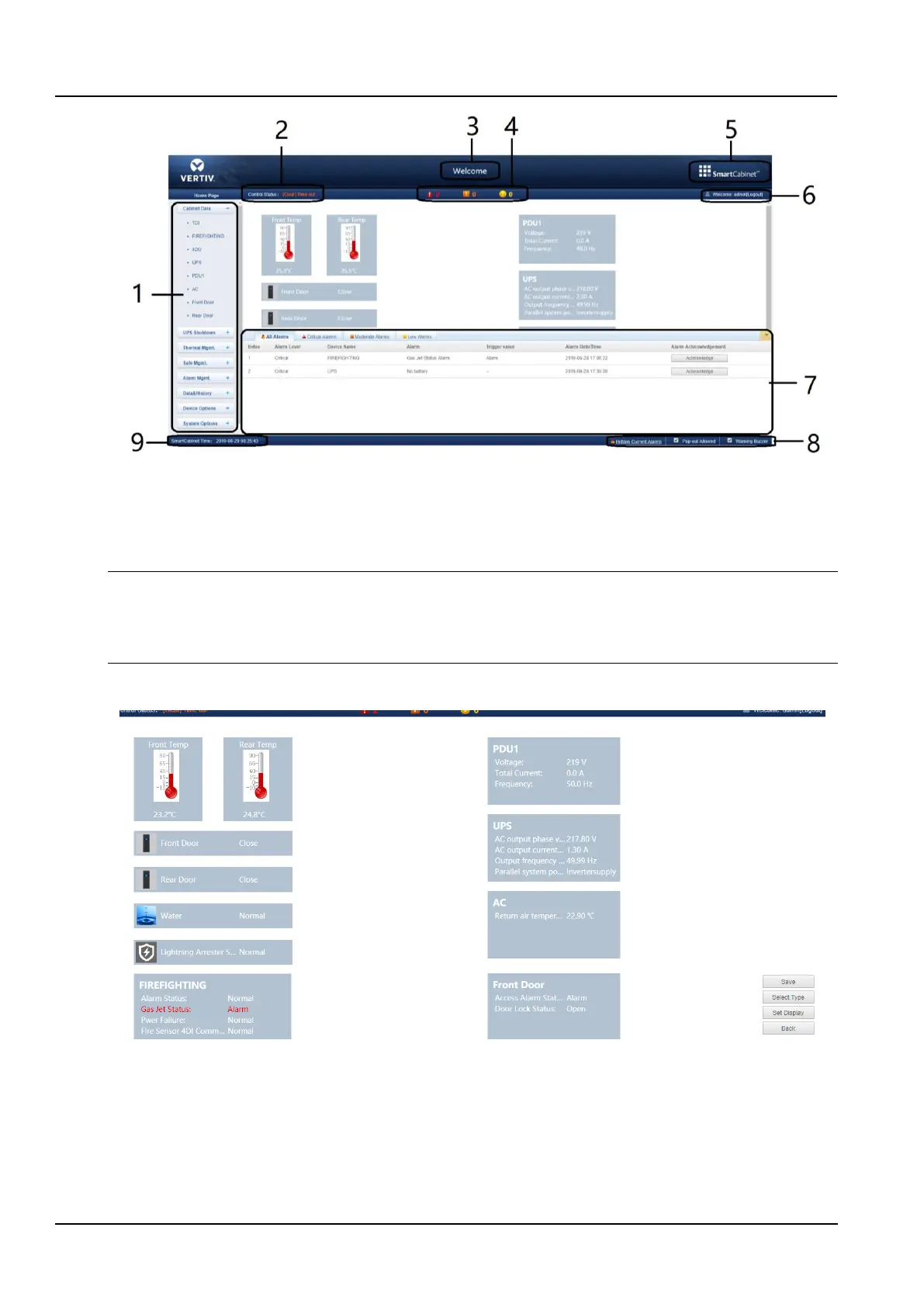
Figure 3-35 Intelligent Monitoring System Homepage
Notices
When the system is abnormally running, a corresponding fault alarm will be generated. The emergency ventilation system can
prevent the temperature inside the cabinet from rising continuously in a short time. If the high temperature fault alarm does not
cease for a long time, the user needs to open the front and rear doors of the cabinet on the site, and contact the service personnel
to check the fault.
Click the Setting button in the Figure 3-36 to enter the setup status of the home page, as shown in the Figure 3-36.
Figure 3-36 Set status
After the home page enters the setup state, the setup method is as follows:
1) Model setting
Click the Select Type button to pop up the page as shown in the Figure.3-37.
Click the Left(<) and Right(>) buttons to select the model image.
After selecting, click the Select Type button and then click “OK”, the homepage will display the background image.



 To Next Page