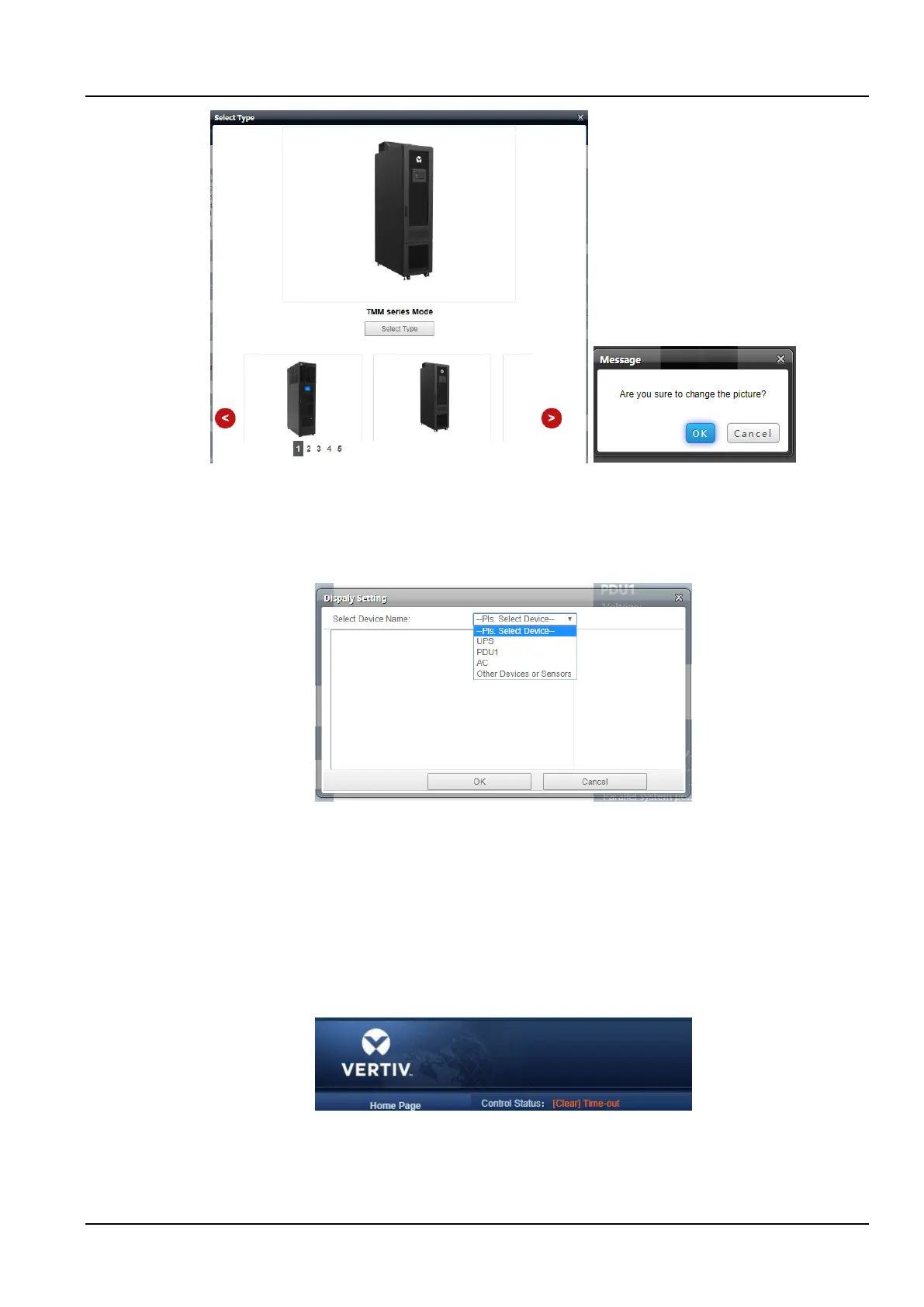
Figure 3-37 Set mode
2) Display setting
Click the Set Display button to pop up the page as shown in the Figure 3-38.
After selecting the device name, the signal of the device will be displayed in the box below, and the user can select
the device signal to be displayed as needed, but no more than four.
Figure 3-38 Display setting
3) Save the configuration
Click the OK button to save all the configurations and return to the browse state.
Time-calibration link
The SmartCabinet system time is displayed at the bottom left of the page. Click the SmartCabinet system time to
jump to the time calibration page. For details, see Time Calibration in section 3.2.4 8. System Settings.
2. Release the timeout
When the page has not been operated for more than 15 minutes, the page will become uncontrollable, as shown in
the Figure 3-39.
Figure 3-39 Time-out status
After clicking [Clear] timeout, the input box as shown in the Figure 3-40 appears. After the login password
verification is passed, the controllable state returns to normal after about 5 seconds.



 To Next Page