Figure 3-40 Input password
3. Logout
Click the Logout link in the upper right corner of the homepage, and the prompt box shown in the figure 3-41 will
appear. Click OK to exit safely.
Figure 3-41 Logout
4. Current alarm reminder settings
The current alarm display list shrinks to the bottom of the page by default. You can do the following with reference to
the Figure 3-35:
1) Click to view the active alarm and manually pop up the real-time alarm display list;
2) Select the Pop-out allowed check box to make the real-time alarm list pop up automatically when the alarm is
generated.
3) Select the Warning Buzzer check box to enable the system to play the alarm sound through the browser when
there is an alarm.
3.2.4 Menu items
In the intelligent monitoring unit home page, the menu items include Cabinet Data, UPS Shutdown, Thermal
Mgmt., Safe Mgmt., Alarm Mgmt., Data&History, Device Options, System Options, and Help.
1. Cabinet Data
Click on the Cabinet Data menu on the left, and the submenu will appear, and will be displayed by device. Clicking on
the specific device will display the related information of the device on the right side, including Overview, Sampling,
Control, Setting and Alarm Signal.
1) Overview
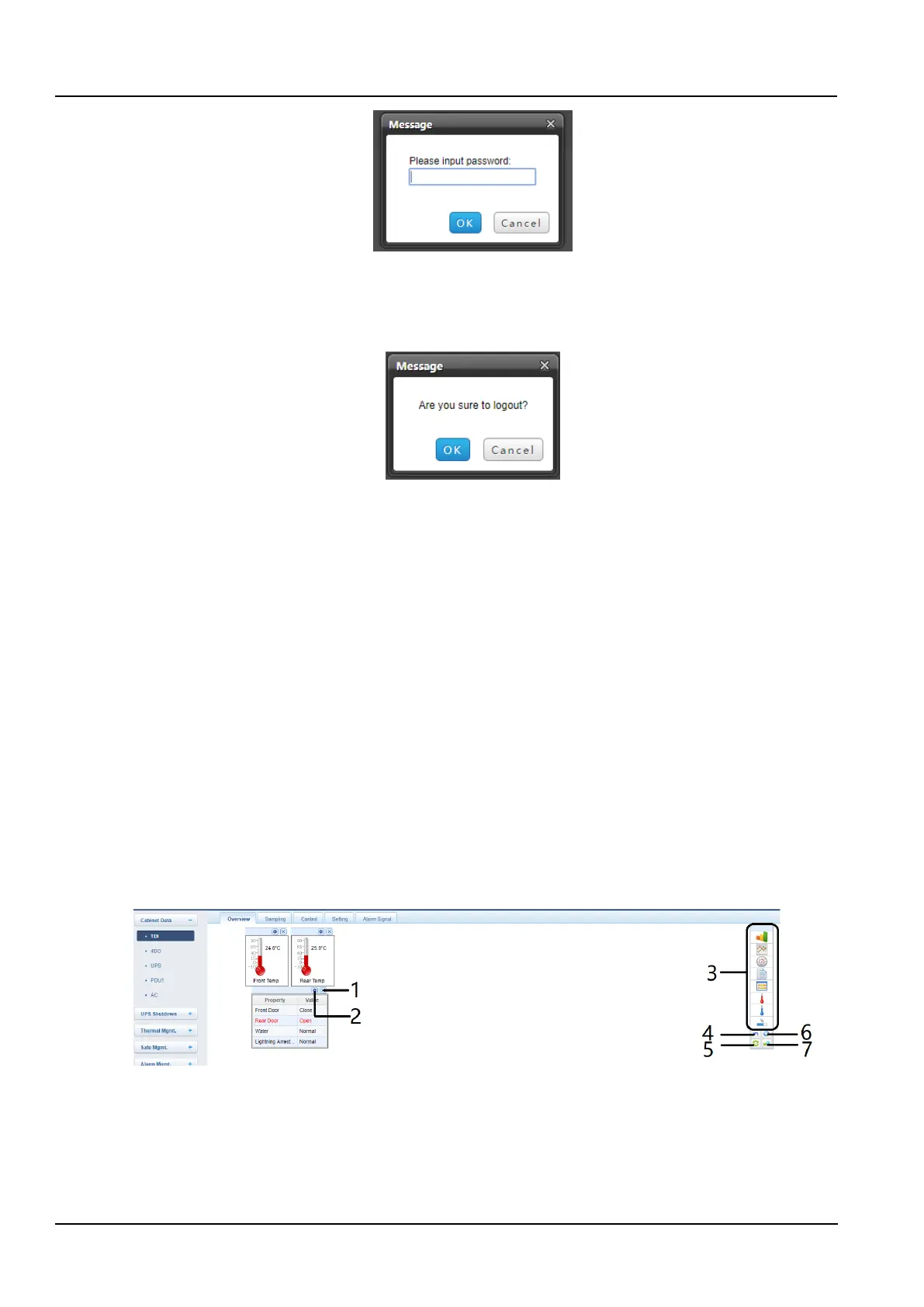
Select the Overview tab and click the Edit button to customize the overview page as shown in the Figure 3-42.



 To Next Page