June 11, 2015, 715004754 Rev. A
Page 84
up for a run. In addition to Detector Output mode, you must program the following
parameters before beginning a run:
•Sensitivity
• Time constant
• Detector oven temperature
• Column heater module temperature (if available or present)
Depending on other functions you can choose to perform during a run, there are
several other parameters you need to program. The table on page 81 contains the
function descriptions, fields, screen number, type of function, display units, allowable
ranges, and the default settings for the Home screen and the secondary function
screens.
5.4 Operating in 410 (remote) mode
The 2414 RI detector can be configured to operate in 410 (remote) mode when it is
under the active control of chromatography data software or system controller, such
as when it is connected to any of these systems:
• A data control system running Empower software, connected to the detector via
the Ethernet connector
• A data control system running Empower software connected to the detector via
the IEEE-488 bus (see “Connecting to a Waters data control system via the
IEEE-488 bus interface” on page 46)
• An Alliance separations module (see “Setting the IEEE-488 address” on
page 46)
• A standalone Alliance separations module (see “Connecting to a standalone
Alliance e2695 separations module” on page 48)
If you use chromatography data software, you will create instrument methods and
method sets to control the 2414 RI detector and other HPLC system components. See
the chromatography data software documentation for more information on
configuring the 2414 RI detector and operating in 410 (remote) mode.
Note: For details about the detector’s supported software and firmware
requirements, see the Waters 2414 Refractive Index Detector release notes.
5.5 Configuring the detector
5.5.1 Accessing the configuration screens
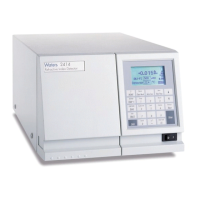
To access the Configuration screens, press the CONFIGURE key (Shift DIAG). The first
of three Configuration screens appears.


 To Next Page