2-27RAM Clear
16-1408348
2 Press the DIAGNOSTICS button to toggle between the available options and select Ram
Clear.
3 Turn the Attendant Key.
The RAM Clear initiates, and when complete, the game reboots.
Performing a RAM
Clear using the
DIAGNOSTIC Button
Complete the following steps to perform a RAM Clear using the DIAGNOSTIC Button.
1 Open the Main Door/Hatch.
2 If applicable, power the game OFF.
3 Open the CPU Logic Door.
4 Power the game ON.
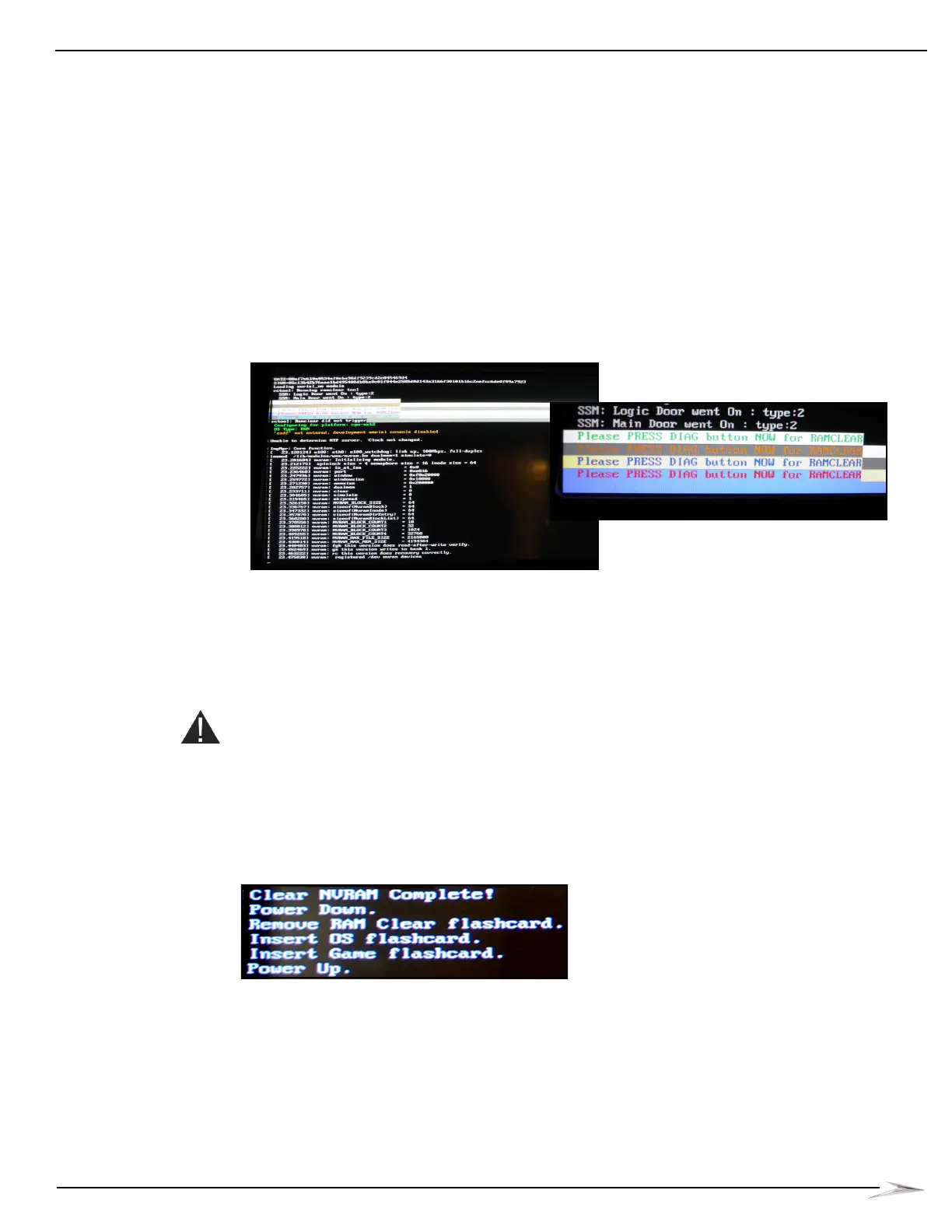
5 A message in the boot sequence displays a Please PRESS DIAG button NOW for RAMCLEAR
message, Figure 2-62.
Figure 2-62 RAM Clear during game boot up (left) and close-up (right).
6 Press the DIAGNOSTIC button.
The RAM Clear initiates, and when complete, the game boots and loads the game.
CompactFlash
CPU-NXT 3.2 RAM
Clear
Complete the following steps to perform a RAM Clear on CPU-NXT 3.2 using a CompactFlash
card (NCLR-000-xxxx):
1 Open the CPU-NXT 3.2 Enclosure Door to access the CompactFlash drive.
CAUTION: The game MUST be powered OFF before inserting or removing CompactFlash cards.
Inserting or removing a card with the power ON may cause permanent damage and data corruption.
2 Install the RAM Clear CompactFlash card into the OS CompactFlash slot.
3 Turn the game power to ON.
4 The game boots and progress messages display while the RAM Clear process initializes.
5 The game completes the RAM Clear and displays the message in Figure 2-63.
Figure 2-63 RAM Clear message (your screen may appear differently).
6 Power the game OFF.
7 Remove the RAM Clear CompactFlash card.
8 Install the game card into the game CompactFlash slot.
9 Install the Operating System (OS) card into the OS CompactFlash slot.
10 Close and lock the CPU Door.
11 Power game ON.
The game boots and loads the game.


 To Next Page