4-2 Managing Files File Management
4-8 PN: 10580-00252 Rev. K Site Master User Guide
8. Press the Scroll key to switch navigation control to the Dst (destination) pane.
Alternatively, you can directly press a folder in the bottom pane to select it.
9. If the destination folder is off the screen, use the rotary knob or the Up/Down arrow
keys to locate and select it.
10. Press the Copy key to copy the selected files or folders.
If a file by the same name already exists in the destination location, an error message is
displayed, prompting you to press Enter to overwrite, or Esc to skip the conflicting file.
Delete Files
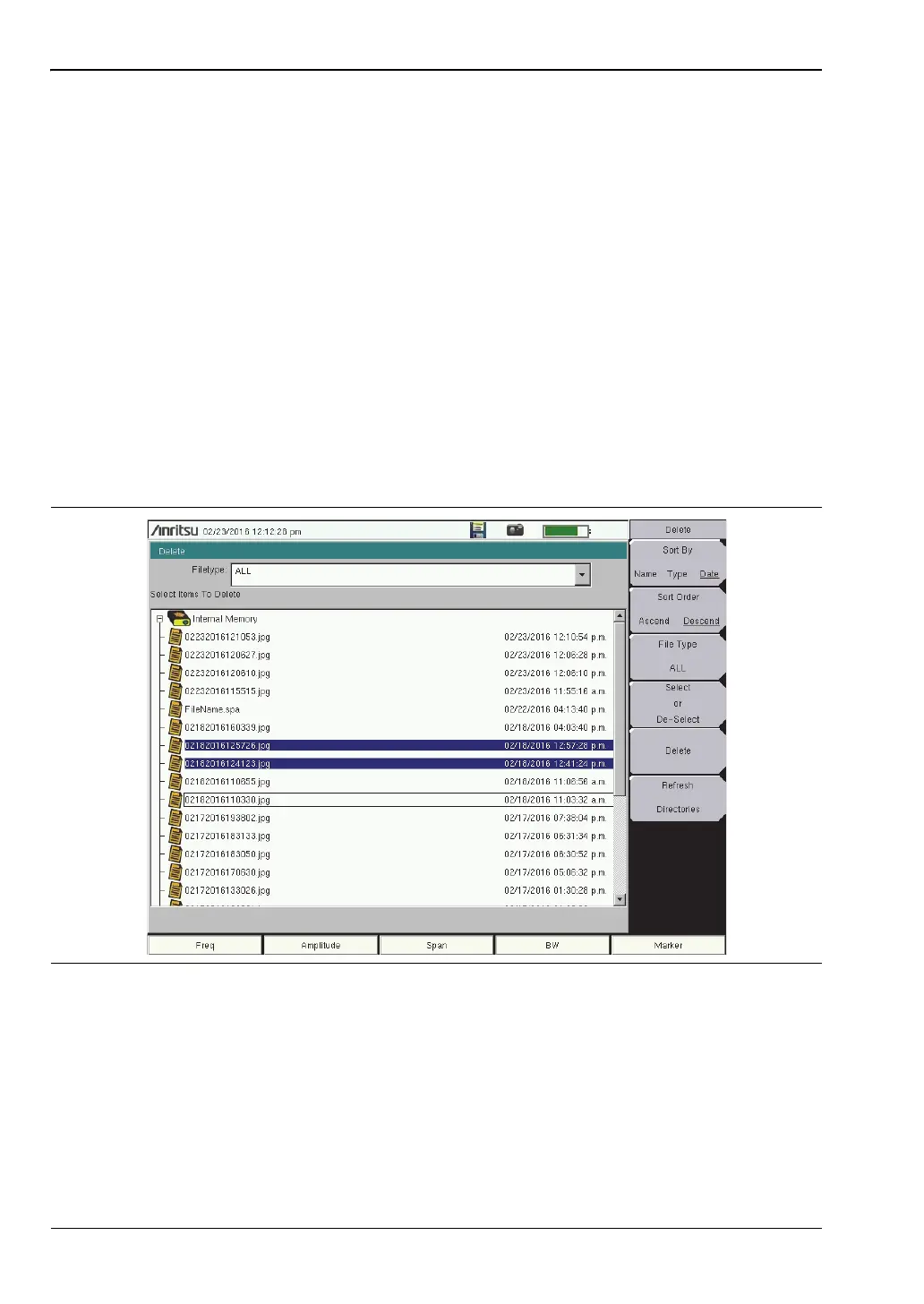
Press the Delete key under the File menu to open the Delete dialog box and menu, where you
can delete a single or multiple files or folders. Items to be deleted may be in the instrument’s
internal memory or an external USB drive, if connected. However, you cannot select files and
folders located in different drives simultaneously.
The files listed in the Delete dialog box depend on the chosen file type, which is selected using
either the Filetype drop down list or the File Type submenu key. You can also change the way
folders and files are sorted in the displayed list. Refer to “Delete Menu” on page 4-16.
Use the touch screen, rotary knob, or the Up/Down arrow keys to highlight the file or folder
you wish to delete. Then, press the Select or De-Select submenu key. The selected item is
highlighted in blue. Pressing the key again deselects the current item.
To delete multiple files or folders, scroll to the next item and press the Select or De-Select key.
Press the Delete key, then confirm or cancel the deletion in the confirmation box.
Figure 4-9. Delete Dialog Box









 To Next Page