4-2 Managing Files File Management
4-2 PN: 10580-00252 Rev. K Site Master User Guide
Save Files
The submenu keys that are available for file management may vary with instrument options
and measurement modes. Refer to “File Menu” on page 4-10.
Save Measurement As
The Save Measurement As submenu key provides a one-touch method of saving the current
measurement data. The name of the file that will be saved is displayed on the submenu key.
The numerical suffix increments by 1 following the Save. For example, if the last
measurement was saved with the file name ACPR, the Save Measurement As shows the
default file name for the next measurement to be saved as ACPR_1, then ACPR_2, and so on.
To save using a different file name than the default, press the Save Measurement key or the
Save key instead of Save Measurement As.
Save Measurement
To save the current measurement data, use the Save Measurement As submenu key described
above or, to apply a different file name or save location than the default, press the Save
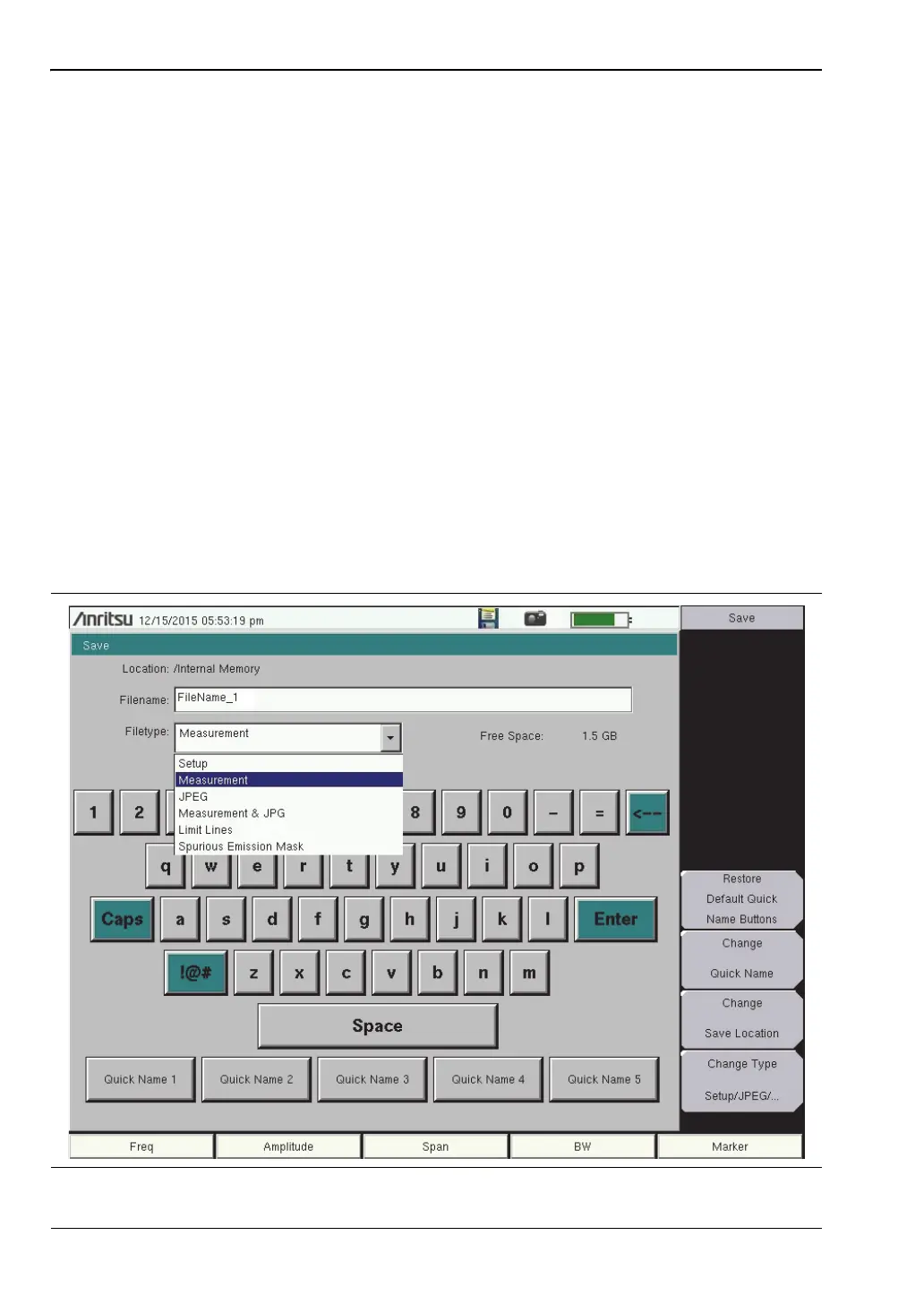
Measurement submenu key or the Save key. In the Save dialog, you can enter the file name
and select the type of data to save. See Figure 4-1 and refer to “Save Dialog Box” on page 4-3.
Save
The Save submenu key has the same function as Save Measurement. It opens the Save dialog
box and menu illustrated in Figure 4-1.
Figure 4-1. Save Dialog Box









 To Next Page