4-2 Managing Files File Management
4-6 PN: 10580-00252 Rev. K Site Master User Guide
Use the touch screen, the Up/Down arrow keys, or the rotary knob to select a folder from the
list. To expand a folder and view its subfolders, press Enter or the Right arrow key. Press
Enter again or the Left arrow key to collapse the folder. To create a new folder, press the
Create Folder submenu key.
After selecting the folder, press the Set Location key to store the save location. Refer to
“Save Location Menu” on page 4-12 for a description of the submenu keys.
Save On Event
This menu is not available in all modes of operation. The menu is used to automatically save
measurement data to the current save location after a selected event type. Refer to
“Save On... Menu” on page 4-13.
Recall Files
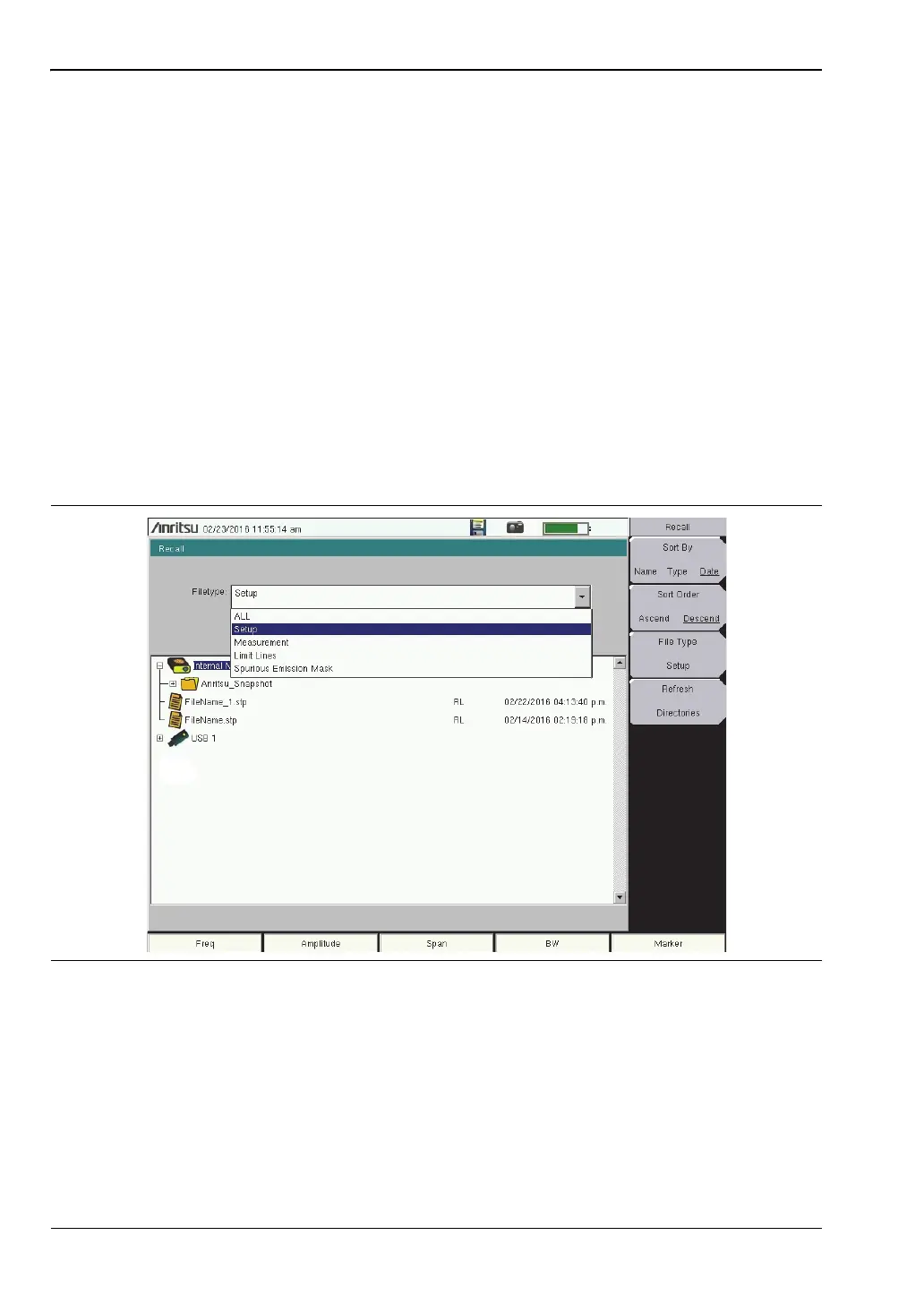
Press the Recall Measurement key or the Recall key under the File menu to recall a previously
saved file from internal memory or an external USB drive, if connected. The files listed in the
Recall dialog box depend on the file type selected. See Figure 4-7. JPEG image files cannot be
recalled.
The submenu keys let you change the file types and sort order of the displayed file list. Refer
to “Recall Menu” on page 4-14.
The Filetype drop down list has the same function as the File Type submenu key. Selectable
file types vary with the measurement mode. Use the touch screen, rotary knob, or the
Up/Down arrow keys to select the file you wish to recall, then press Enter.
From the Recall dialog box, you can create a shortcut to a setup file and place the shortcut
icon on the instrument’s Menu screen. Refer to “User-Created Shortcuts” on page 2-5.
Figure 4-7. Recall Dialog Box









 To Next Page