System Operations 5-3 System Menu
Site Master User Guide PN: 10580-00252 Rev. K 5-3
5-3 System Menu
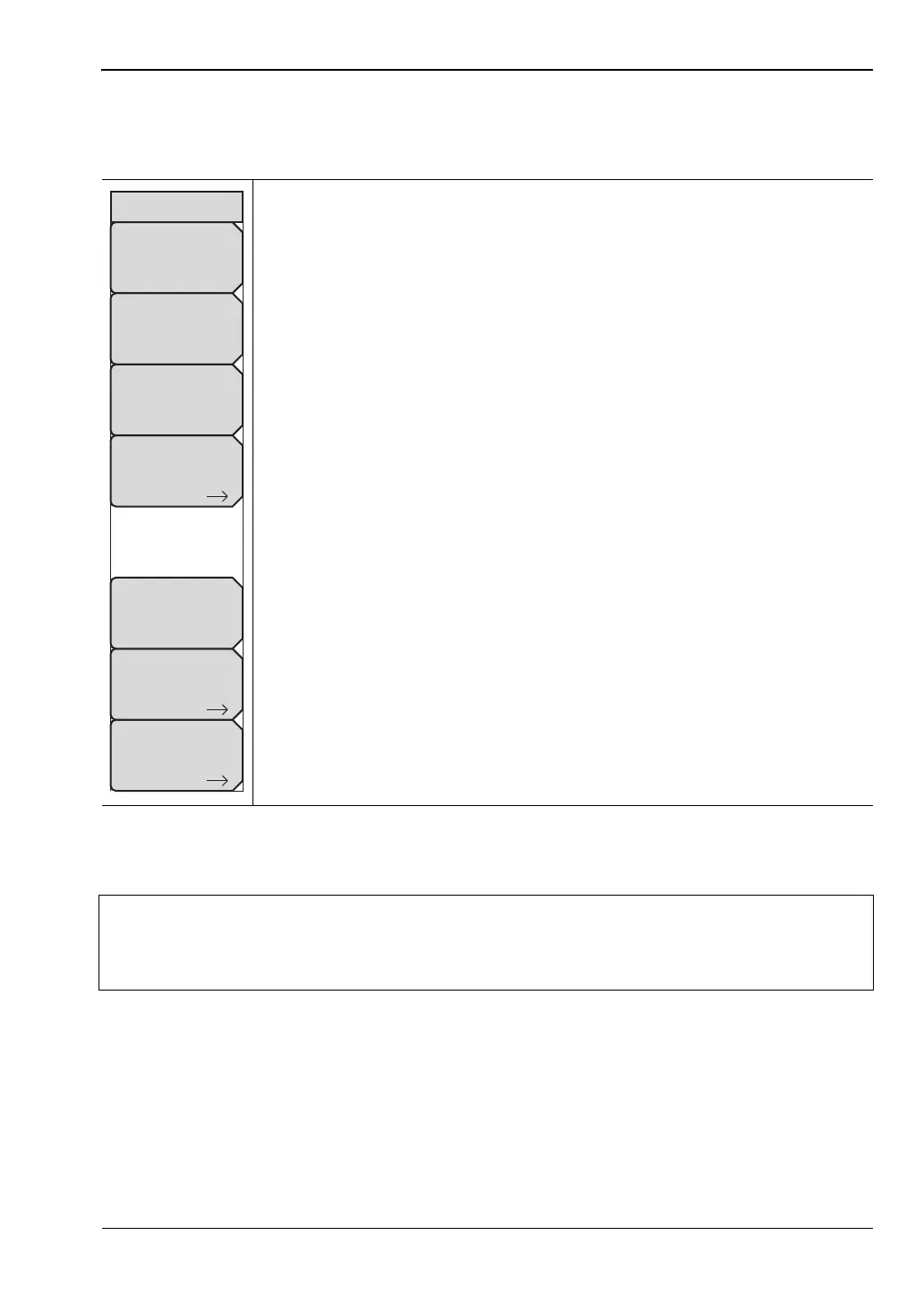
Key Sequence: Shift, System (8)
Status: Pressing this submenu key displays the current system status,
including the operating system and firmware versions, temperatures and
other details such as current battery information. Press Esc or Enter to
return to normal operation.
Self Test: This key initiates a series of diagnostic tests related to the
performance of the motherboard hardware. A display will list the individual
tests with a pass or fail indication. Press Esc or Enter to return to normal
operation.
If the self test fails when the battery is fully charged and the instrument is
within the specified operating temperature, contact your Anritsu Service
Center and report the test results.
Application Self Test: This key initiates a series of diagnostic tests related
to the performance of the instrument for specific applications. A display will
list the individual tests with a pass or fail indication. Press Esc or Enter to
return to normal operation.
GPS : Opens the “GPS Menu” on page 6-4.
Calibrate Touch Screen: If the instrument does not respond as expected
when you press the touch screen, press this key to display the touch screen
calibration message box. Refer to “Touch Screen Calibration” on page 2-11.
The front panel shortcut equivalent of this submenu key is Shift, 0 (zero).
Refer to “Calibrate Touch Screen Shortcut” on page 2-11.
Application Options: This submenu changes with the measurement mode.
Refer to the appropriate Measurement Guide, as listed in Appendix A.
System Options: This key opens the “System Options Menu” on page 5-4.
Figure 5-2. System Menu
Note
Calibrate Touch Screen Shortcut
Press Shift then 0 to open the Calibrate Touch Screen display. Press Enter to start
the calibration or Esc to cancel.
System
System
Options
Application
Options
GPS
Status
Self
Test
Application
Self
Test
Calibrate
Touch
Screen









 To Next Page