Web Remote Control 9-3 Web Remote Control Interface
Site Master User Guide PN: 10580-00252 Rev. K 9-7
Depending on the browser and operating system used, different prompts may appear. Some
operating systems like iOS may not support file saving from a browser.
File List
Displays the list of folders and files contained in the instrument's internal memory. You can
select from the list the files or folders you wish to download to your PC or mobile device. Refer
to “File List” on page 9-9.
Device Management
Opens “Device Management” on page 9-10, where you can set the instrument password and
assign a name to the instrument.
Logout
Exits Web Remote Control and displays the login page. To return to Web Remote Control,
enter the password or leave the field blank if no password has been set, then select the
session time and click Login. See Figure 9-2 on page 9-4.
Remote Control
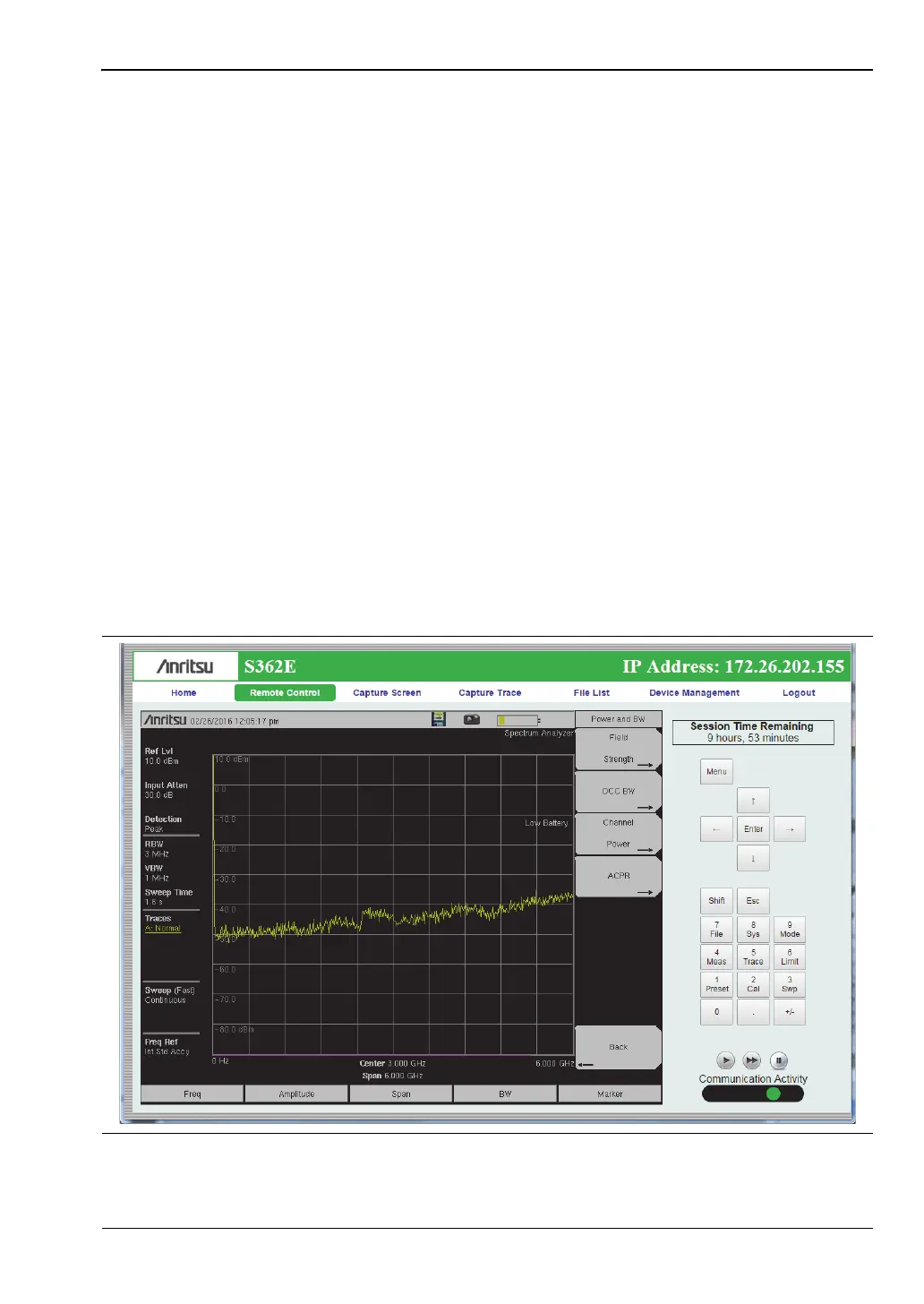
The Remote Control instrument display shows a bitmap image of the instrument screen. The
buttons on the right of the display reflect the layout of the buttons on the instrument and are
used to access the same monitoring and control functions. See Figure 9-6.
Figure 9-6. Remote Control Page









 To Next Page