User's Manual 132 Document #: LTRT-71405
MediaPack Series
Note: In Hitless mode, the user will be able to only upload a CMP file (no other
auxiliary files will be available for upload at this stage). When the Finish button is
clicked, a 3-stage process will begin. Each stage will be displayed to the user in the
Web interface. When the Hitless process ends, the Home page will automatically be
displayed.
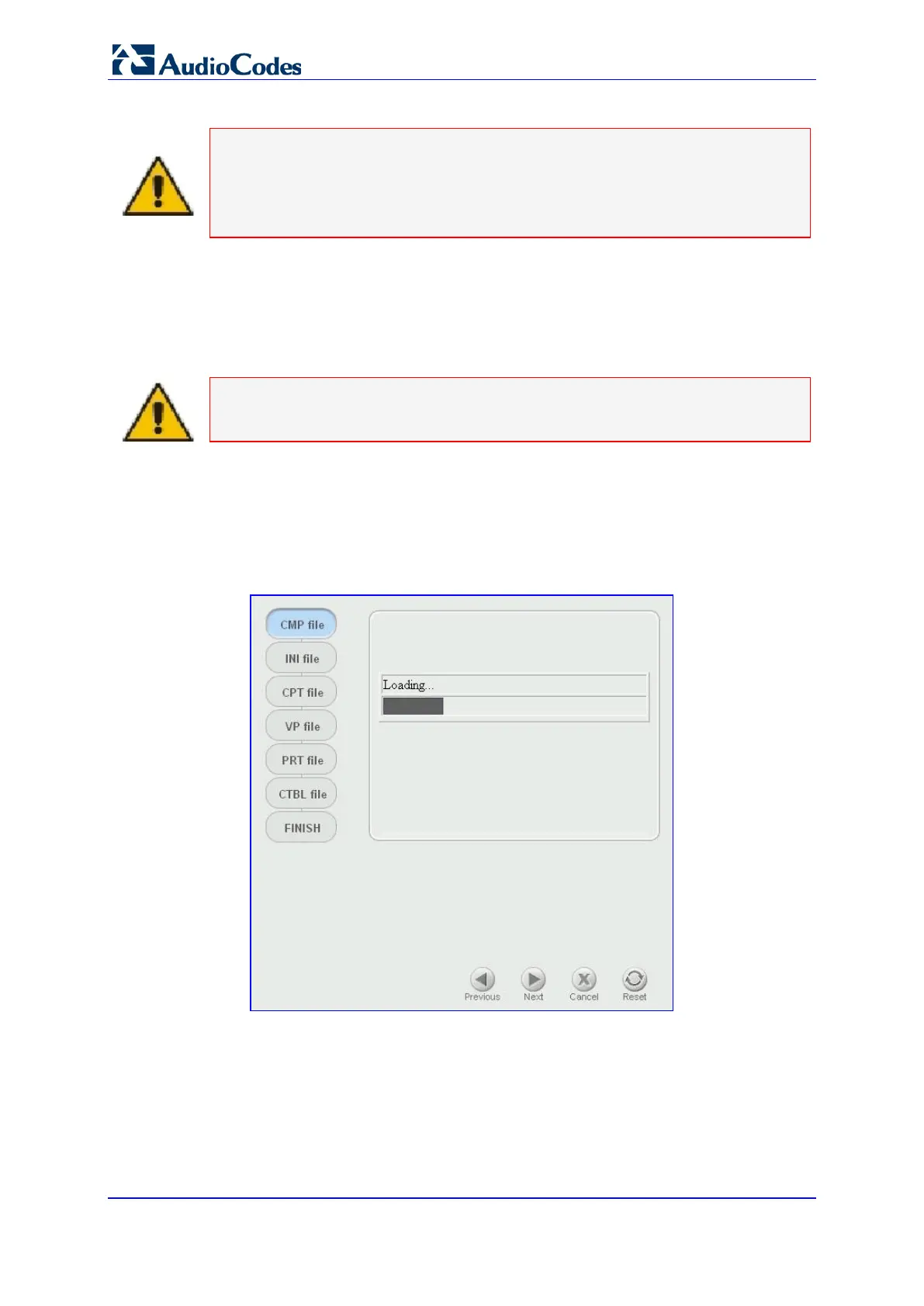
Note the file type list in the left side of the page. This list contains the relevant file types that
can be loaded via the wizard for this device type. The highlighted entry in the file type list
indicates which file type is being displayed in the main part of the page. As you continue
through the Software Upgrade process by clicking on the Next button, each of the relevant
file type pages are presented, going down the list until the Finish page appears.
Note: The Next button is disabled until you load a *.cmp file. After a *.cmp file is
selected, the wizard upgrade process continues and the Next button is enabled.
5. Click Browse and navigate to the location of the *.cmp file to be loaded. The path and
file name appears in the field.
6. Click Send File to send the file to the device. The File Loading page appears with a
progress bar indicating the loading period. When the loading is complete, a message
is displayed indicated the file was successfully loaded into the device.
Figure 90: File Loading Dialog Screen
All four buttons (Previous, Next, Cancel and Reset) in the bottom portion of the
page are activated.
7. You may choose between these options:
• Loading Additional Auxiliary Files
• Completing the Software Upgrade Process
• Cancel Upgrade Process and revert to the Previous Configuration Files



 To Next Page