User's Manual 6. Configuration Using the Web Interface
Version 6.6 133 MediaPack Series
8. Loading Additional Auxiliary Files
• To move to the next file type on the list to the left, click Next. The File Loading
page appears with the next relevant file type highlighted.
• For each file type the user has three options:
♦ Load a new auxiliary file to the device using the Browse and Send File
button as described above.
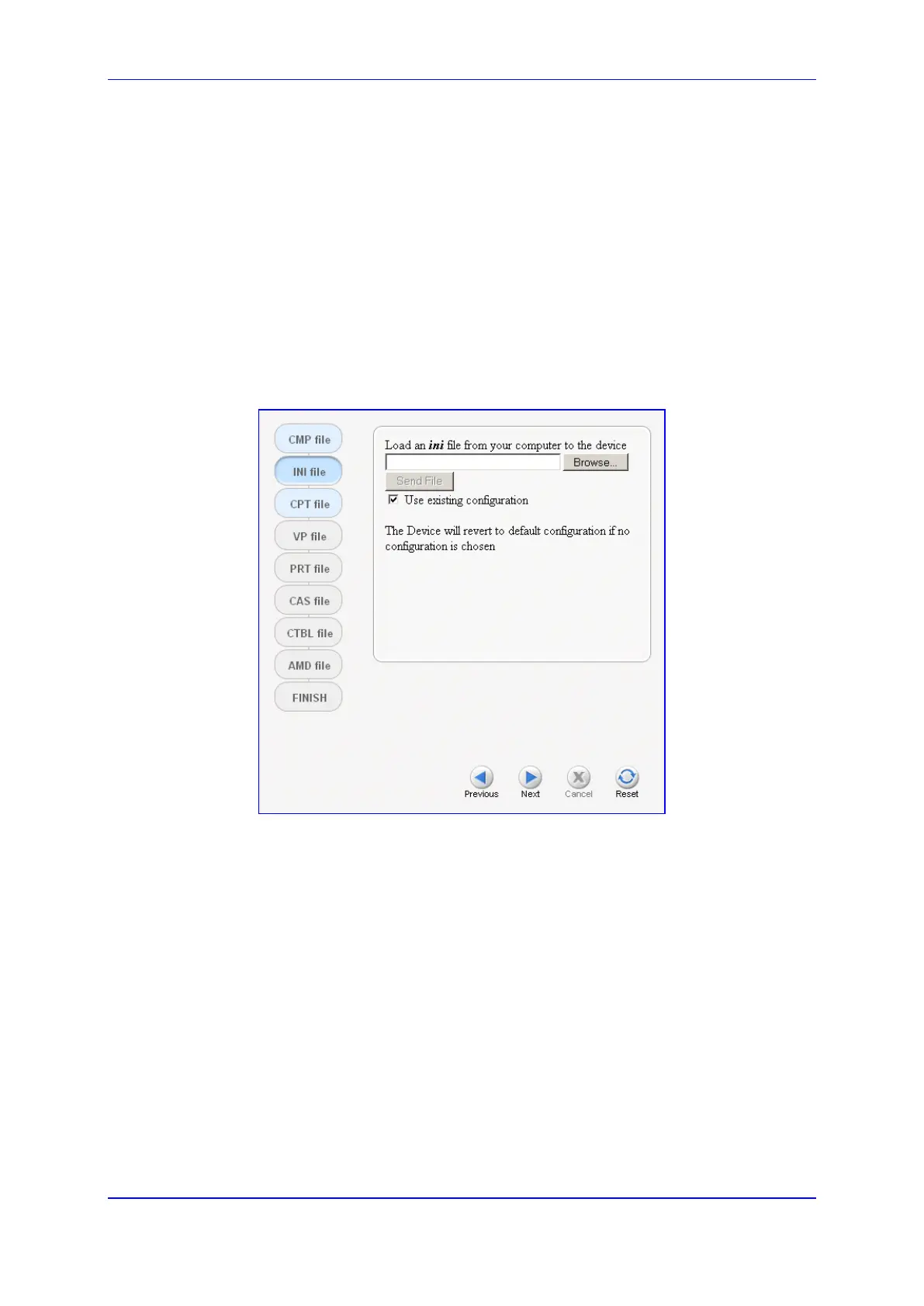
♦ Load the existing auxiliary file - A checkbox (checked by default as shown in
the figure below) appears if relevant to the device. If this checkbox is
checked, the existing file is used in the upgraded system.
♦ Avoid loading any file at all - Clear the checkbox (if the checkbox appears).
• Continue through each of the file type pages by clicking Next and selecting one of
the above options. As an example, the figure below displays the File Loading
page with the CPT file type selected.
Figure 91: File Loading Dialog - INI Type Displayed
9. Completing the Software Upgrade Process:
• From any of the file type pages, you can complete the Software Upgrade process
by clicking the Reset button. The device is reset utilizing the new files you have
loaded up to that point, as well as using the existing files according to the
checkbox status of each file type.



 To Next Page