User's Manual 6. Configuration Using the Web Interface
Version 6.6 137 MediaPack Series
2. Click Save ini File. You are prompted to select a location in which to save it.
Note: The ini file that you save from the device to the PC contains only those
parameters whose values you modified following receipt of the device. It does not
contain parameters unchanged at their (original) default value.
In addition, the ini file generated on the Web interface contains only the set of
parameters configurable on the Web interface. It is not possible to obtain a full
backup in case the configuration may have been modified using other methods (e.g.
uploading an ini file).
To load an ini file from the PC to the device:
1. Click Browse next to the Send INI File button and navigate to the location of the
predefined ini file. Refer to the figure below.
2. Click Send INI File. The file loading process is activated. When the loading is
complete, a verification message is displayed at the bottom of the page: File XXXX
was successfully loaded into the device.
3. From the Toolbar, select Device Actions and click Reset. The Reset page appears.
4. Select the Burn option and click Reset. Wait for the device to reset. After self-testing,
the Ready and LAN LEDs on the device’s front panel are lit green. Any malfunction
causes the Ready LED to change to red.
Users can restore default parameters by clicking the Restore All Defaults button.
6.6.2.2.1 Downloading ini file with SS7 Configuration
To download ini file (after blade startup) with SS7 configuration:
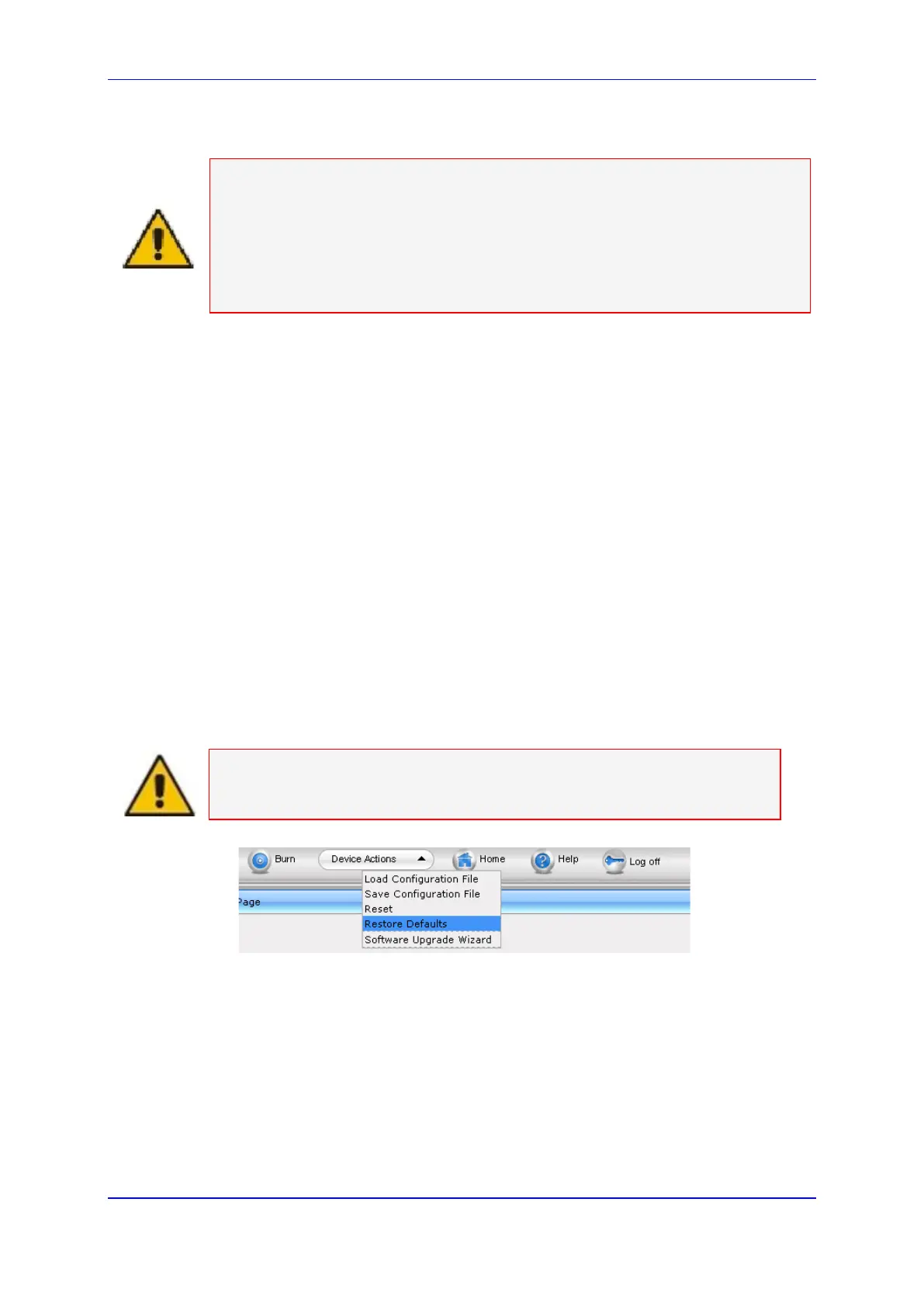
1. Click on the Device Actions drop-down menu on the Toolbar and select the Restore
Defaults option.
Note: The Restore Defaults option MUST be selected in order to successfully
complete this process.
2. The Configuration File page appears. Click on the Restore All Defaults button.
3. Click on the Browse button and navigate to the appropriate folder in order to select
the ini file.



 To Next Page