R5906167 /00 ImagePRO–4K Video Processor
22
4.1 Front panel
About the front panel
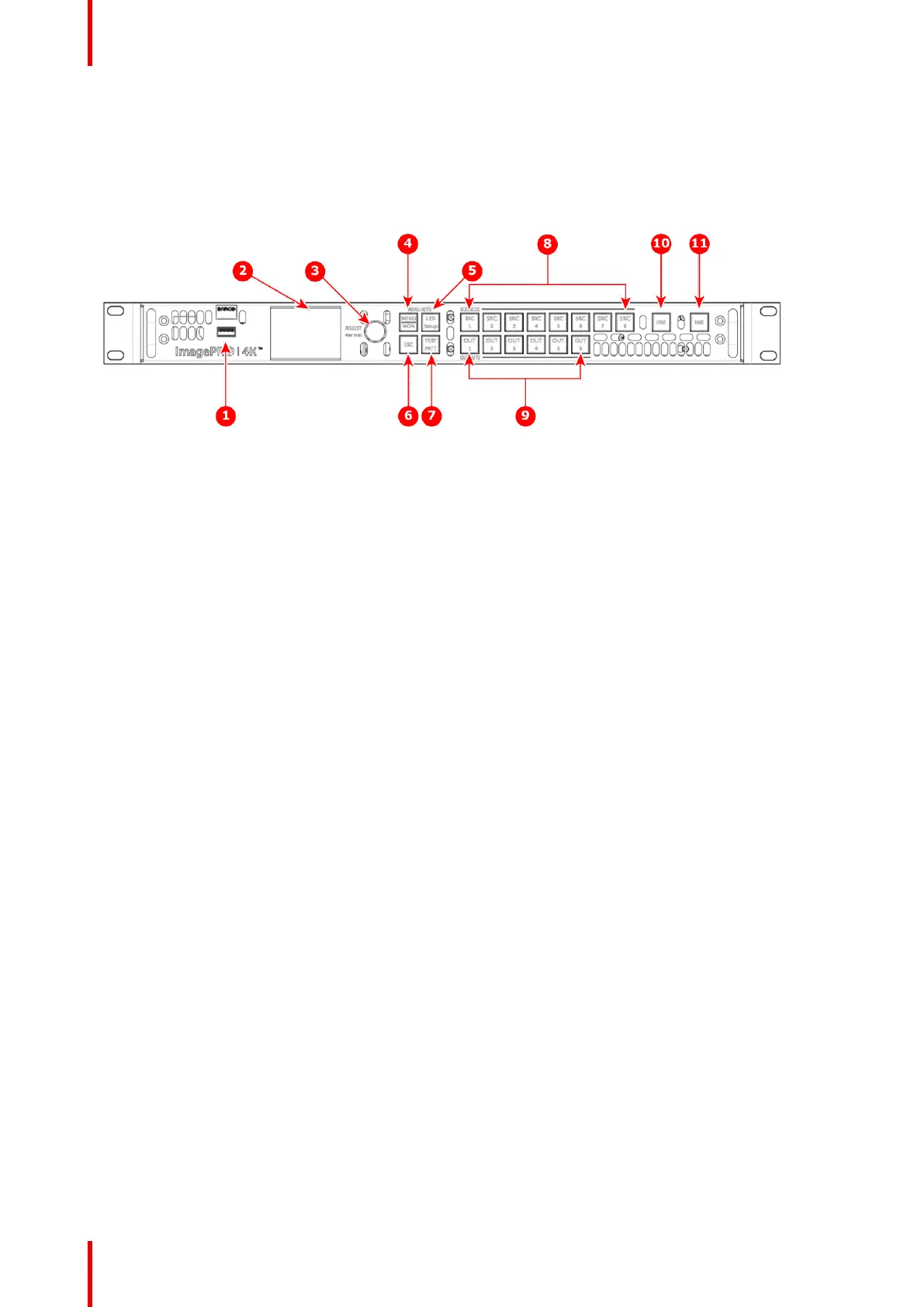
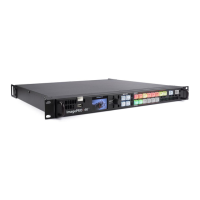
See Image 4-1 for an illustration of the ImagePRO–4K front panel.
Image 4-1: Front panel
1. USB port
2. Display screen
3. Adjust knob
4. Menu/Monitor mode toggle button
5. LED setup button
6. Escape button
7. Test pattern button
8. Source buttons: SRC 1 through SRC 8
9. Output buttons: OUT 1 through OUT 6
10. Freeze button
11. Take button
Following are descriptions of each front panel control feature:
1. USB port
The USB port supports uploading and downloading system configurations and upgrading ImagePRO–4K
firmware.
2. Display screen
The LCD color video display shows all ImagePRO-4K menus, sub-menus, and messages. The display can
be toggled between Menu mode and Monitor mode.
3. Adjust knob
• Turn the Adjust knob to scroll up or down through the menus.
- Turn the knob clockwise to scroll down.
- Turn the knob counter-clockwise to scroll up.
• Press the Adjust knob to select menu items.
4. Menu/Monitor mode toggle button
The Menu/Monitor mode toggle button toggles the display between Menu mode and Monitor mode.
5. LED setup button
The LED setup button accesses the Setup Menu.
6. ESC (Escape) button
Press the ESC button to exit a menu without making changes, to cancel an operation, to answer No to
menu queries, or to return to the Status Menu. Each press takes you back up the menu tree one level.
7. Test pattern button
The Test pattern button sets up a test pattern on the selected output.
8. Source buttons: SRC 1 through SRC 8
Source buttons 1 through 6 default to the input sources on the Tri-Combo input card; SRC 7 defaults to
“Matte”; and SRC 8 defaults to “Logo.” All of the source buttons can be re-mapped, and they can be
mapped as Presets.
9. Output buttons: OUT 1 through OUT 6
Output buttons 1 through 6 default to the outputs on the Tri-Combo output card. OUT 1 is mapped as Aux
Channel A, OUT 2 as Aux Channel B. OUT 3 – 6 are not mapped.
10.FRZ (Freeze) button
FRZ (FREEZE) enables you to freeze a displayed image.
11. Take button
The Take button executes transitions in Preview mode.
Hardware Orientation


 To Next Page