R5906167 /00 ImagePRO–4K Video Processor
112
B.1 Upgrading firmware using the USB port
Necessary tools
USB drive (Not supplied by Barco) formatted in FAT32.
How to upgrade firmware
1. Ensure that your flash drive is formatted to use the FAT32 file system. If necessary, reformat the drive as
described in the following section “Formatting the flash drive”.
2. Prepare the flash drive with the upgrade file as described below in the section “Preparing the flash drive with
the upgrade file”
Note: Upgrading software with the USB port requires the “em_update_vp.xx.xx.tar.gz” file to be within
a directory named EM.
3. When the drive is ready, refer to the chapter “Performing the firmware upgrade using the USB” describe below
for the upgrade procedure.
CAUTION: Reformatting the flash drive erases existing data. To avoid losing data, download to a
computer or a secure site any files you wish to keep, then format the drive.
How to format the flash drive
1. Insert the flash drive into a Windows PC or laptop’s USB port.
2. Select a Windows Explorer or a panel allowing an overview on the disk drives and the hardware connected to
your computer (e.g. Start > Computer on Windows 7 or Start > My Computer on Windows XP).
3. On this view, right-click the drive that represents the flash drive.
4. Select Format from the menu that appears.
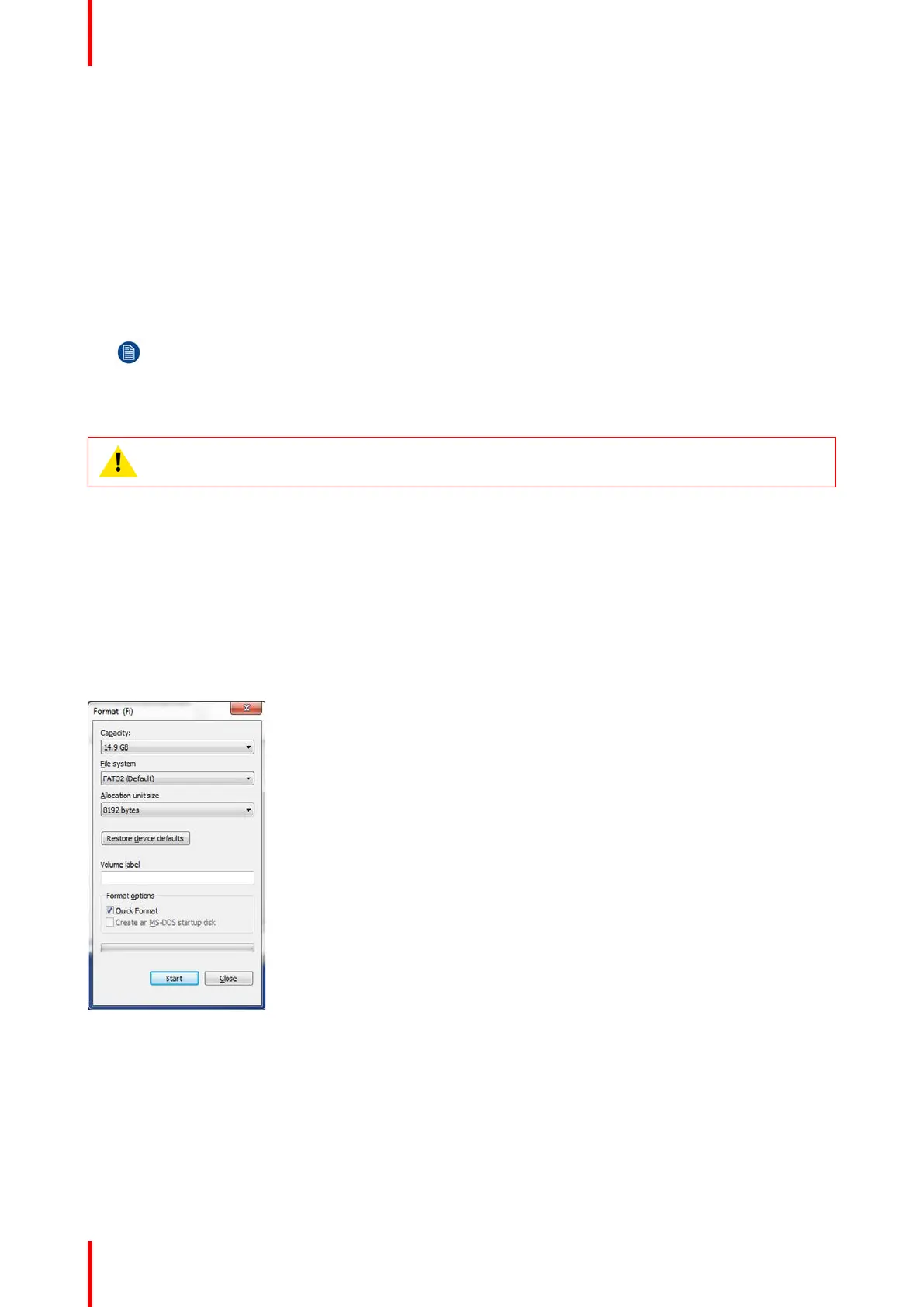
The Format Disk screen appears.
Image B-1: Format Disk screen
5. Select FAT32 as the file system, and Quick Format under Format Options, as shown above in the Format
Disk screen illustration.
6. Click Start.
A message appears, warning that data will be erased during the formatting process.
7. Click OK to continue.
A confirmation message appears after a few seconds. The flash drive is now ready to use
Upgrading firmware


 To Next Page