R5906167 /00 ImagePRO–4K Video Processor
78
Once Display Brightness is selected, the highlight bar turns from gray to cyan.
2. Scroll through the display-brightness settings, from 0 to 6, and select the desired brightness.
The default brightness setting is 3.
Button Brightness
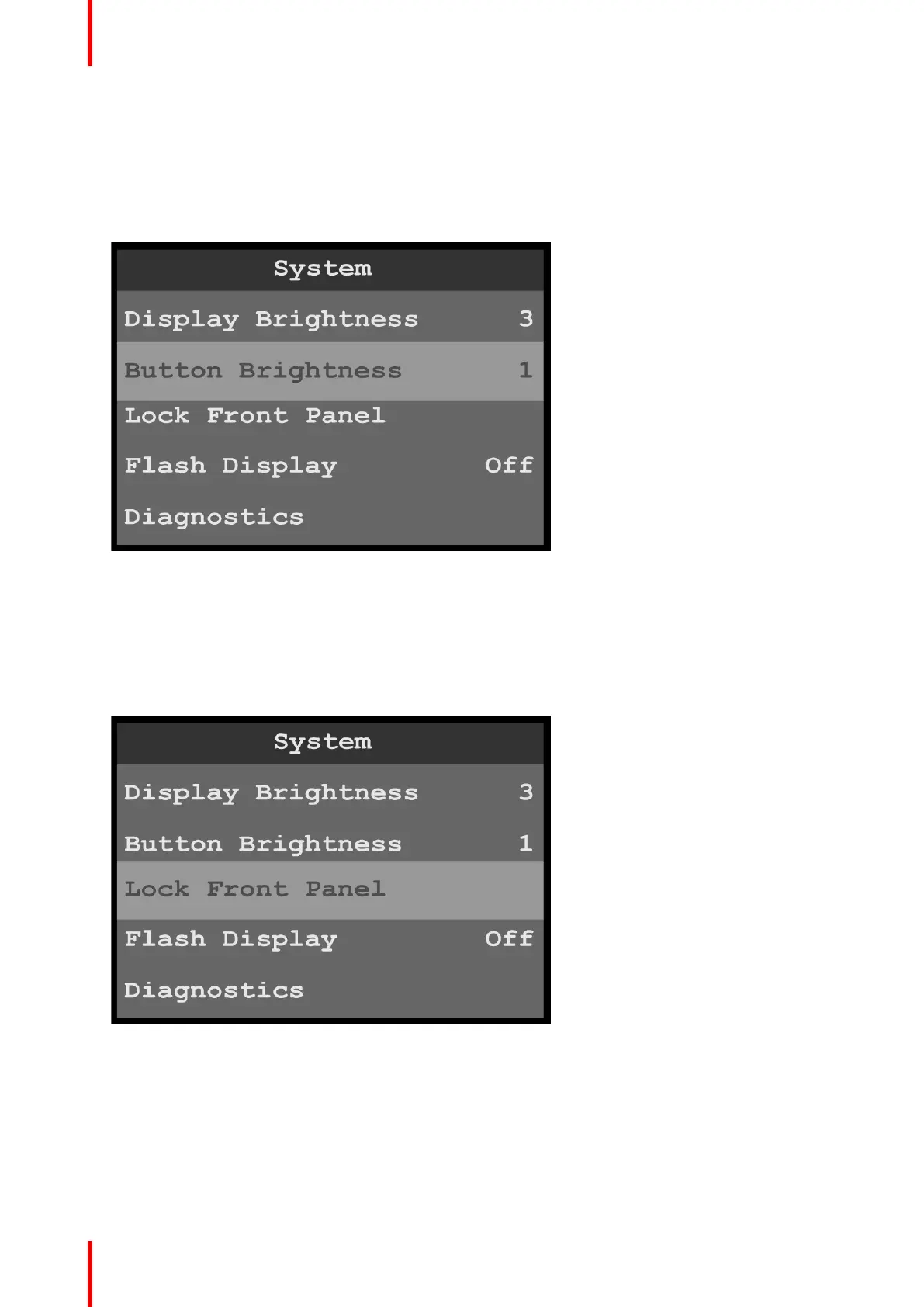
1. Select Button Brightness on the System menu to adjust the brightness of the front-panel buttons.
Image 6-81: System menu: Button Brightness
Once Button Brightness is selected, the highlight bar turns from gray to cyan.
2. Scroll through the button-brightness settings, from 0 (off) to 6.
The default brightness setting is 1.
Lock Front Panel
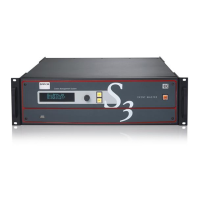
1. Select Lock Front Panel on the System menu to lock the front-panel buttons.
Image 6-82: System menu: Lock Front Panel
Once Lock Front Panel is selected, the system displays the following message, “Front Panel Locked Press
and hold ‘Menu/Mon’ and ‘ESC’ buttons to unlock.”
Menu orientation


 To Next Page