R5906167 /00 ImagePRO–4K Video Processor
50
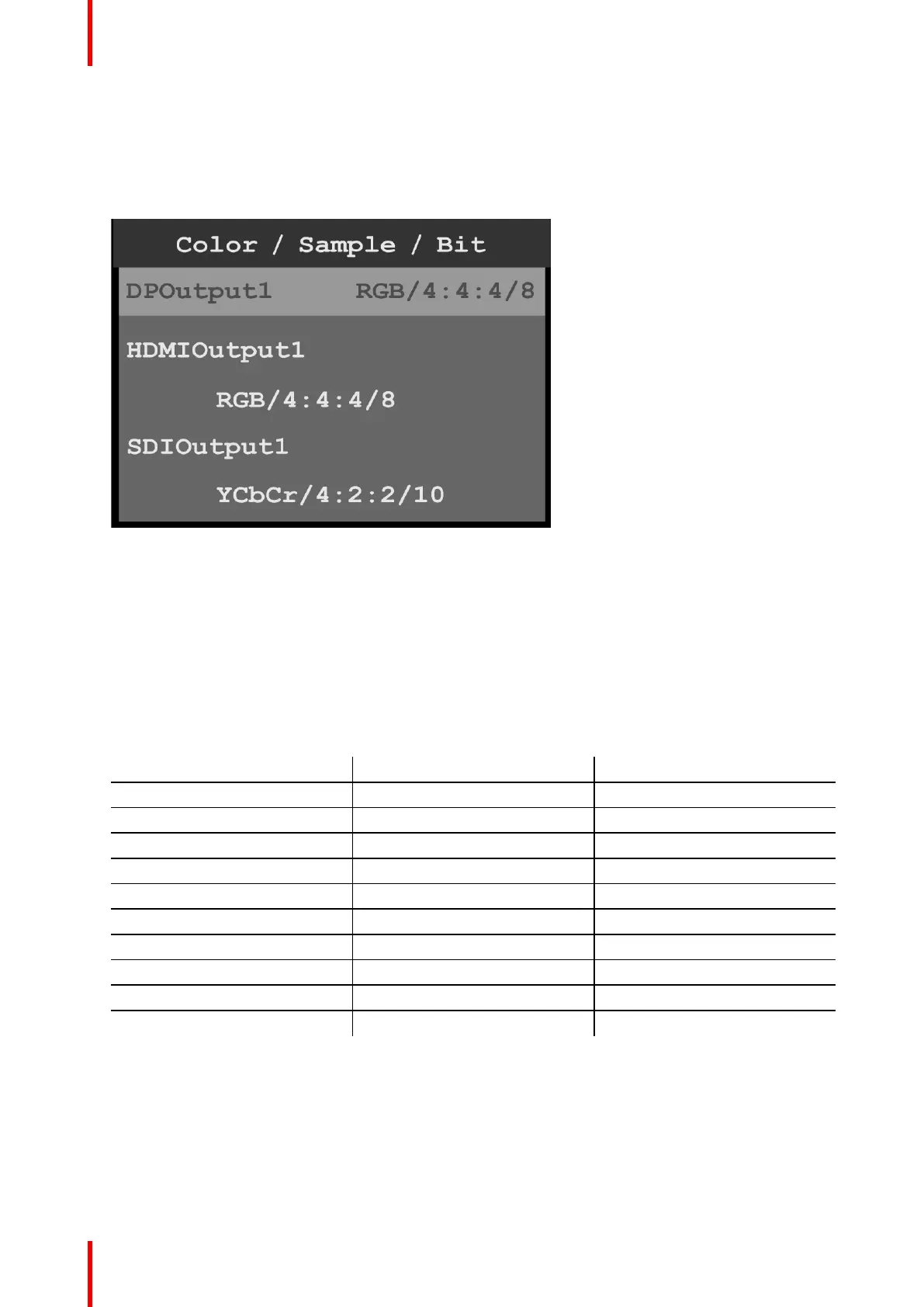
Color/Sample/Bit
1. Scroll to and select Color / Sample / Bit to view and adjust the color space (RGB or YCbCr), sampling rate
(4:4:4), and bit depth (8, 10, or 12) of the output (Aux) signal.
The Color / Sample / Bit menu allows users to view and adjust the color space, sampling rate, and bit depth
of the output (Aux) signal.
Image 6-24: Output (Aux): Color / Sample / Bit
The Color / Sample / Bit menu displays the current color space, sampling rate, and bit depth settings of the
output (Aux) signal.
2. Scroll to and select DPOutput1.
Once the output is selected, the highlight bar turns from gray to cyan.
3. Turn the adjust knob to scroll through the possible color space, sampling rate, and bit depth settings for the
selected output.
4. Press the adjust knob to select the desired color space, sampling rate, and bit depth settings for the
selected output.
5. Repeat steps 2 through 4 for any desired output.
Color/Sample/Bit choices for DP, HDMI, and SDI are:
DP HDMI SDI
RGB/4:4:4/8 RGB/4:4:4/8 –
RGB/4:4:4/10 RGB/4:4:4/10 –
RGB/4:4:4/12 RGB/4:4:4/12 –
YCbCr/4:4:4/8 YCbCr/4:4:4/8 –
YCbCr/4:4:4/10 YCbCr/4:4:4/10 –
YCbCr/4:4:4/12 YCbCr/4:4:4/12 –
– YCbCr/4:2:2/12 –
– – YCbCr/4:2:2/10
– YCbCr/4:2:0/8 –
– YCbCr/4:2:0/10 –
Output Mapping
1. Scroll to and select Output Mapping to view and adjust the output channel (A or B) for any output.
2. Scroll to and select an output, for example HDMIOutput1.
Once the output is selected, the highlight bar turns from gray to cyan.
Menu orientation


 To Next Page