R5906167 /00 ImagePRO–4K Video Processor
113
Upgrading software with the USB port requires the “em_update_vp.xx.xx.tar.gz” file to be within a
directory named EM.
How to prepare the flash drive with the upgrade file
1. Download the software upgrade for free from Barco’s website (URL: http://www.barco.com). Click on
myBarco and login to get access to secured information. Registration is necessary.
Note: If you are not yet registered, click on New to myBarco and follow the instructions. With the
created login and password, it is possible to login where you can download the Event Master series
processor software. It is not necessary to install any other software.
2. Unzip directly the software upgrade downloaded from the Barco website to the USB drive. This operation
automatically creates a directory named EM with the upgrade file inside (em_update_vp.xx.xx.tar.gz).
How to perform the firmware upgrade using the USB
1. Insert the flash drive into the unit’s USB port.
2. Press the Adjust knob to enter the Setup menu.
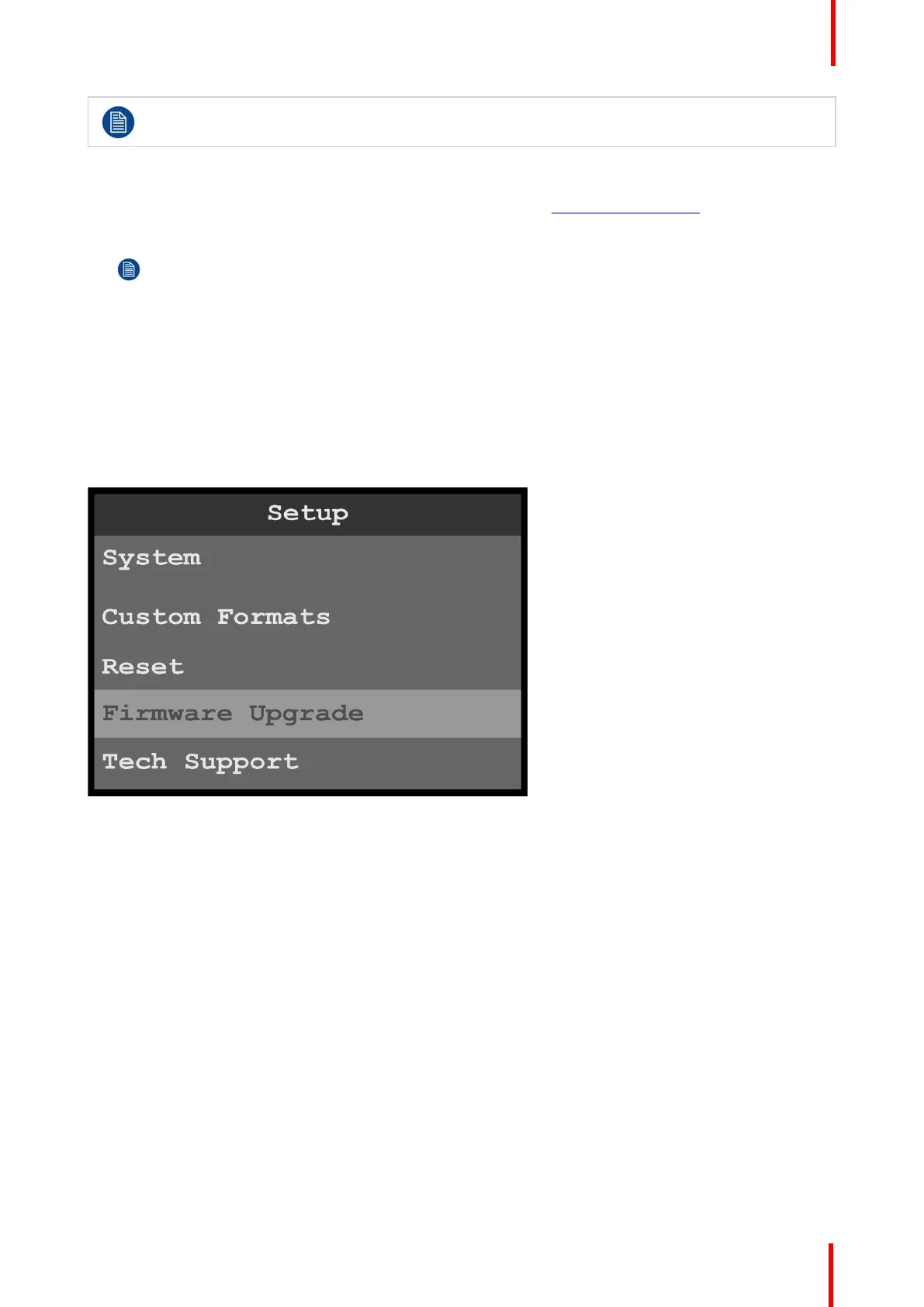
3. Select Firmware Upgrade in the Setup Menu.
Image B-2: Setup menu: Firmware Upgrade
The Firmware Upgrade submenu appears.
4. Select USB Upgrade.
Upgrading firmware


 To Next Page