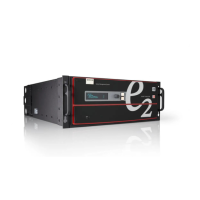
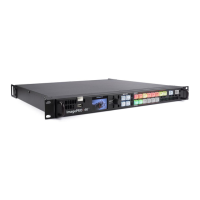
R5906167 /00 ImagePRO–4K Video Processor
40
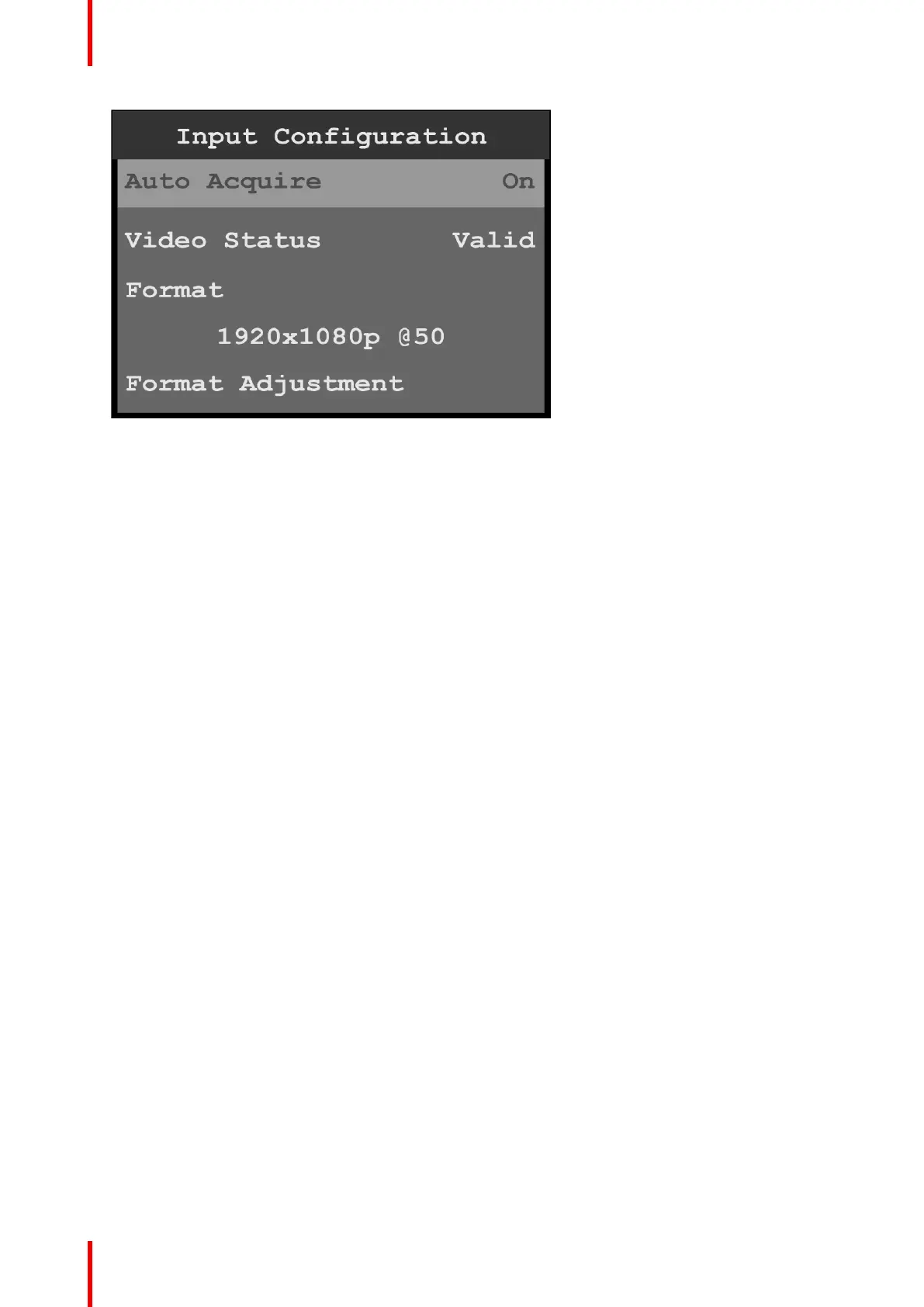
Image 6-10: Input configuration
The Input Configuration screen displays the current system settings for Auto Acquire, Video Status, and
Format; and allows users to adjust the Format, EDID, and HDCP settings. Save Input allows users to save
the selected input settings.
2. Scroll to and select Auto Acquire.
• If Auto Acquire is On, the system detects and acquires the input type and resolution. Default is On.
• If Auto Acquire is Off, the input type and resolution must be selected.
3. If necessary, scroll to and select Format to adjust the resolution and refresh rate.
4. Scroll to and select Format Adjustment to view or adjust the Color Space, Color Range, Bit Depth, and
Detailed Timing.
The options for these adjustments are:
Color Space • RGB
• SMPTE
Color Range • Full Range
• Reduced Range
Bit Depth • 8, 10, or 12
Detailed Timing • H Total: Total pixel count per line
• H Front Porch: The offset between the end of the active area and the
beginning of H sync
• H Active: The horizontal size in pixels of the active area
• H Sync: H sync width in pixels
• V Total: Total line count per frame
• V Front Porch: The offset in lines between the end of the output active area
and the beginning of V sync
• V Active: The vertical size of the output active area
• V Sync: V sync width in lines
• V Rate: Vertical frame rate in frames per second
These are status and informational menus. No adjustments can be made on the
Detailed Timing screen.
Menu orientation


 To Next Page