7 Main Menu Device Setup LB 470 Level
56925BA2 Rev. 03, 11/2017
Remote Control Software
If the EVU is connected to a network at the RJ45 socket (Fig. 3, item 2), the EVU
can be operated via a computer. The software can be loaded onto a USB storage
device (see Chapter “CE Remote Control”).
In order for the Remote Control to function, the selection check mark in the
menu "CE Remote Control" must be set to "Active" (Fig. 53, item 1).
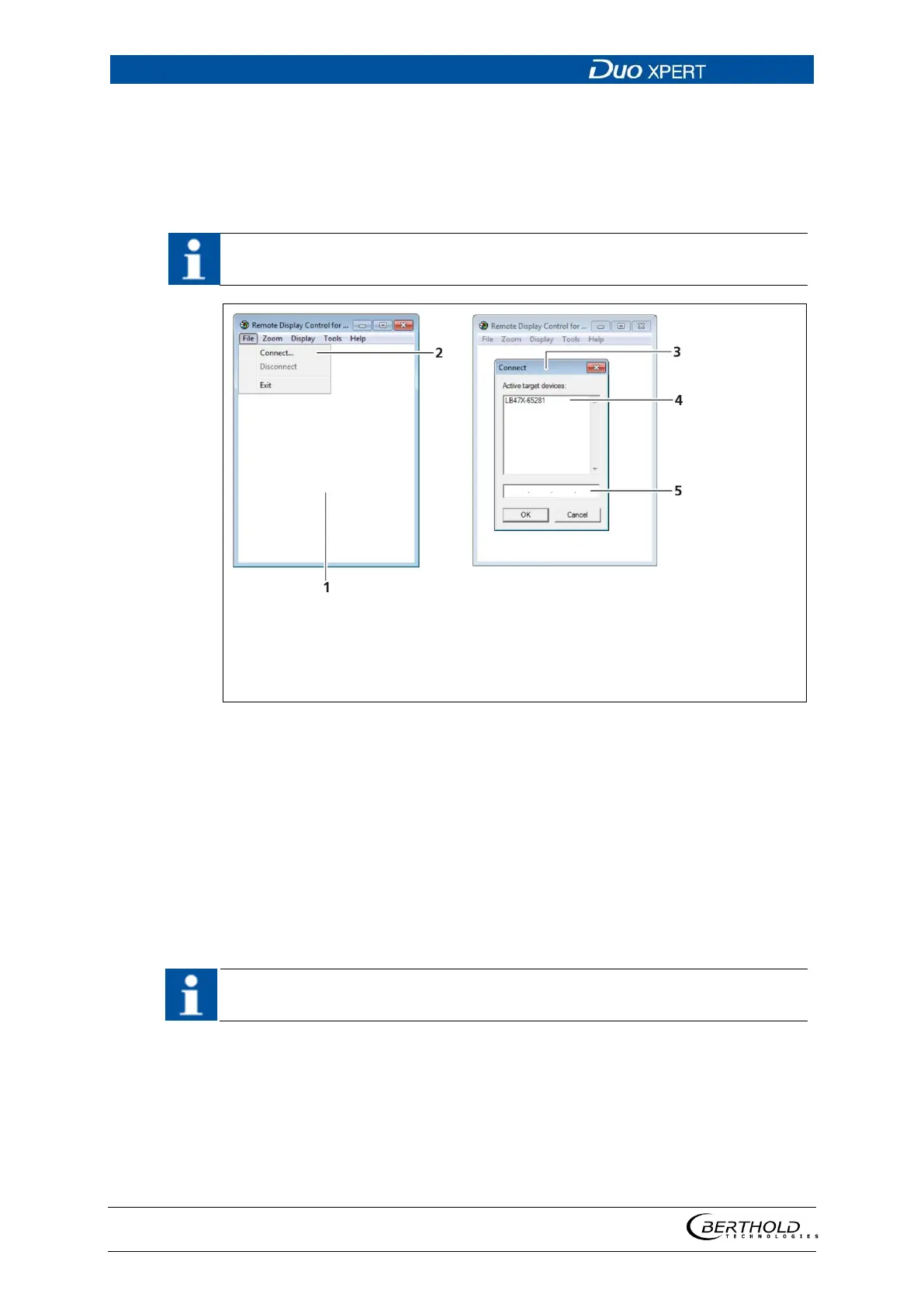
Programme Remote Control
Box <Connect…>
Window Connect
List of transmitters
Input box IP address
56 Establishing connection to the EVU using the RC software
1. Click on "LB47xRemoteControl.exe", to start the programme.
The program starts (Fig. 56, item 1).
2. Click on the <File> tab and then on <Connect…> (Fig. 56, item 2), to estab-
lish a connection to the EVU.
A new window “Connect” is opened (Fig. 56, item 3) and the connected
transmitters are listed.
The IP address of the EVU must be in the same sub-network (Fig. 55, item 3) as
the network adapter of the computer (see previous Chapter “Network”).
3. Click on the identifier of the transmitter (Fig. 56, item 4) or enter the IP ad-
dress of the EVU in the input box (Fig. 56, item 5) (see Fig. 56, item 2).
4. Click on <OK>.
The connection to the EVU is established.
5. You can enlarge the view in the “Zoom” menu (2x,3x).


 To Next Page