SECTION 3 OPERATING THE BIS VISTA MONITORING SYSTEM
______________________________________________________________________
3-11
3.4 Main Screen Touch Keys
3.4.1 Alarm Touch Keys
Alarms sound to alert the user to possible problems with the patient or the equipment.
Alarm conditions are prioritized so that high priority alarms take precedence over lower
priority alarms. The user may silence the currently sounding alarm or silence all alarms.
Alarm volume may be set in the menu system.
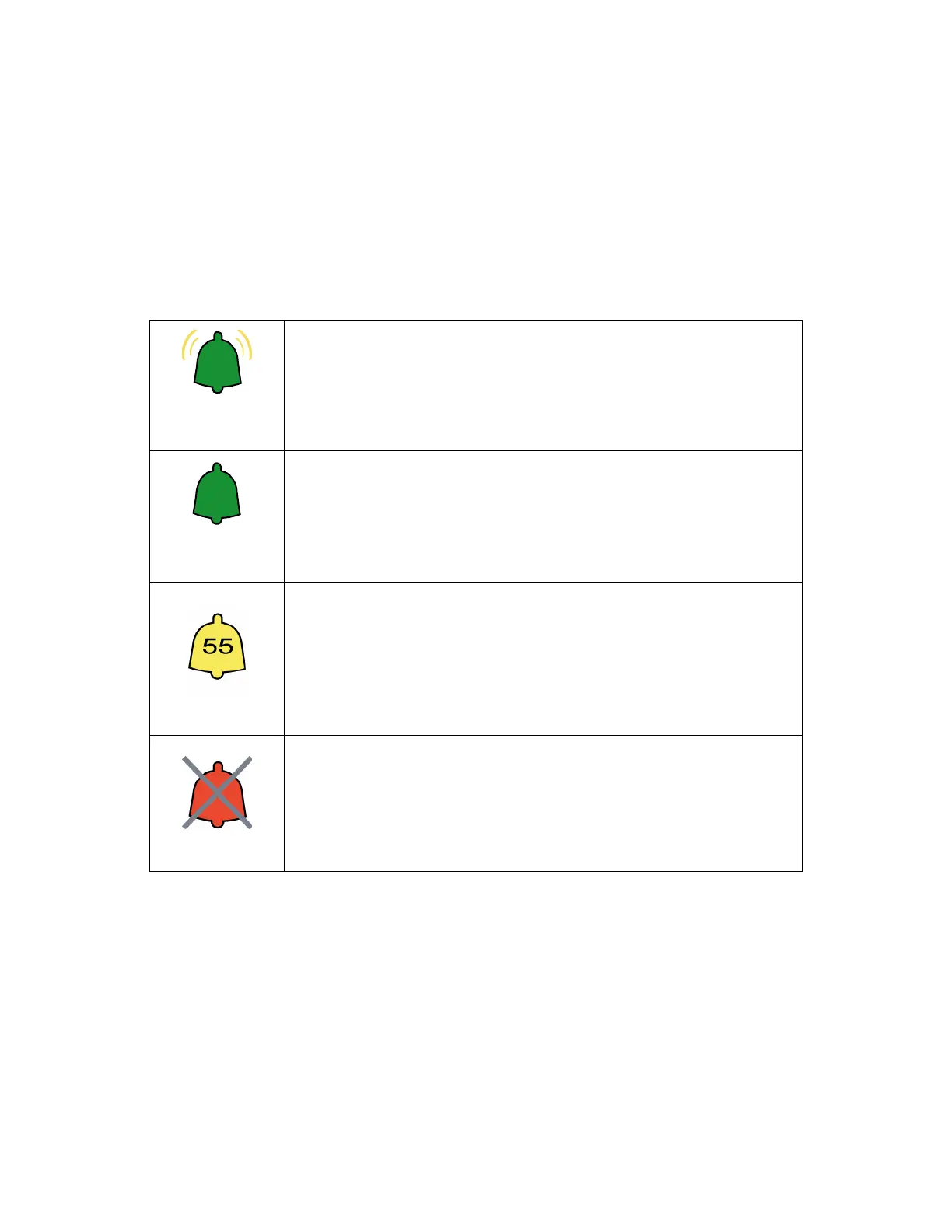
Alarm
Sounding
When a high priority alarm is sounding, the ringing bell displays.
Pressing this icon silences the current alarm, but does not prevent
other alarms from sounding if another priority alarm condition
should occur. Alarm messages continue to display in the message
area as long as the alarm condition exists.
Alarms Active
A green bell icon indicates that the alarms are active and will sound if
activated. Pressing this icon changes the alarm status to “Alarms
Paused” and the yellow bell icon displays.
Alarms Paused
A yellow bell indicates that all alarms have been silenced for two
minutes. A countdown timer counts down the seconds until the
alarm sounds again. Pressing this icon changes the alarm status to
“Alarms Silenced” and the red bell icon displays.
Alarms Silenced
The red bell with a solid “X” over it indicates that all alarms have
been silenced indefinitely. Pressing this icon restores the active
alarms and the green bell icon displays.
Figure 11 - Alarm Touch Keys


 To Next Page