SECTION 3 OPERATING THE BIS VISTA MONITORING SYSTEM
______________________________________________________________________
3-24
3. Export begins. If you press [Return to Home Menu] the export process will
continue to run in the background. The status of the export can be viewed at any
time by selecting [Export] from the Menu system.
4. During Export, the USB Export icon displays on the screen below the BIS number.
(See Section 3.3.7.2 “USB Export Icon.”)
5. When the export status screen displays “100% complete,” the drive may be removed
from the back of the monitor. To stop Live Export, press [Stop Export] before
removing the drive.
To exit while the export is still running, press [HOME]. To stop the export, press [Stop
Export].
Caution:
Do not remove drive while export is in progress.
3.5.12 BIS Smoothing Rate
To access the BIS Smoothing Rate:
1. Press [MENU].
2. Press [Next].
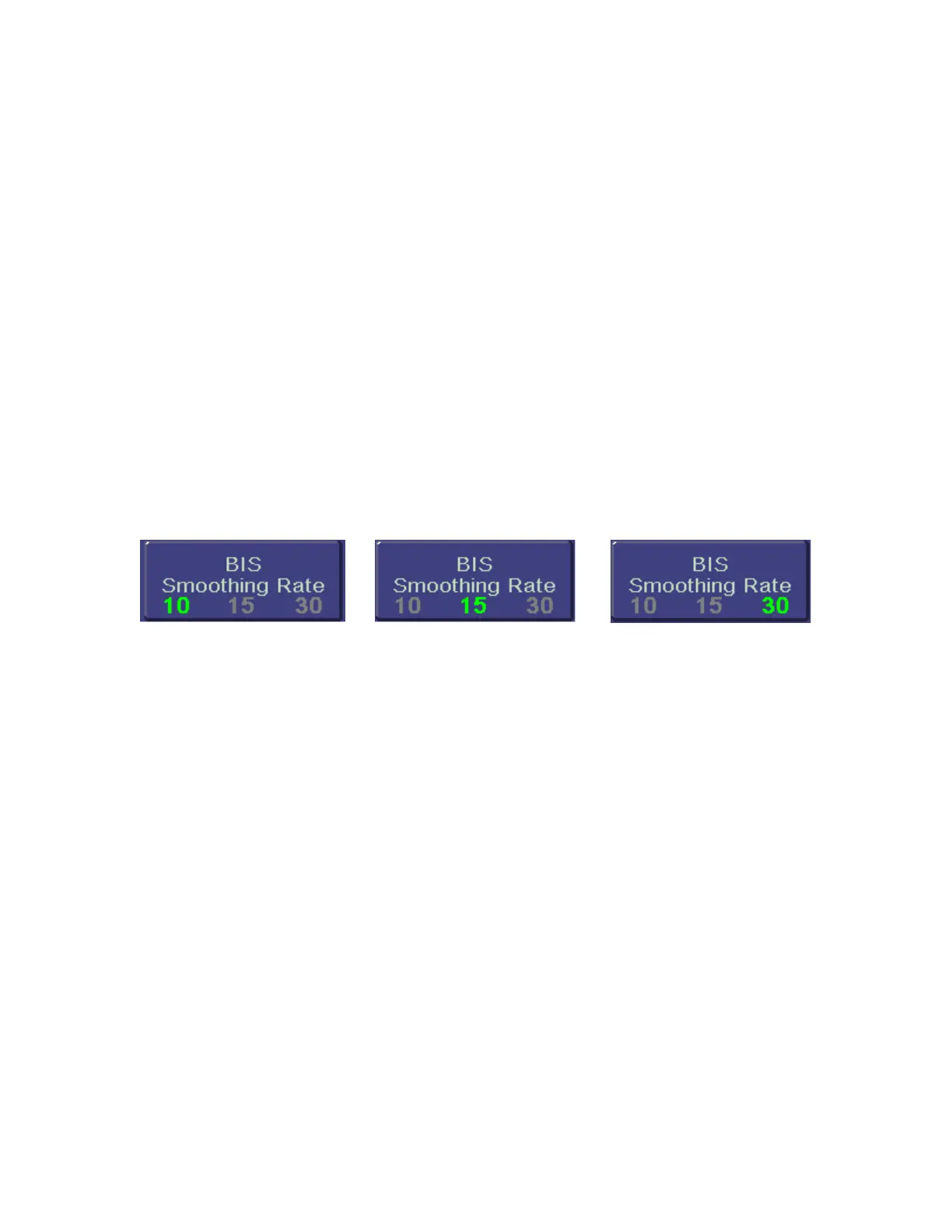
Figure 24 - Smoothing Rate
The BIS VISTA system offers three choices of smoothing rates over which the BIS value is
averaged:
• 10 seconds: Provides increased responsiveness to state changes, such as induction or
awakening. This is the default setting for Monitor Mode III.
• 15 seconds: This is the default setting for Monitor Modes I and IV.
• 30 seconds: Provides a smoother trend with decreased variability and sensitivity to
artifact. This is the default setting for Monitor Mode II.
To change the Smoothing Rate, press the [BIS Smoothing Rate] touch key. The current
Smoothing Rate displays in green letters. Press the key until the desired rate displays in
green. Press [HOME] to exit.
To permanently save this change, press the [View/Save Settings] touch key in the menu
system, then press [Save Active].


 To Next Page