SECTION 3 OPERATING THE BIS VISTA MONITORING SYSTEM
______________________________________________________________________
3-27
3.5.16 Date and Time
To access Date and Time:
1. Press [MENU].
2. Press [Next] to get to the next menu.
3. Press [Next] to get to the third menu.
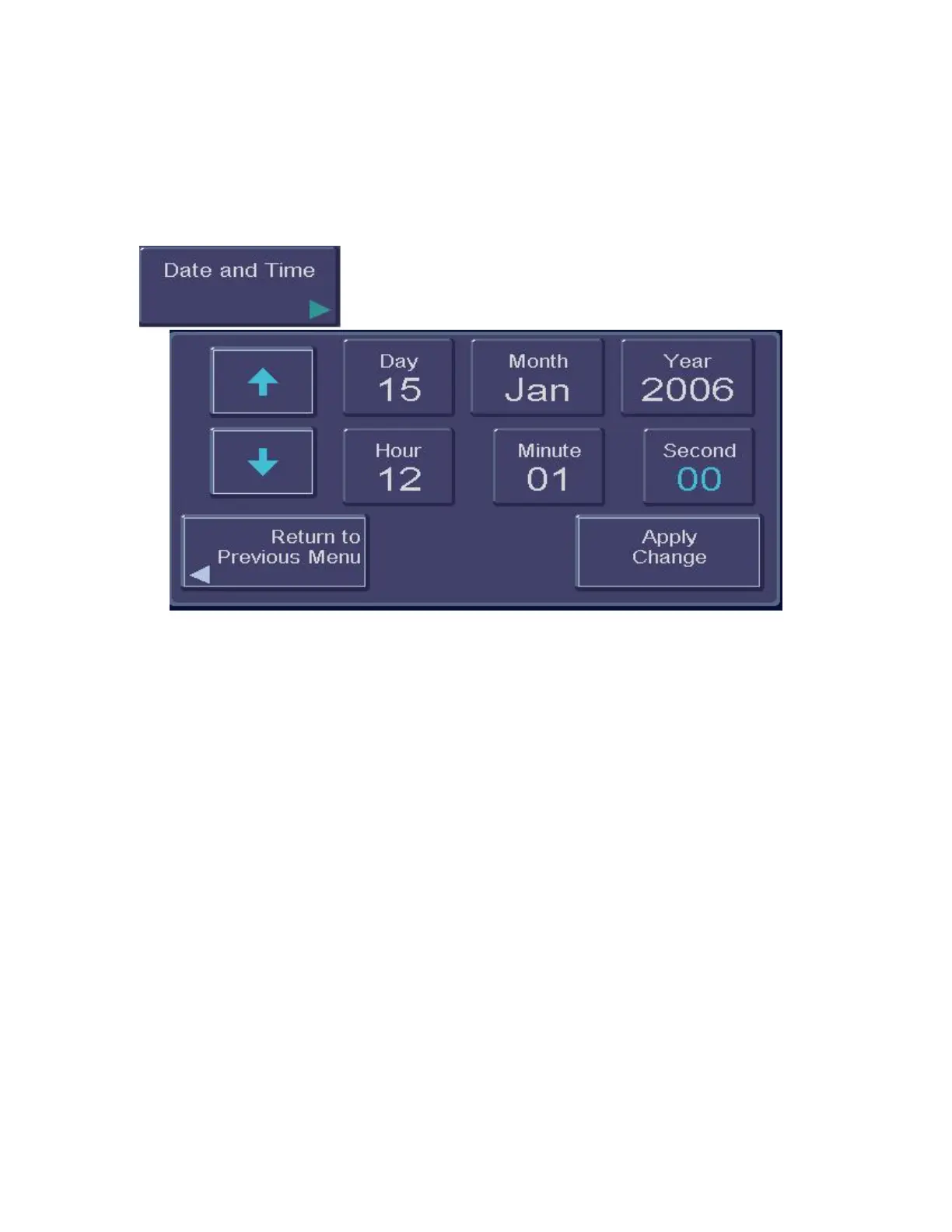
Figure 28 - Date and Time
To set the current date and time:
1. Press [Date and Time]. A new screen displays the current date and time. “Day” is
displayed in blue letters.
2. Use the up and down arrows to set the day of the month.
3. Press [Month]. “Month” is displayed in blue letters.
4. Use the up and down arrows to set the month.
5. Repeat this process for the “Year,” “Hour,” “Minute” and “Second” displays.
6. Press [Apply change].
7. When you have finished, you may press [Return to Previous Menu] or press
[HOME] to return to the main screen.
Notes:
The time/date is initially set for the Eastern Standard or Eastern Daylight Time zone (USA).
It will be necessary for you to change the time twice per year using the Time/Date feature if
you are located in a time zone that alters its clocks at the beginning or end of Daylight
Savings Time.
When time is set to an earlier hour, the following message appears on the screen:
“Processing the requested change will result in loss of all data collected since [date and time.]
Press ‘Return to Previous Menu’ to return to Date and Time Menu with no changes. Press
‘Apply change’ to apply the requested change”.
Date and time cannot be changed while a case is in progress.


 To Next Page