SECTION 3 OPERATING THE BIS VISTA MONITORING SYSTEM
______________________________________________________________________
3-20
3.5.8 Snapshot
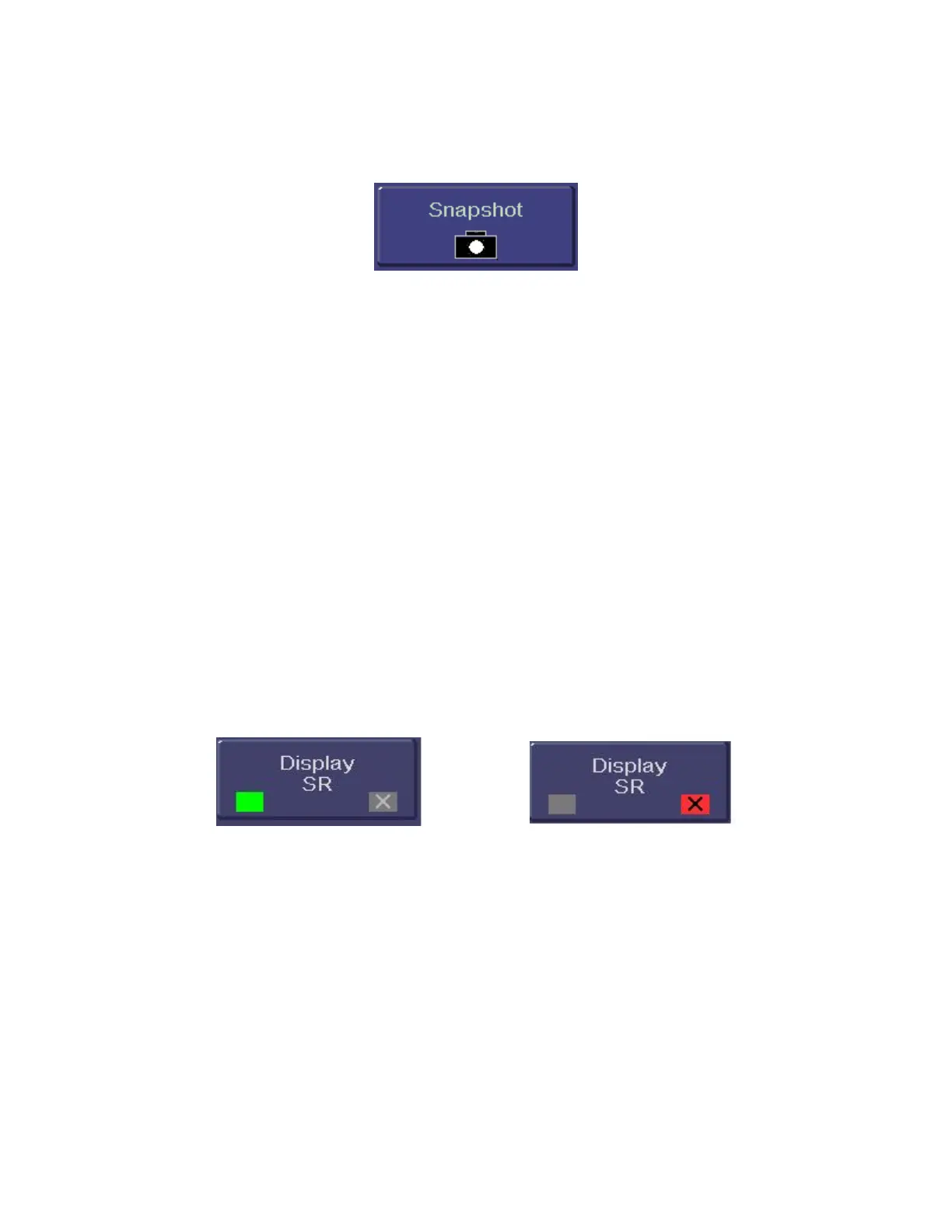
To access the Snapshot function, press [MENU].
Figure 20 - Snapshot
This option is used during operation to mark a significant event on the trend screen display
and to save the previous 10 minutes of data leading up to the event. Snapshot data is saved
in memory until another snapshot is taken.
To take a data Snapshot, press [Snapshot]. The event is immediately marked with a
snapshot marker (a camera icon) on the time scale of the BIS Trend Graph. If a snapshot is
already in memory, the message “Warning: Snapshot in memory will be erased. Press ‘Save
Snapshot’ button to save new snapshot” notifies the user. If the new snapshot is saved, the
previous snapshot marker displayed on the time scale changes to a diamond, and the new
snapshot marker displays as the camera icon.
Snapshot data may be sent to a removable drive. To export snapshot data, see Section 3.5.11
“Export Data.” For snapshot data in a printable (PDF) format, see Section 3.5.13 “Print
(Snapshot).”
3.5.9 Display Suppression Ratio (SR)
To access Display SR:
1. Press [MENU].
2. Press [Next].
Figure 21 - Display SR
The user may choose whether or not to display the Suppression Ratio (SR) on the main
screen.
To change the setting, press [Display SR].
• When the key shows a green box, the Suppression Ratio will display on the main
screen.
• When the key shows a red box with an ‘X’, the Suppression Ratio will not be
displayed.
To permanently save this change for the current Monitor Mode, press the [View/Save
Settings] touch key in the menu system, then press [Save Active].


 To Next Page