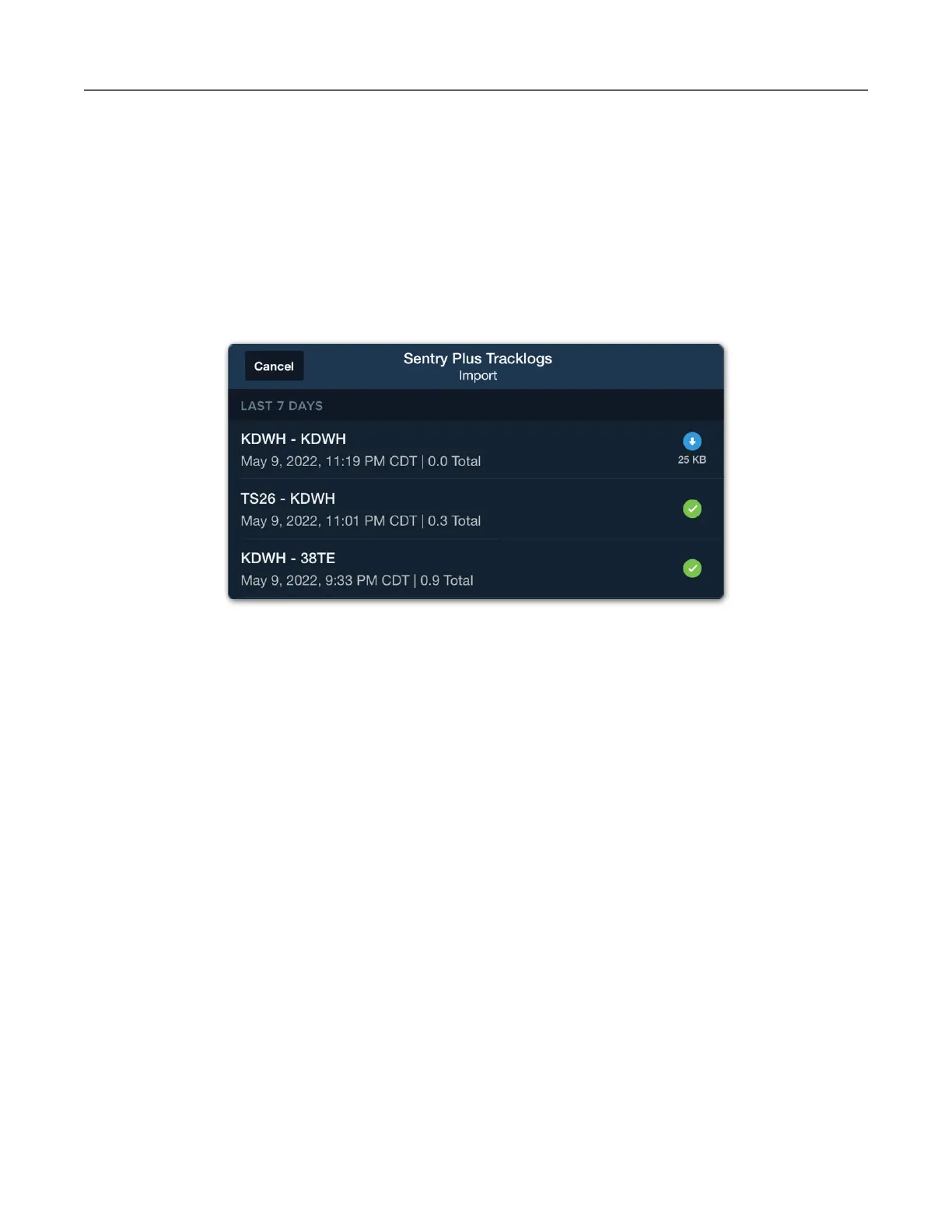
After selecting Import From Sentry Plus, ForeFlight displays up to 16 Track Logs stored on
the Sentry Plus internal memory. Track Logs that have already been imported to ForeFlight
display a green checkmark. Track Logs that have not been imported display a blue download
button above the size of the individual Track Log. Sentry Plus Track Logs can be imported to
multiple ForeFlight accounts.
The Sentry Plus Track Log Import menu displays the flight’s departure and destination location,
date, time, and total flight time.
Track Log Sync
If sync is enabled on your ForeFlight account (and each iOS device), Track Logs imported from
Sentry Plus will automatically appear on the other devices signed into your account (internet
connection required). The (green) imported checkmark and (blue) available for import buttons
sync between the devices signed into your account. Importing a Track Log on one device
results in a green checkmark on all devices signed into your account (internet connection
required).
Automatic Track Log Importing
ForeFlight can automatically import Track Logs. Track Logs will automatically import when the
following conditions are met:
•
Sentry Plus is powered on
•
Sentry Plus is connected to ForeFlight
•
The Automatic Track Log Import setting is enabled
•
Ground speed is less than ten knots.


 To Next Page