Deleting ForeFlight Track Log recorded with Sentry Plus
Deleting a Track Log from ForeFlight does not delete it from Sentry Plus. Track Logs recorded
with Sentry Plus that are imported and later deleted from ForeFlight can be imported again
(provided it has not been overwritten).
When a Sentry Plus Track Log is deleted in ForeFlight, the Track Log is removed from
ForeFlight, and the green checkmark is replaced with the blue download button in the Sentry
Plus Import menu (provided it has not been overwritten).
Deleting all Sentry Plus Track Logs
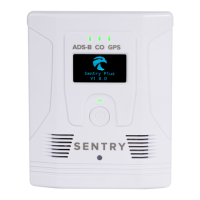
To delete all Track Logs from Sentry Plus, perform a factory reset on the device. Performing a
factory reset will also remove the passcode (if applicable) and reset the network name (SSID)
to factory settings. To restore Sentry Plus to factory settings
1. Power Sentry Plus on.
2. Press and hold the power button until the LED lights extinguish (approximately ten
seconds).
3. Power Sentry Plus on.
4. Open the iOS device Wi-Fi settings and connect to Sentry Plus.
NOTE: ForeFlight will not import Track Logs that do not contain valid GPS points or that are
shorter than five minutes.


 To Next Page