104
Editing a recorded performance (Track Edit)
Rev0.02
Inserting a blank space between
audio data (Track Insert)
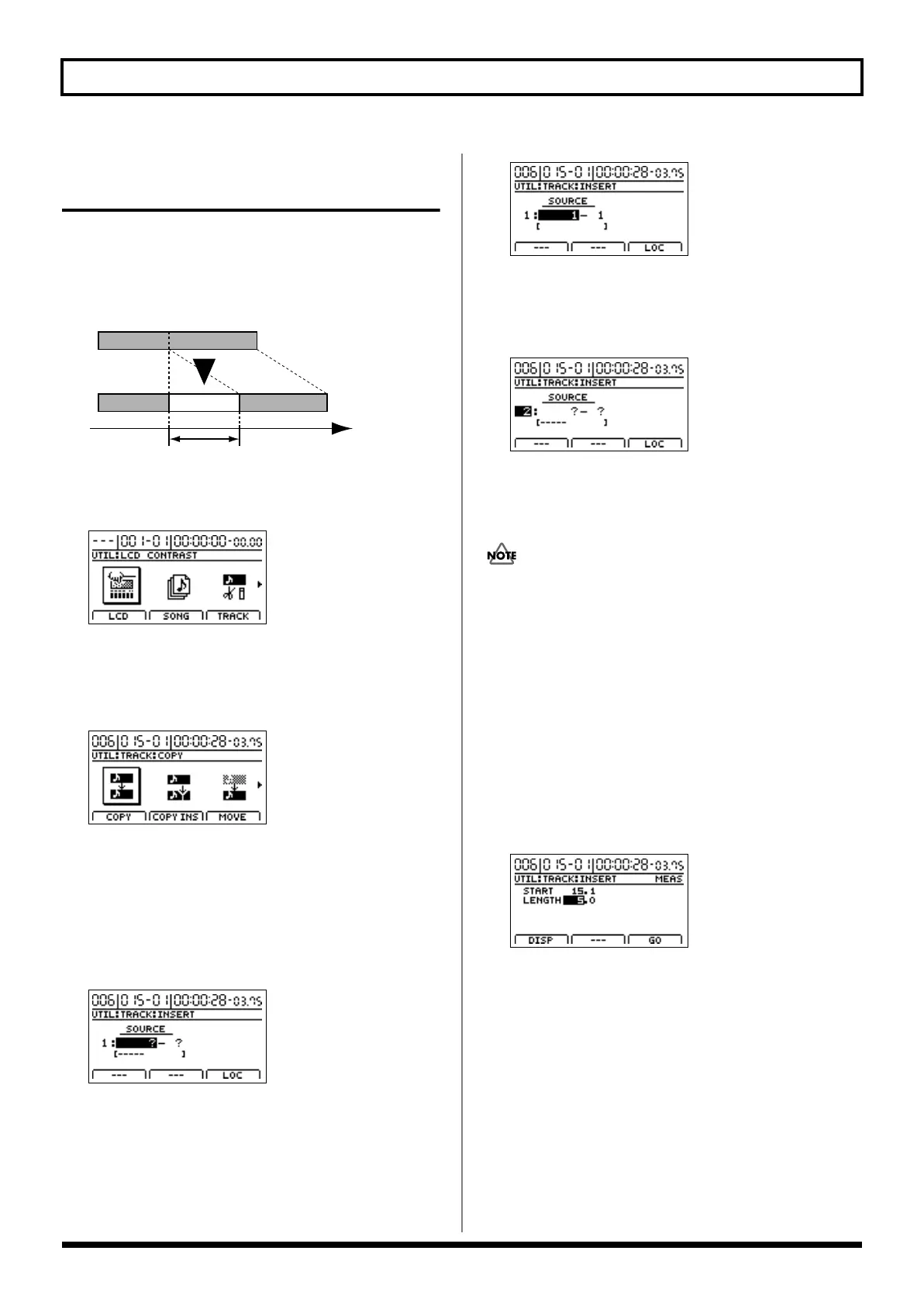
The Track Insert function allows you to insert a blank space
at a specific location. If you want to add a new phrase to the
middle of a section of audio data, use this function to add a
blank space of the same length as the new phrase, and then
record the phrase into this space.
fig.15-39
1.
Press [UTILITY].
The Utility Menu screen will appear.
fig.12-12d
2.
Move the cursor to the TRACK icon and press [ENTER/YES].
Alternatively, you can press [F3] (TRACK) if the TRACK
icon is currently displayed.
The Track Menu screen will appear.
fig.15-05d
3.
Move the cursor to the INSERT icon and press
[ENTER/YES].
Alternatively, you can press [F3] (INSERT) if the INSERT
icon is currently displayed.
The Track Insert screen will appear, allowing you to
select the track and V-Track where the blank space will
be inserted.
fig.15-42d
4.
Use [CURSOR] and the TIME/VALUE dial to choose the
track and V-Track where you want to insert a blank space.
If a name has been assigned to the selected track, it will
be displayed at this time.
fig.15-43d
5.
If you want to insert a blank space into other tracks
using the same settings (for position, length, etc.), move
the cursor to the position shown below and turn the
TIME/VALUE dial.
fig.15-44d
You will now be able to specify other tracks for insertion
of the same blank space. If you want to cancel the
insertion for a specific track, turn the TIME/VALUE dial
counterclockwise until a question mark (?) is displayed.
• Insertion will not be performed for any line containing
one or more question marks.
• If you want to insert the same blank space into all V-
Tracks or all tracks, turn the TIME/VALUE dial
clockwise until “*” is selected.
• If you want to select all V-Tracks from all tracks, select
“*- *.”
• As Tracks 9/10 and 11/12 are stereo tracks, it will not be
possible to select either of their mono tracks independent
of the other.
6.
Press [F3] (LOC).
The Time Setting screen will appear.
fig.15-45d
7.
Use [CURSOR] and the TIME/VALUE dial to specify
the position and length of the blank space to be
inserted.
Pressing [F1] (DISP) at this time will allow you to select
how the position will be specified (i.e., by measure, time,
or marker).
The following parameters should now be set.
START (Start point):
This parameter is used to specify the position at which
the blank space will be inserted.
LENGTH:
This parameter is used to specify the length of the blank space.
Time
TO
Blank
LENGTH
BR-1200CD_e.book 104 ページ 2007年8月24日 金曜日 午前11時33分


 To Next Page