145
Recreating the characteristics of different monitor speakers (Speaker Modeling)
Section 3
Rev0.02
Copying Speaker Modeling
settings
The BR-1200CD’s function for copying patches proves
extremely useful when you want to create a number of effect
patches with slightly different settings.
1.
Press [F1] (WRITE•COPY) on the Speaker Modeling
edit screen.
The Speaker Modeling Patch Write/Copy screen will
appear.
fig.37-12d
2.
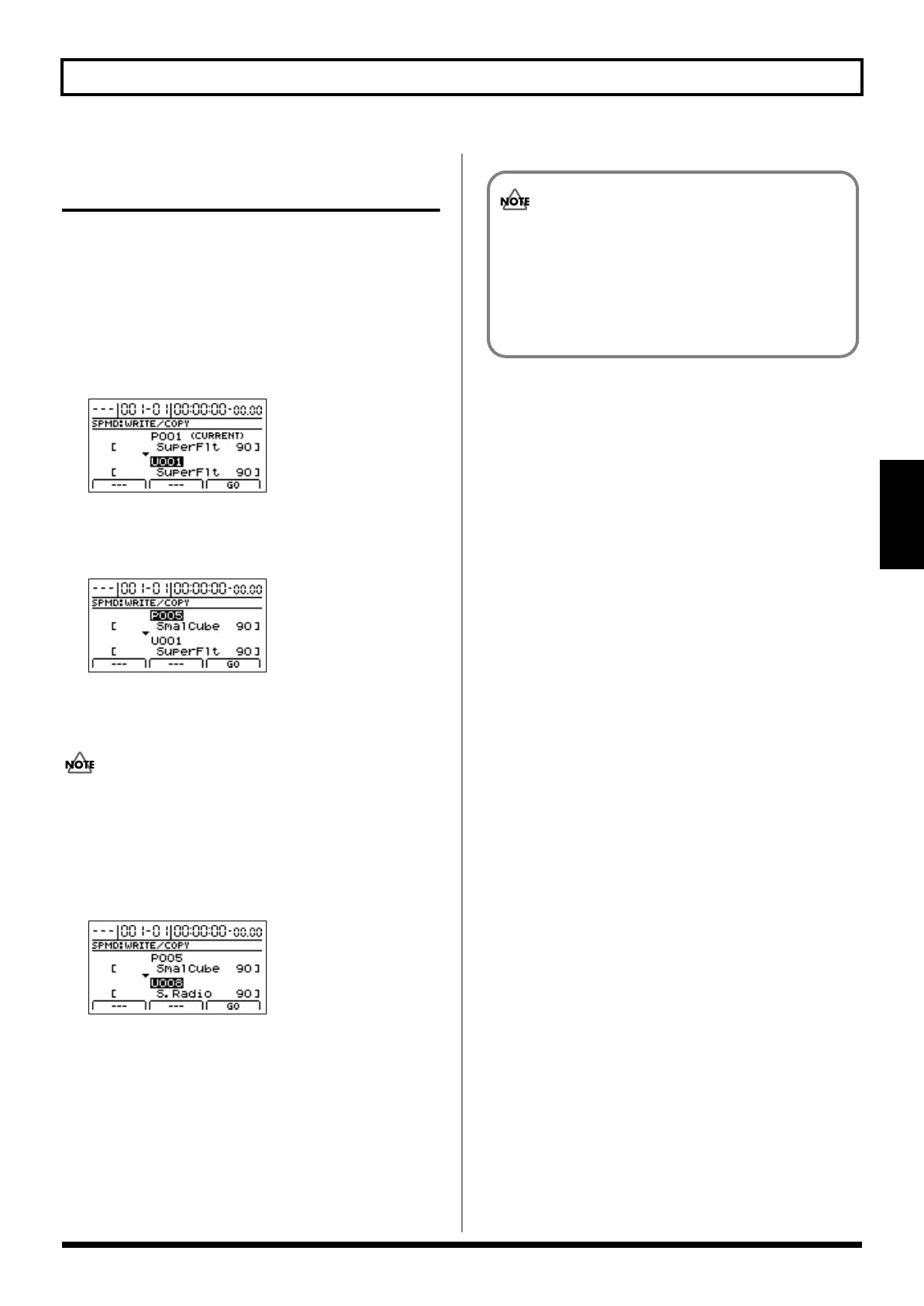
Move the cursor to the copy-source patch number and
select the patch to be copied using the TIME/VALUE
dial.
fig.37-12ad
Note that you can also move the cursor to the bank field
and turn the TIME/VALUE dial to select a new patch
number to be copied.
Although “*TMP(CURRENT)” may be displayed in this
field when you call up the Patch Write/Copy screen
after modifying patch settings, this may be freely
changed.
3.
Move the cursor to the destination patch number and
select a destination patch using the TIME/VALUE dial.
fig.37-12bd
Note that you can also turn the TIME/VALUE dial to
select a new destination patch number.
4.
Press [F3] (GO).
The patch will be copied. When the message
“Complete!” appears, it indicates that copying has been
completed.
5.
Press [EXIT/NO] several times to return to the top
screen.
It is important to remember that the destination
patch will be fully overwritten by the patch specified
by copy-source patch number. As it will not be
possible to restore these, care should be taken to
insure that important patches are not accidentally
overwritten in this way.
BR-1200CD_e.book 145 ページ 2007年8月24日 金曜日 午前11時33分



 To Next Page