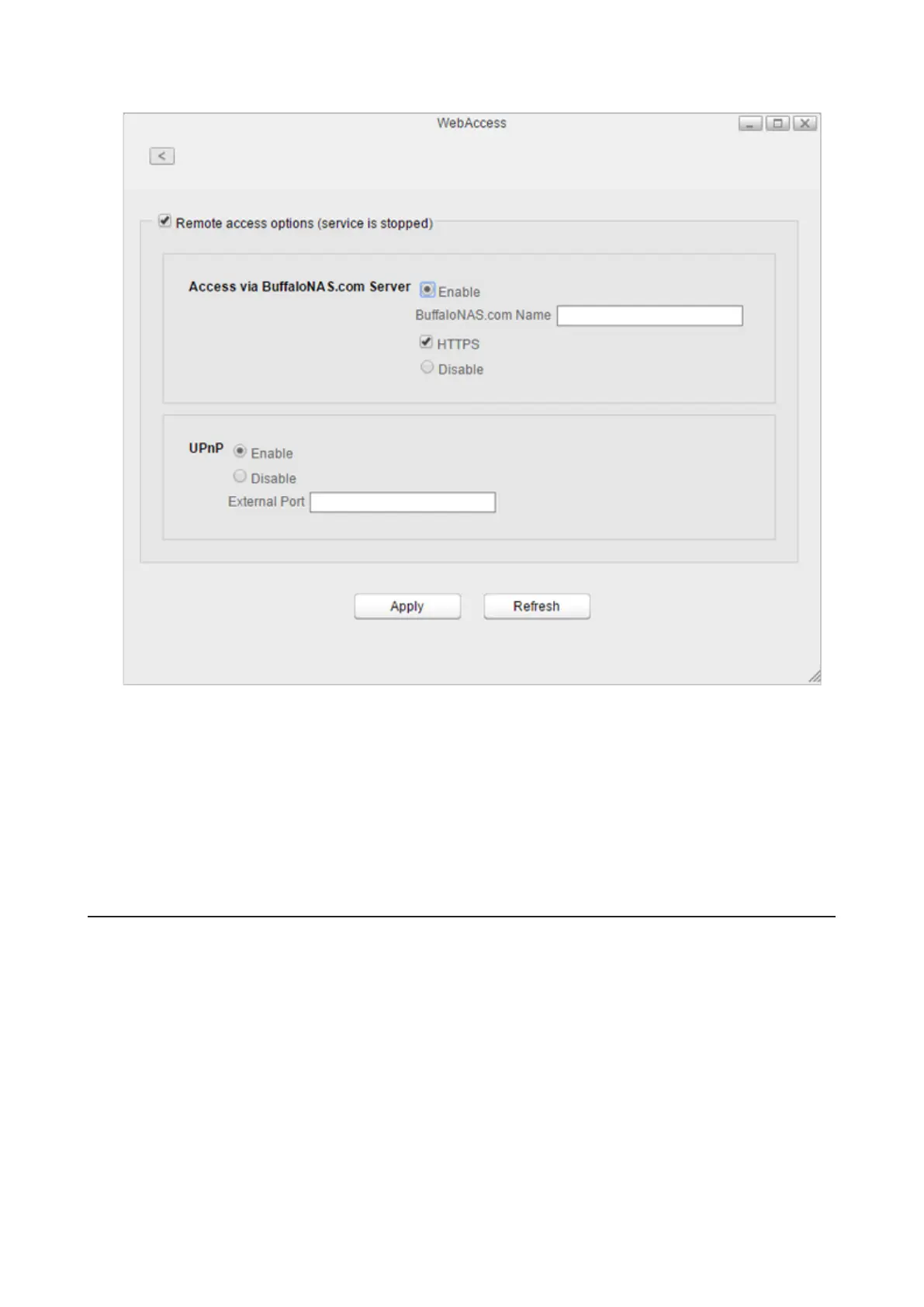
3 Select “Remote access options” to easily configure WebAccess settings.
4 Configure the desired settings, then click Apply.
• You may use the default BuffaloNAS.com registration, or select “Disable” to use a different DNS server.
• Choose a “BuffaloNAS.com Name” for your WebAccess account. Names may contain between 3 and 20
alphanumeric characters, underscores (_), and hyphens (-).
• If your router supports UPnP, enable “UPnP”. If UPnP is not supported or disabled on the router, disable that
setting and enter either “80” (HTTP) or “443” (HTTPS) into the “External Port” box. If configuring the external
port, port forwarding configuration is required to add the port number on the router. Access the router’s
port forwarding configuration page and register the port number “80” or “443” to the router.
Accessing Remotely
Once settings are configured, you are now ready for remote access from outside the local network. There are many
ways to access WebAccess folders depending on your device.
• From a computer, enter http://buffalonas.com/ into the address bar on your Internet browser and log in with
your BuffaloNAS.com name. Settings will remotely be opened. From My LinkStation, you can access the files on
the LinkStation.
• To access from an iOS device, install the “WebAccess i” application from the App Store.
For more procedure: http://buffalonas.com/manual/i/en/
• To access from an Android device, install the “WebAccess A” application from the Google Play.
For more procedure: http://buffalonas.com/manual/a/en/
Access Restrictions When Accessing Remotely
Access attributes for the shared folders on the LinkStation are as below:
73















 To Next Page