R/W: Read and write, R: Read-only, -: No access
• For the “Public” folder and shared folders created in Folder Setup
Access permissions
Available user
admin Registered user Not logged in
WebAccess i
Read and write R/W R/W -
Read-only R/W R/W -
Disabled R/W R/W -
WebAccess A
Read and write R/W R -
Read-only R/W R/W -
Disabled R/W R -
My LinkStation
Read and write R/W R/W R
Read-only R/W R/W R
Disabled R/W R/W -
• For username folder
Available user
admin Registered user Not logged in
WebAccess i R R -
WebAccess A R/W R/W -
My LinkStation R/W R/W -
Direct Copy
Use Direct Copy to copy data from a USB mass storage device directly to the LinkStation. To copy using Direct Copy,
follow the procedure below.
Note: Direct Copy will not work while the backup is running. The prior process will work.
1 Connect the USB device. When it mounts, the function LED will light up.
Note: Unsupported devices will not cause the function LED to light.
2 You now have 60 seconds to press the function button once. If you do, the function LED will flash as all the files
on the USB device are copied to the Direct Copy folder (“usb_backup” under “Public” folder) of the LinkStation.
Notes:
• While the function LED is flashing, press and hold the function button for 3 seconds to cancel Direct Copy.
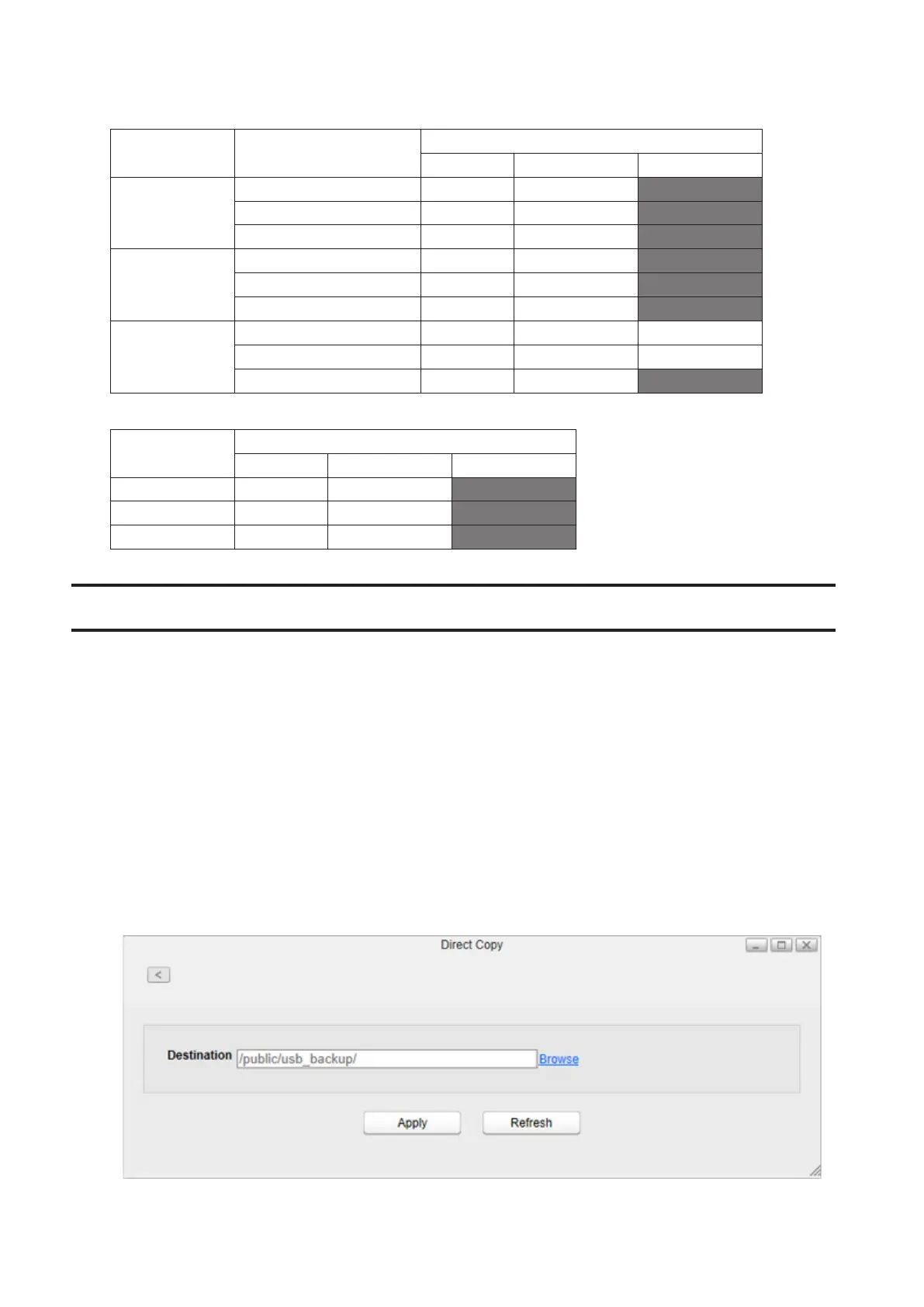
• To change the Direct Copy target folder, navigate to System Settings > Direct Copy > Browse in Settings,
select a new folder, and click Apply.
74















 To Next Page