Selecting a Picture Style *
By selecting a Picture Style, you can obtain the desired image effects.
You
can also adjust the settings
of
each Picture Style to obtain custom
image effects.
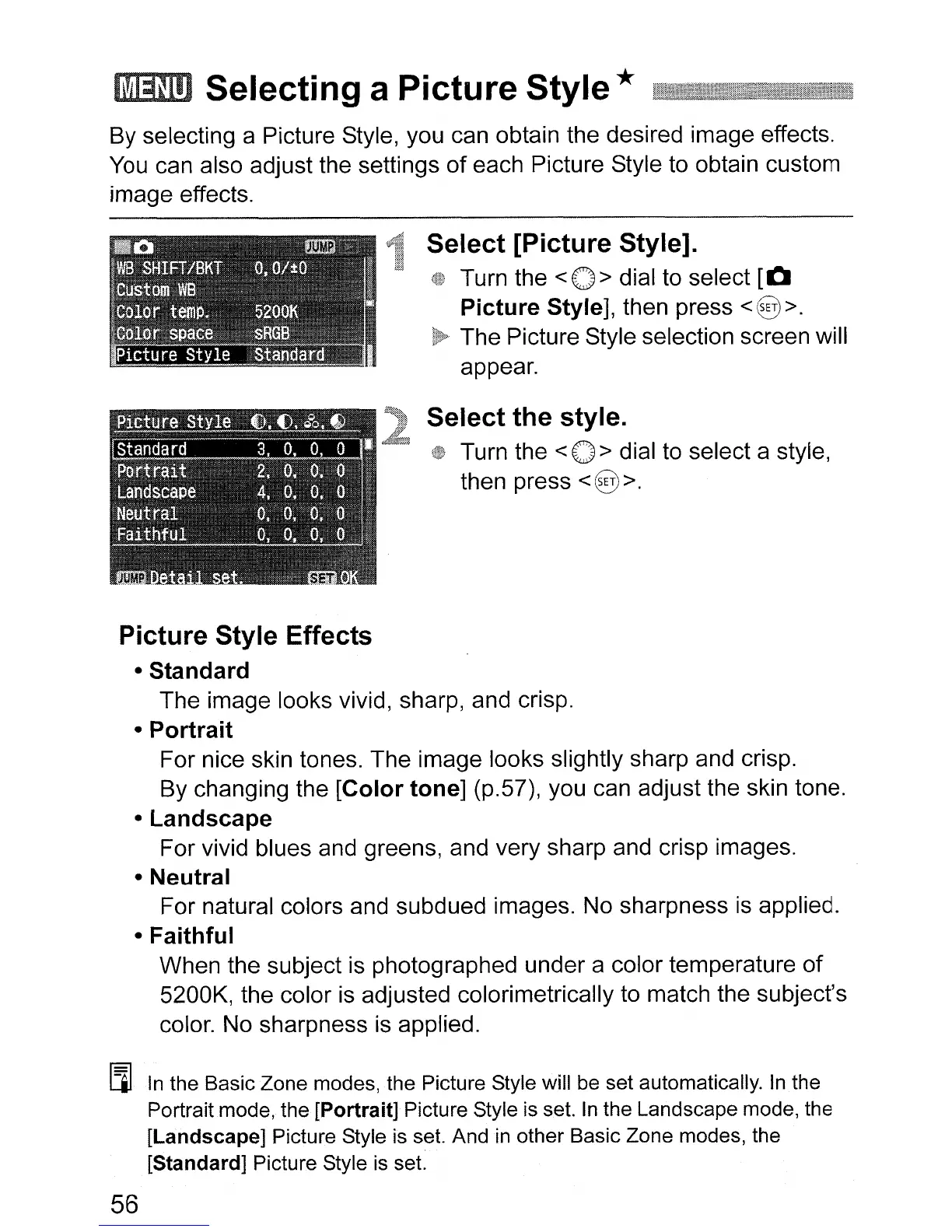
Select [Picture Style].
Turn the < 0 > dial to select
[0
Picture Style], then press
<@>.
The Picture Style selection screen will
appear.
Select the style.
Turn the < 0 > dial to select a style,
then press
<@
>.
Picture Style Effects
• Standard
The image looks vivid, sharp, and crisp.
• Portrait
For nice skin tones. The image looks slightly sharp and crisp.
By changing the [Color tone] (p.57), you can adjust the skin tone.
• Landscape
For vivid blues and greens, and very sharp and crisp images.
• Neutral
For natural colors and subdued images. No sharpness
is
applied.
• Faithful
When the subject is photographed under a color temperature of
5200K, the color
is
adjusted colorimetrically to match the subject's
color. No sharpness
is
applied.
[iI
In
the Basic Zone modes, the Picture Style will be set automatically.
In
the
Portrait mode, the
[Portrait] Picture Style is set.
In
the Landscape mode, the
[Landscape] Picture Style
is
set. And
in
other Basic Zone modes, the
[Standard] Picture Style
is
set.
56




 To Next Page