189
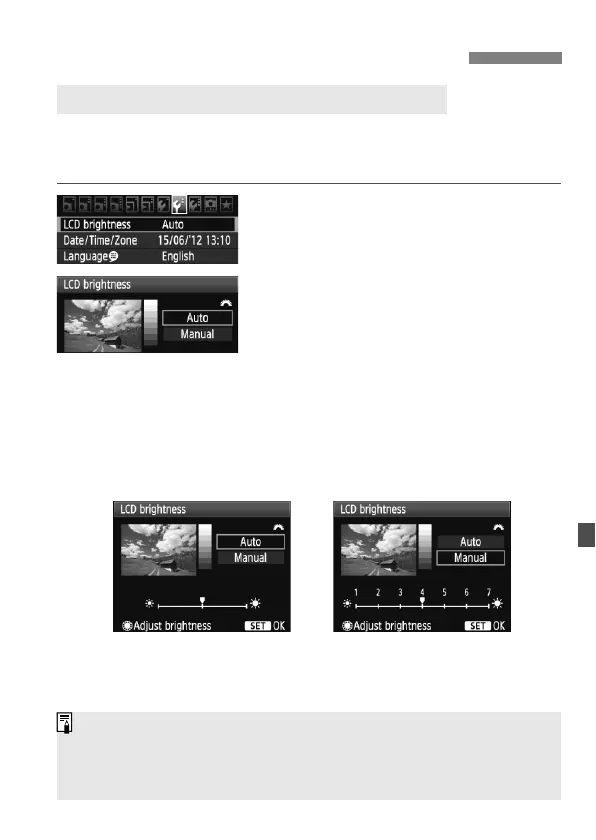
The LCD monitor’s brightness is adjusted automatically for optimum
viewing. You can set the automatic adjustment’s brightness level
(brighter or darker) or adjust the brightness manually.
1
Select [LCD brightness].
Under the [6] tab, select [LCD
brightness], then press <0>.
2
Select [Auto] or [Manual].
Turn the <6> dial to make the
selection.
3
Adjust the brightness.
While referring to the gray chart, turn
the <5> dial, then press <0>.
You can adjust [Auto] to one of three
levels, and [Manual] to one of seven
levels.
Changing Image Playback Settings
3 Adjusting the LCD Monitor Brightness
Automatic adjustment Manual adjustment
While [Auto] is set, be careful not to obstruct the round, external light
sensor on the right of the LCD monitor with your finger, etc.
To check the image’s exposure, you should look at the histogram
(p.168).


 To Next Page