Setting a Remote UI PIN
23FJ-032
Y
ou can set a PIN for access to the Remote UI. All users use a common PIN.
● For mor
e information about the basic operations to be performed when setting the machine from the
Remote UI, see
Setting Up Menu Options from Remote UI(P. 187) .
1
Start the Remote UI and log in to System Manager Mode. Starting Remote
UI(P
. 179)
2
Click [Settings/Registration] on the Portal page.
Remote UI Screen(P. 180)
3
Select [Security Settings] [Remote UI Settings].
4
Click [Edit].
5
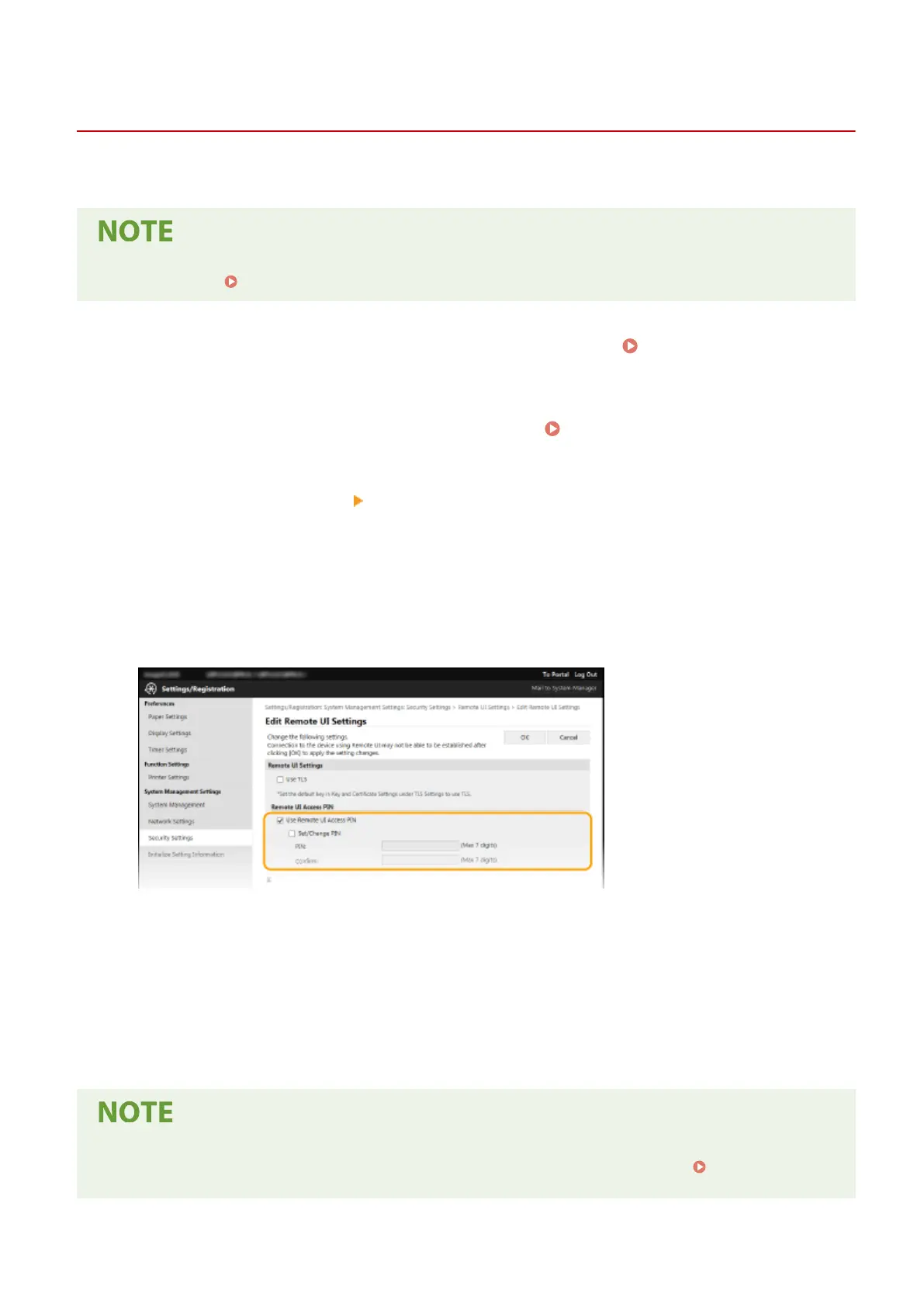
Select the [Use Remote UI Access PIN] check box and set the PIN.
[Use Remote UI Access PIN]
If you select the check box, you must enter a PIN to access the Remote UI.
[Set/Change PIN]
To set or change a PIN, select the check box and enter the same number both in the [PIN] and [Conrm] text
boxes.
6
Click [OK].
Using the operation panel
● Remote UI Access PIN settings can also be accessed fr
om <Menu> in the Home screen.
<Remote UI
Settings>(P
. 232)
Managing the Machine
147









 To Next Page