Clearing Paper Jams
23FJ-053
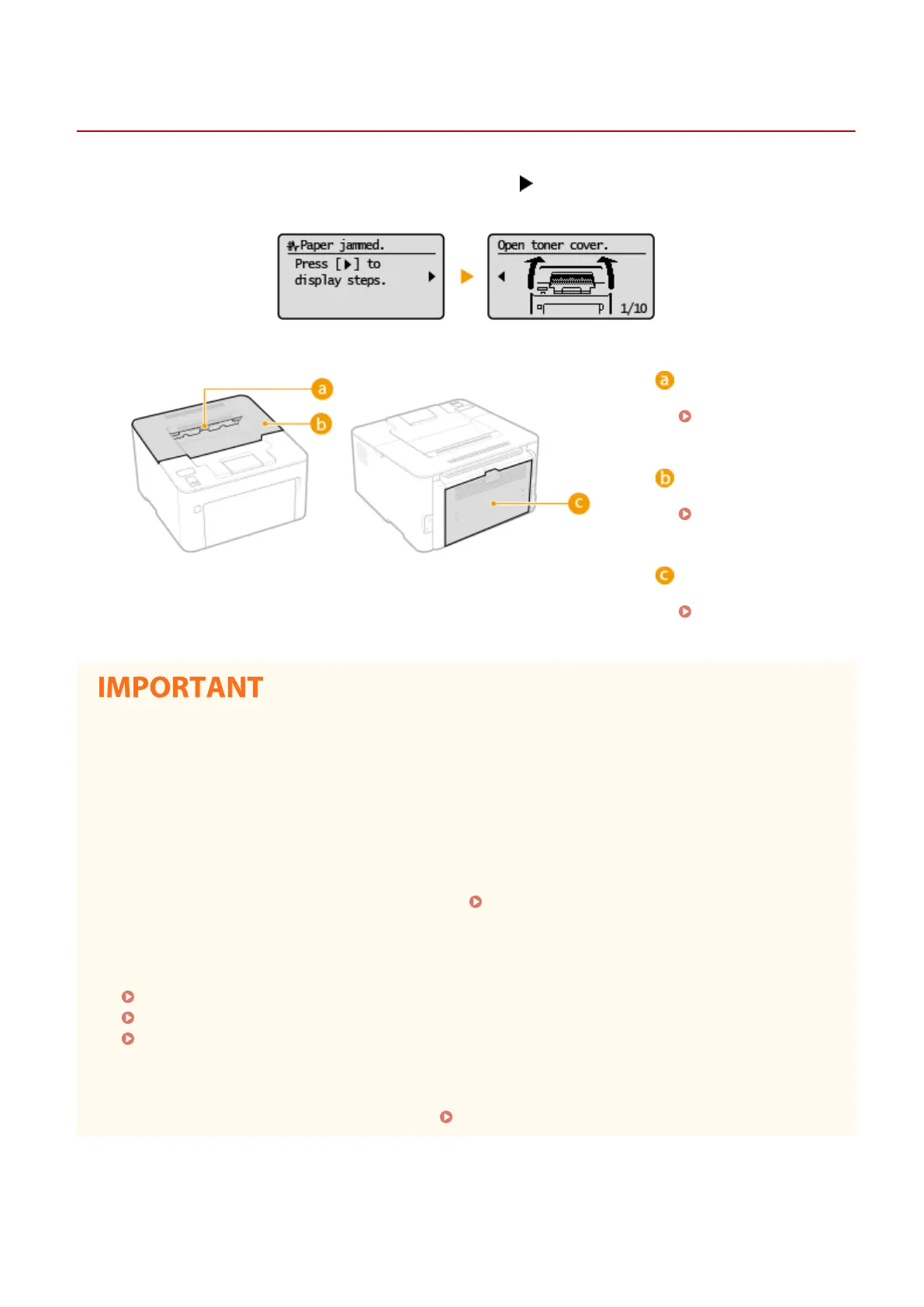
If a paper jams, <Paper jammed.> is displayed on the scr
een. Press
to display simple solutions. If it is dicult to
understand the pr
ocedures on the display, see the following sections to clear jams.
Output tr
ay
Paper Jams inside the
Machine(P
. 298)
Inside of the machine
Paper Jams inside the
Machine(P
. 298)
Back co
ver
Paper Jams inside the
Machine(P
. 298)
When removing the jammed paper, do not turn OFF the machine
● T
urning OFF the machine deletes the data that is being printed.
If paper tears
● Remove all the paper fragments to prevent them from becoming jammed.
If paper jams repeatedly
● Tap the paper stack on a at surface to even the edges of the paper before loading it into the machine.
● Check that the paper is appropriate for the machine.
Available Paper(P. 317)
● Check that no jammed paper fr
agments remain in the machine.
● If you use paper with a coarse surface, set <Paper Type> to <Bond 1 (16 lb Bond-27 lb Bond)> or <Bond 2 (28
lb Bond-60 lb Cover)>.
Specifying Paper Size and Type in the Drawer(P. 106)
Specifying Paper Size and Type in the Multi-Purpose Tray(P. 107)
Printing from a Computer(P. 116)
Do not for
cibly remove the jammed paper from the machine
● Forcibly removing the paper may damage parts. If you are not able to remove the paper, contact your local
authorized Canon dealer or the Canon help line.
When a Problem Cannot Be Solved(P. 302)
Troubleshooting
297



 To Next Page