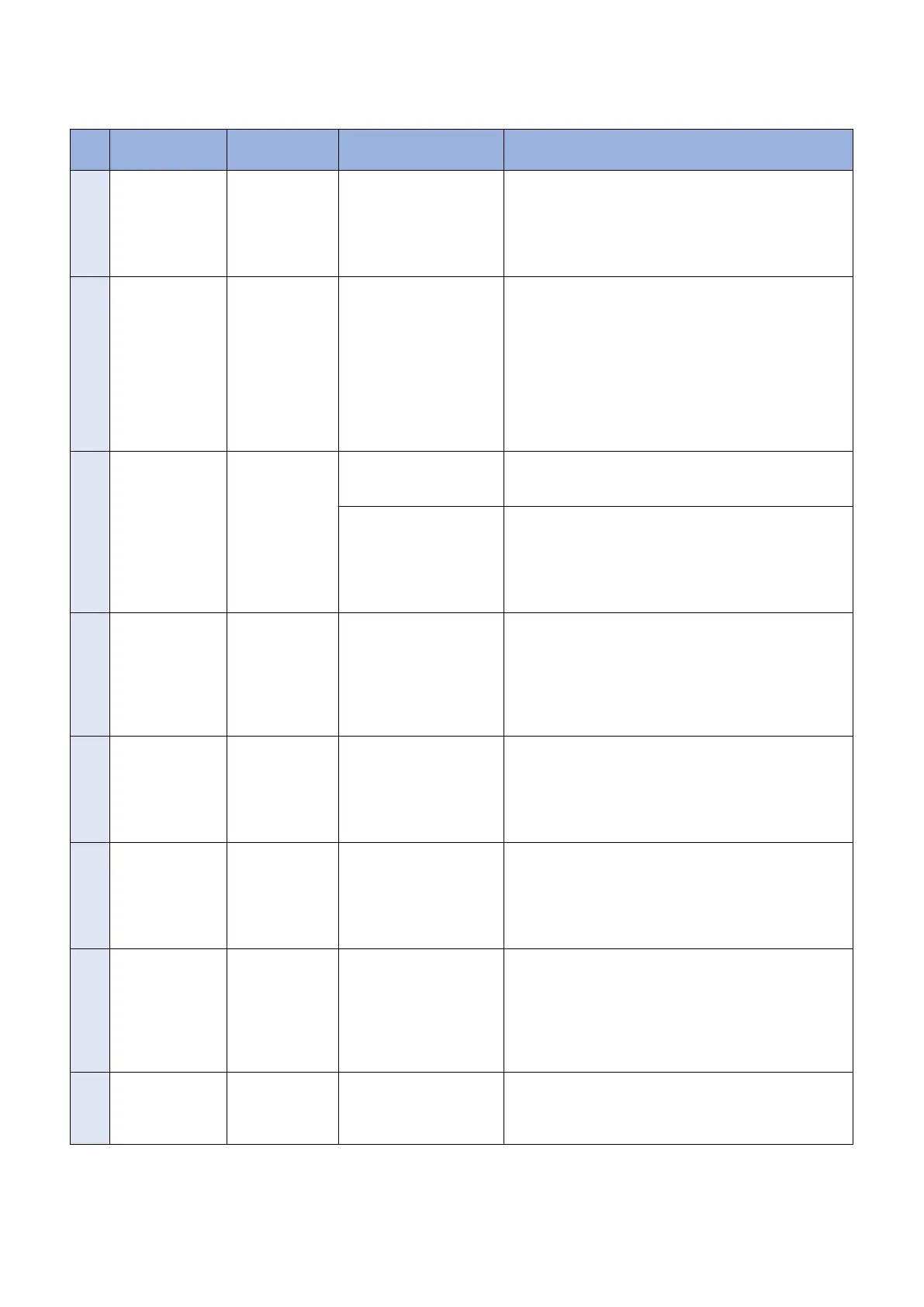
● Updater Error Messages
Error messages displayed in Remote UI are shown below. As to error codes, see the next list.
No. Messages Timing of dis-
play
Cause Remedy
1 An error occurred
with the delivery
server.
Contact your sales
representative.
Error Code: [xxx]
In communicating
with the delivery
server.
System error occurred in
server.
Obtain the log etc. (Refer to "System Management Opera-
tions" under "Version Upgrade"of "Updater" in "Trouble-
shooting" of this manual.) and contact Support Div. of the
sales company.
2 Delivery server is
stopped.
Wait a while and
then try to perform
the operation
again.
Check the follow-
ing URL for details.
<Stopped Delivery
Server URL>
In communicating
with the delivery
server.
Delivery server stopped. Check the delivery server stop information. After the delivery
server starts, perform the operation from this application.
When the delivery server stop information is not available,
contact the sales company's Support Department.
3 Failed to connect
to delivery server.
Check the delivery
server and net-
work.
In communicating
with the delivery
server.
Communication error due
to incorrect settings of CDS
URL.
Set correct CDS URL in the Updater settings.
Excluding delivery server
stop, communication error
to the delivery server occur-
red.
Check if the network environment is correct to solve the
cause of the error occurrence. If the network environment of
the device is correct, obtain the log etc. (Refer to "System
Management Operations" under "Version Upgrade"of "Up-
dater" in "Troubleshooting" of this manual.) and contact
Support Div. of the sales company.
4 Download was
stopped because
an error occurred
with the file server.
Check the network.
At the time of file
download
Communication error to the
delivery server occurred.
Check if the network environment is correct to solve the
cause of the error occurrence.
If the network environment of the device is correct, obtain
the log etc. (Refer to "System Management Operations" un-
der “Version Upgrade”of "Updater" in “Troubleshooting” of
this manual.) and contact Support Div. of the sales compa-
ny.
5 Downloaded files
are invalid. Check
the network.
At the time of file
download
The received file is broken. After checking the network environment of the device, re-
execute the job.
If it recurs, obtain the log etc. (Refer to "System Manage-
ment Operations" under “Version Upgrade”of "Updater" in
“Troubleshooting” of this manual.) and contact Support Div.
of the sales company.
6 Failed to retrieve
information of spe-
cial firmware.
Check the retrieval
ID and password.
Acquisition of ap-
plicable firmware
information
No information exists about
firmware for special firm-
ware retrieval ID or Pass-
word is invalid.
Enter the correct firmware ID or Password applicable to the
firmware information.
If it recurs, obtain the log etc. (Refer to "System Manage-
ment Operations" under “Version Upgrade”of "Updater" in
“Troubleshooting” of this manual.) and contact Support Div.
of the sales company.
7 Scheduled delivery
information of firm-
ware does not ex-
ist.
Check it because it
may already have
been deleted.
Acquisition of ap-
plicable firmware
information
Delivery information with
specified delivery ID does
not exist.
Register the delivery schedule again. If this occurs at the
time of canceling file download, deleting downloaded firm-
ware or deleting scheduled delivery, no remedy is required.
8 Failed to apply
firmware.
Firmware applica-
tion error
Error due to the application
(NLM)
Obtain the log etc. (Refer to "System Management Opera-
tions" under "Version Upgrade"of "Updater" in "Trouble-
shooting" of this manual.) and contact Support Div. of the
sales company.
3. Technical Explanation (System)
62



 To Next Page