Scanning using an application
When the WIA driver is displayed, use the following steps. For the instructions on how to display the WIA driver,
see " Scanning an Image Using an Application(P. 116) ".
1
Place your document.
" Placing Documents
(P. 43) "
" Supported Document T
ypes(P. 67) "
NOTE
To scan from the platen glass
Y
ou cannot scan more than one document at a time.
2
Select a picture type.
Select one of the following types.
● [Color pictur
e]
● [Grayscale picture]
● [Black and white picture or text]
● [Custom settings]
3
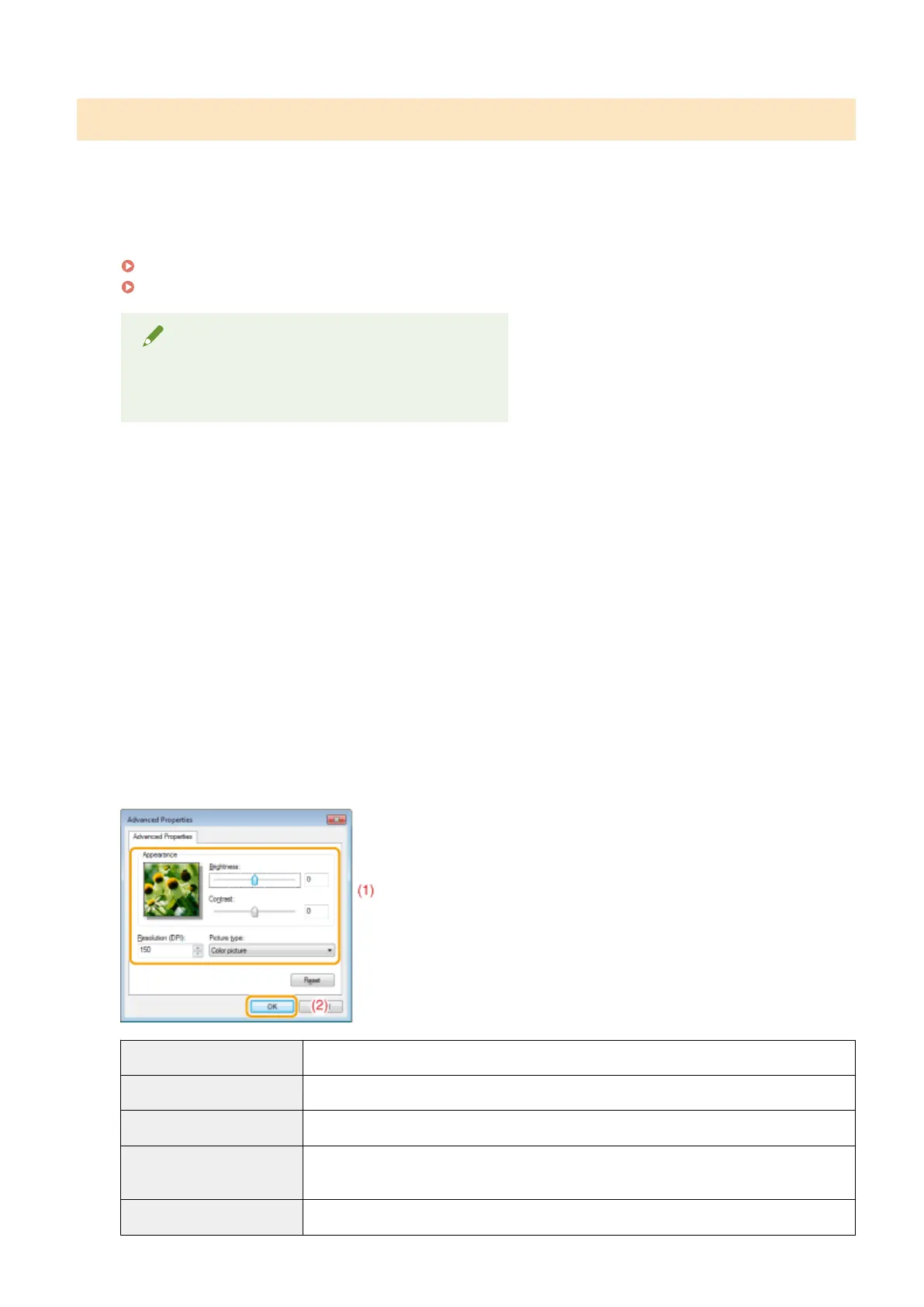
Click [Adjust the quality of the scanned picture] as needed.
The [Advanced Properties] dialog box appears.
4
Adjust the image quality and click [OK].
[Appearance] A sample image is displayed.
[Brightness] Specify the brightness (-127 to 127).
[Contrast] Specify the contrast (-127 to 127) (only for color or grayscale scans).
[Resolution (DPI)]
Supported resolutions vary, depending on the operating system or the selected [Paper
sour
ce] setting.
[Picture type] Specify the color type.
Scan
119









 To Next Page