The preview of the image is displayed.
5
Specify scan areas if you want to scan specic ar
eas within the document.
" Dening a Scan Ar
ea (Cropping Frame)(P. 148) "
6
Click [Scan].
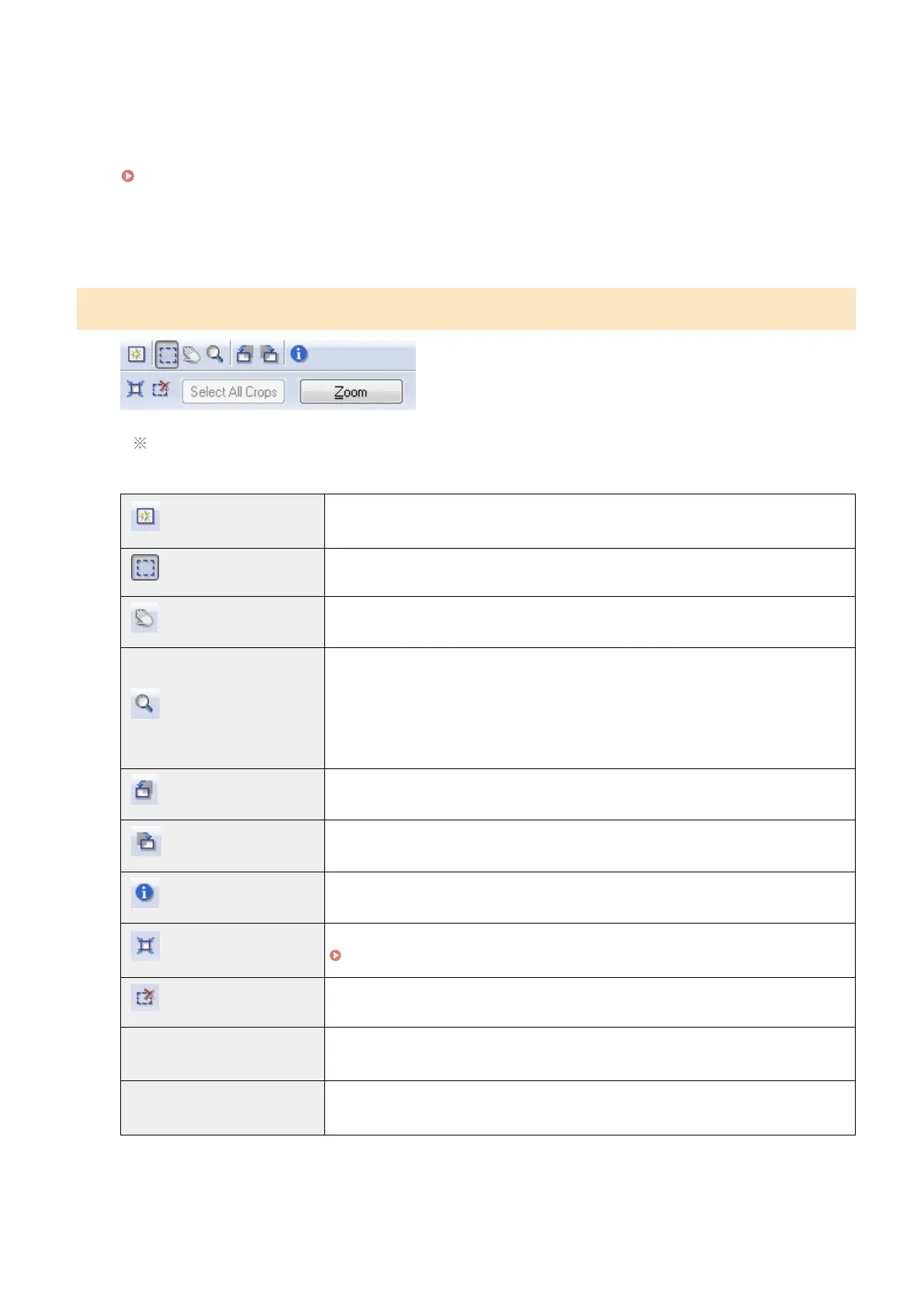
Advanced mode toolbar
To perform all tasks using commands available on the toolbar, you need to display the image in the
pr
eview area.
[ ] (Clear)
Delete the preview image. The settings specied using the toolbar commands as well as
color settings ar
e all cleared.
[
] (Crop)
Specify the scan area.
[ ] (Move)
Move the enlarged image.
[ ] (Zoom)
Enlarge or reduces the preview image.
● Left-clicking
Enlar
ges the image.
● Right-clicking
Reduces the image.
[
] (Left Rotate)
Rotate the image 90 degrees to the left.
[ ] (Right Rotate)
Rotate the image 90 degrees to the right.
[ ] (Information)
Display the information of the scanned image.
[ ] (Auto Crop)
Select the scan area within the image automatically.
" Dening a Scan Ar
ea (Cropping Frame)(P. 148) "
[
] (Remove Cropping Frame)
Delete the selected cropping frames.
[Select All Crops]
The settings specied within the [Advanced Mode] tab ar
e applied to all cropping
frames.
[Zoom]
Enlarge and scan the scan area specied within the preview image.
When this button is clicked, it changes to [Undo].
Scan
137









 To Next Page