EasyManua.ls Logo

Canon MV430 - Page 24

Canon MV430
152 pages
Print Icon
To Next Page IconTo Next Page
To Previous Page IconTo Previous Page
Loading...
Mastering
the
Basics
Always
rotate
the
LCD
panel
vertically
into
place,
before
closing
it
or
pushing
it
flat
against
the
side
of
the
camcorder.
Always
fully
close
the
LCD
panel
until
it
clicks
securely.
Be
careful
not
to
leave
the
LCD,
viewfinder
or
lens
exposed
to
direct
sunlight
outdoors
or
in
a
window.
Doing
so
could
cause
damage.
Bright
light
falling
on
the
LCD
screen
may
cause
glare
that
makes
it
difficult
for
you
to
view
the
image.
In
this
case,
switch
to
using
the
viewfinder.
You
are
also
able
to
adjust
the
brightness
of
the
screen
(see
“Adjusting
the
LCD
screen”
below).
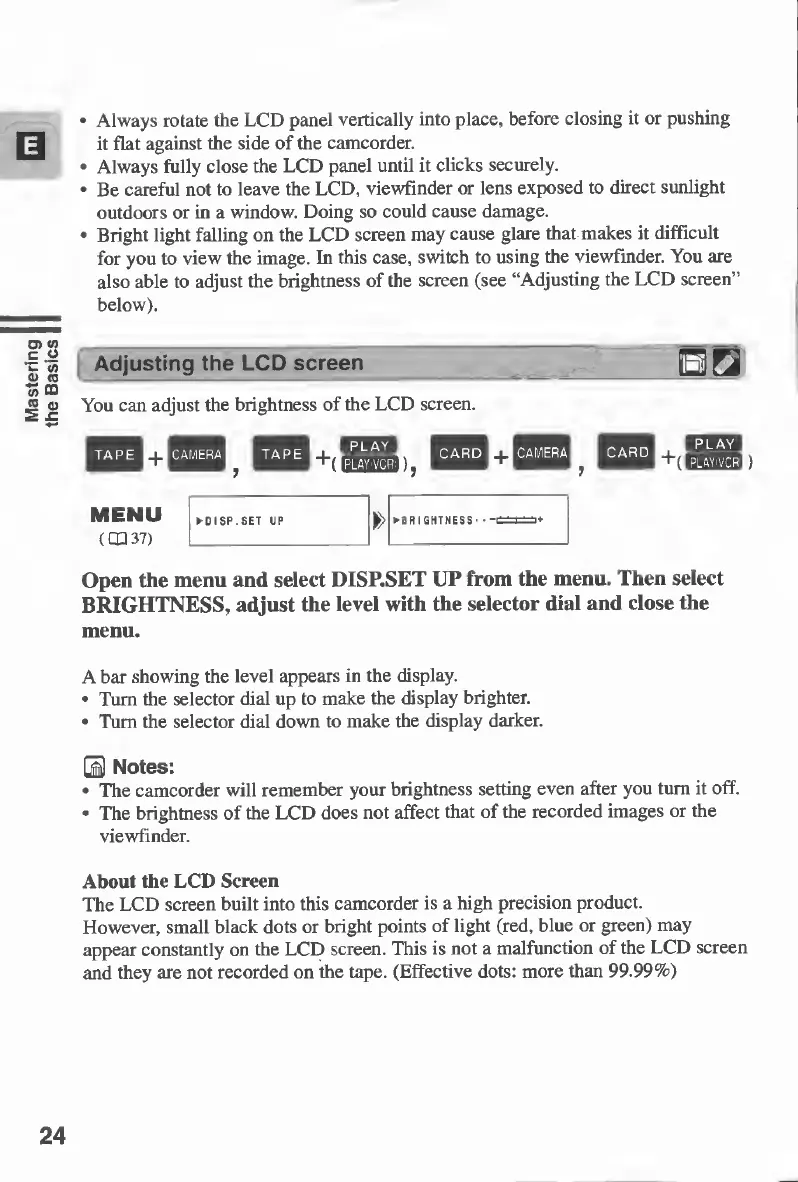
Adjusting
the
LCD
screen
OS)
You
can
adjust
the
brightness
of
the
LCD
screen.
Open
the
menu
and
select
DISP.SET
UP
from
the
menu.
Then
select
BRIGHTNESS,
adjust
the
level
with
the
selector
dial
and
close
the
menu.
A
bar
showing
the
level
appears
in
the
display.
Turn
the
selector
dial
up
to
make
the
display
brighter.
Turn
the
selector
dial
down
to
make
the
display
darker.
B
Notes:
The
camcorder
will
remember
your
brightness
setting
even
after
you
turn
it
off.
The
brightness
of
the
LCD
does
not
affect
that
of
the
recorded
images
or
the
viewfinder.
About
the
LCD
Screen
The
LCD
screen
built
into
this
camcorder
is
a
high
precision
product.
However,
small
black
dots
or
bright
points
of
light
(red,
blue
or
green)
may
appear
constantly
on
the
LCD
screen.
This
is
not
a
malfunction
of
the
LCD
screen
and
they
are
not
recorded
on
the
tape.
(Effective
dots:
more
than
99.99%)
24

Table of Contents

Other manuals for Canon MV430

Related product manuals