EasyManua.ls Logo

Canon MV430 - Page 55

Canon MV430
152 pages
Print Icon
To Next Page IconTo Next Page
To Previous Page IconTo Previous Page
Loading...
Setting
the
program
AE
mode
J3)
TAPE
HCAMERAM
CARD
MCAMERA
1.
Slide
the
program
selector
to
E
(program
AE)
mode.
2.
Press
the
selector
dial
in
to
display
the
program
menu.
3.
Turn
the
selector
dial
to
move
the
arrow
up
or
down
the
display.
4.
Press
the
selector
dial
in
to
select
the
desired
program.
The
program
will
appear
in
the
display.
5.
Press
the
start/stop
button
to
begin
recording.
Gfl
Notes:
The
name
of
your
selected
recording
program
appears
constantly
on
the
left
of
the
display,
with
the
exception
of
Auto,
which
is
displayed
and
then
disappears
after
4
seconds.
Avoid
changing
programs
during
recording
as
the
brightness
of
the
image
may
change
suddenly.
If
you
switch
the
camcorder
from
the
program
to
the
E
program,
the
camcorder
returns
to
the
Auto
mode.
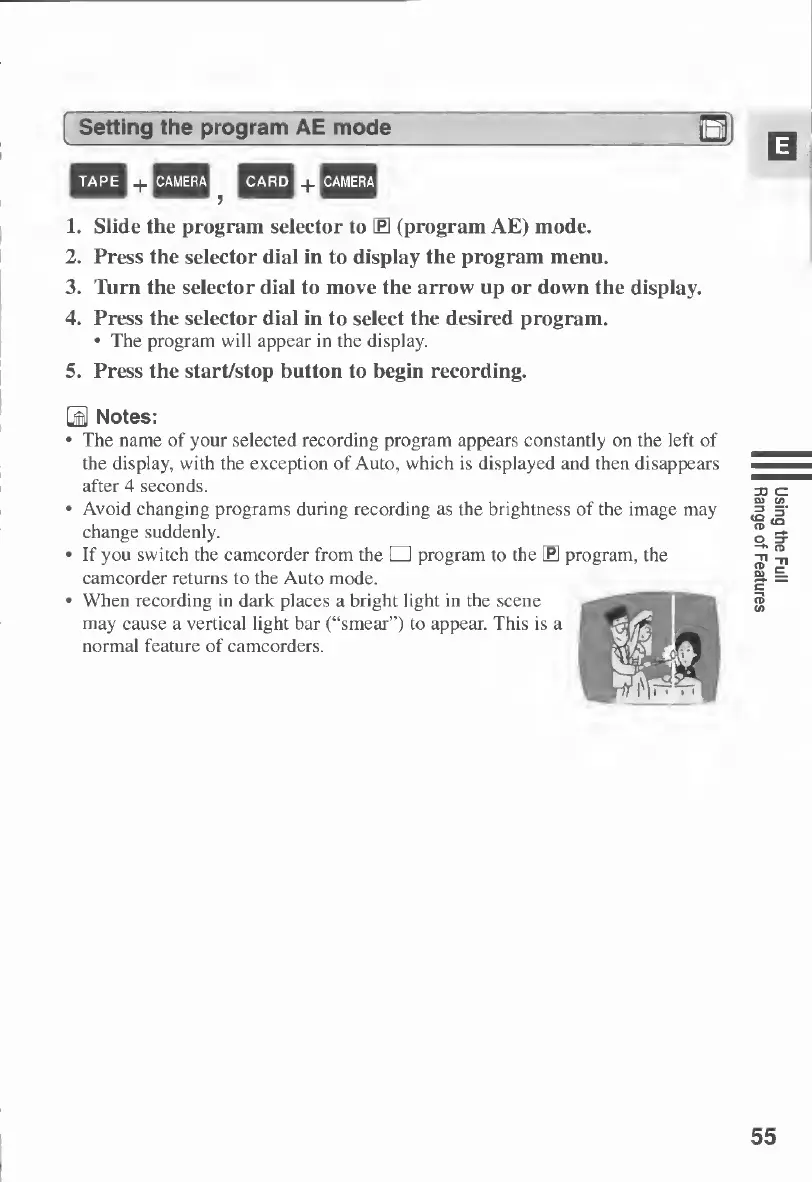
When
recording
in
dark
places
a
bright
light
in
the
scene
may
cause
a
vertical
light
bar
(“smear”)
to
appear.
This
is
a
normal
feature
of
camcorders.
55
Using
the
Full
Range
of
Features

Table of Contents

Other manuals for Canon MV430

Related product manuals