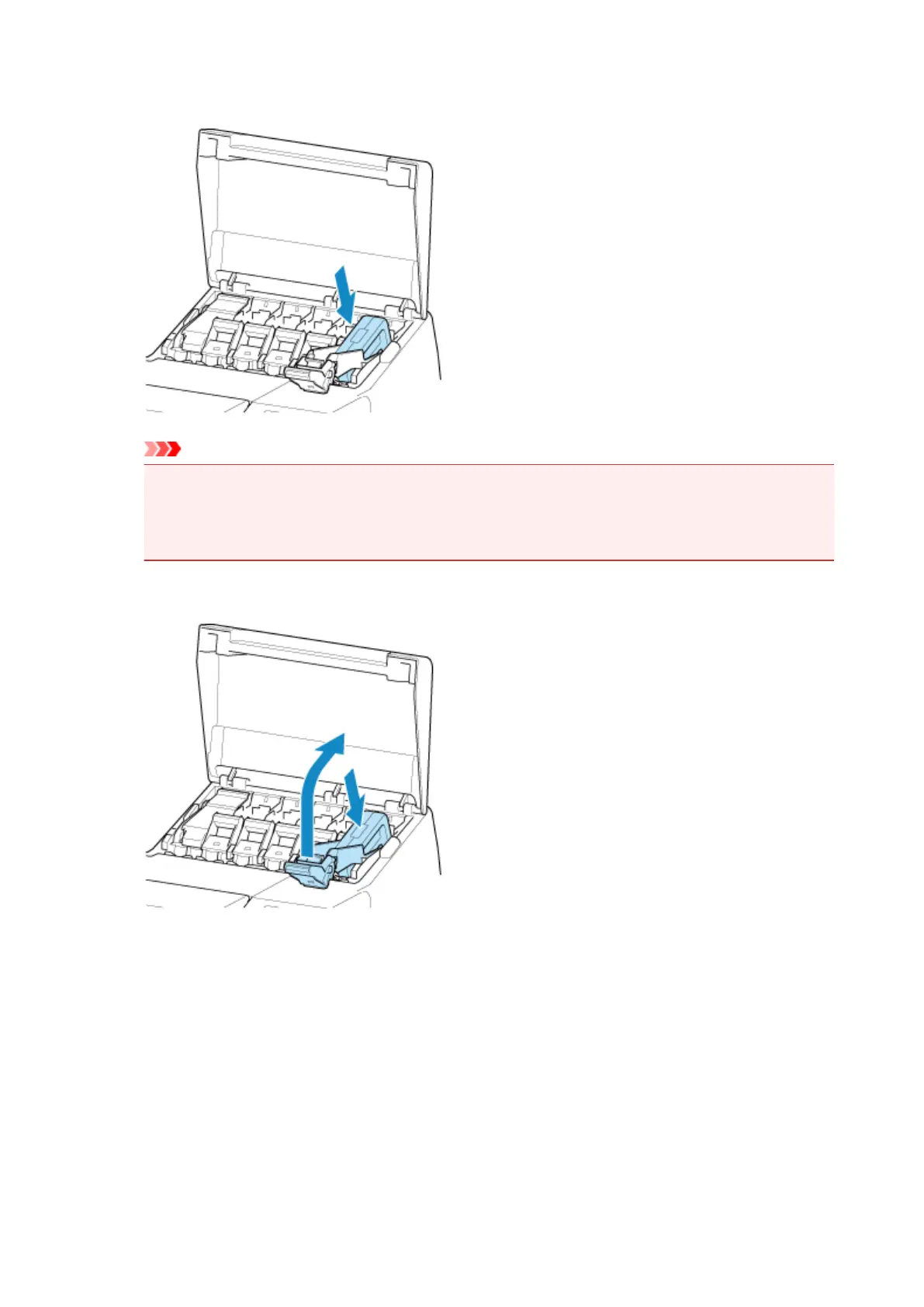
3. Tap OK and insert ink tank into holder with ink holes down and metal contacts at rear.
Important
•
An ink tank cannot be loaded in the holder if the color or orientation is incorrect.
If the ink tank does not fit in the holder, do not force it into the holder. Reinstall while checking
the label color display, ink tank color, and ink tank orientation.
4.
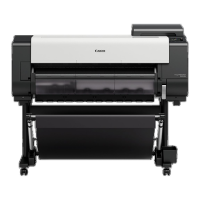
Lift up ink tank lock lever, and then push it down.
5. Push handle part of ink tank lock lever firmly all the way in.
417


 To Next Page