57/89
4 DESCRIPTION OF DISPLAY
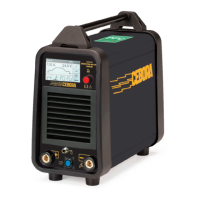
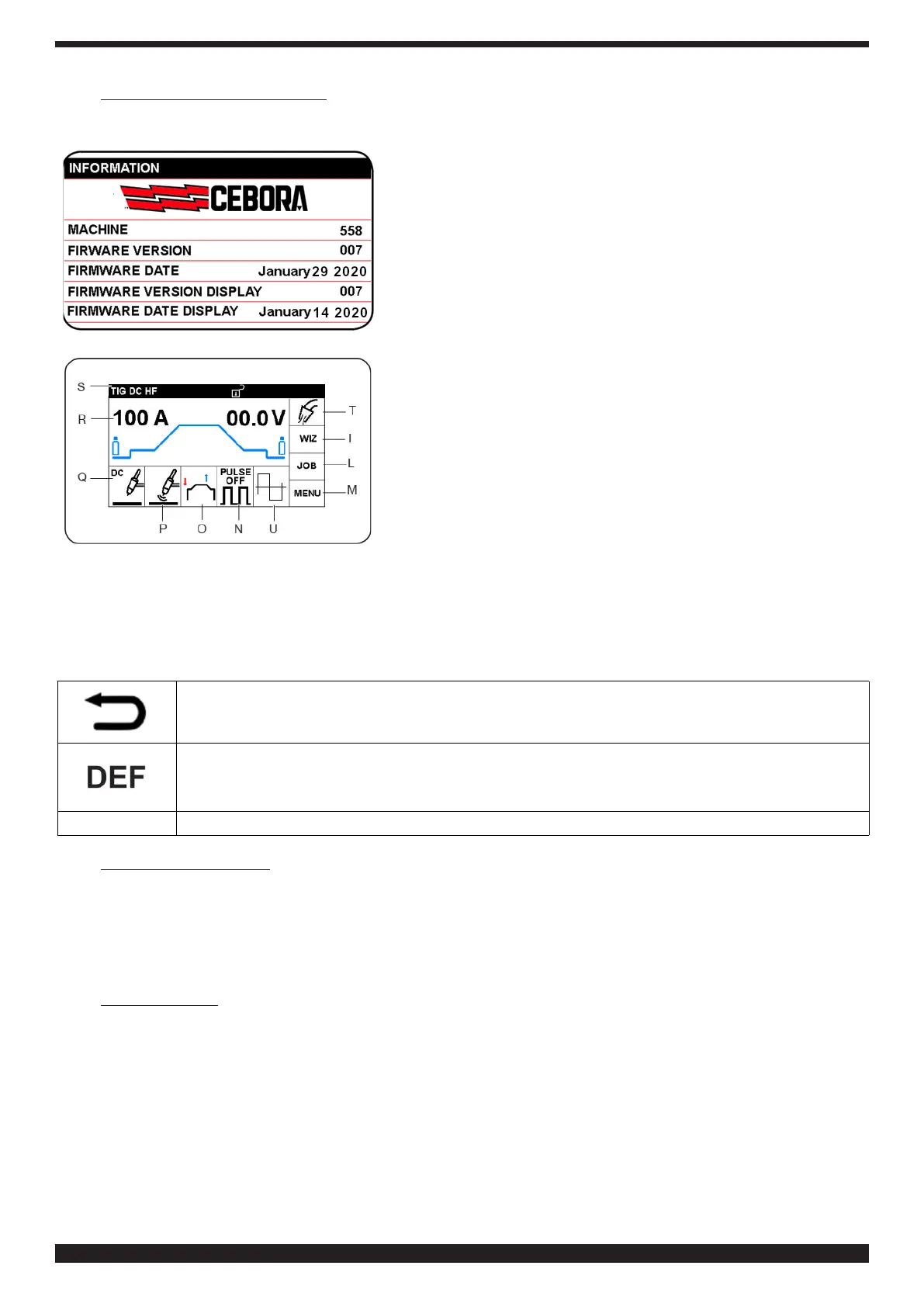
During start-up, for 5 seconds the display presents all the information
regarding the welding machine software versions.
The display then presents the main screen (factory setting). The
operator may start welding immediately and may adjust the current
by turning knob B.
Asshowninthegure,thedisplayissubdividedintosectors.Each
sector allows you to set the desired operating mode.
♦ To select sectors, press and release knob B so that a sector is highlighted in red� Turn knob B
to select the desired sector, and then briey press knob B to access the settings of the selected
sector�
♦ The most recent setting is highlighted in green, and boxed in red� When you turn knob B, the red
box moves to the newly selected sector�
Give knob B a quick press when this symbol is selected to go back to the previous screen.
Selectandconrmthissymboltosetthefactoryparametersoftheparameterdisplayed.
IMPORTANT
To return to the main screen from any condition, press and hold knob B (> 0.7 sec.)
4�1 Status bar (sector S)
This sector is positioned on the upper part of the display. It provides in summary form the welding and cooling unit
settings, block and other functions.
OnlyforItemNo558,whenthegreenlight(<48V)ison,theefciencyoftheno-loadvoltageinACweldingprocesses
is displayed.
4�2 WIZ (Sector I)
see section 7.1


 To Next Page
 Loading...