NOTE:
•
If snow, ice, mud, or any foreign substance builds up
on the camera lenses, clean the lenses, rinse with
water, and dry with a soft cloth. Do not cover the
lenses.
•
If a malfunction with the system has occurred, see
an authorized dealer.
WARNING!
Drivers must be careful when backing up even when
using the Surround View Camera. Always check care-
fully behind your vehicle, and be sure to check for
pedestrians, animals, other vehicles, obstructions, or
blind spots before backing up. You are responsible for
the safety of your surroundings and must continue to
pay attention while backing up. Failure to do so can
result in serious injury or death.
CAUTION!
•
To avoid vehicle damage, Surround View should
only be used as a parking aid. The Surround View
camera is unable to view every obstacle or object
in your drive path.
•
To avoid vehicle damage, the vehicle must be
driven slowly when using Surround View to be able
to stop in time when an obstacle is seen. It is rec-
ommended that the driver look frequently over
his/her shoulder when using Surround View.
FAMCAM SYSTEM — IF EQUIPPED
Your vehicle may be equipped with a FamCam system
that consists of an interior monitoring camera mounted
on the headliner that allows you to view cargo/
passengers in the rear interior of the vehicle through
the Uconnect screen.
To activate the feature, press the FamCam button
under “Controls” in the Vehicle Menu of the Uconnect
system
page 169. Alternatively, the feature can be
accessed through the App Drawer or a shortcut for the
feature can be added to the Favorites bar at the top of
the screen for quick access.
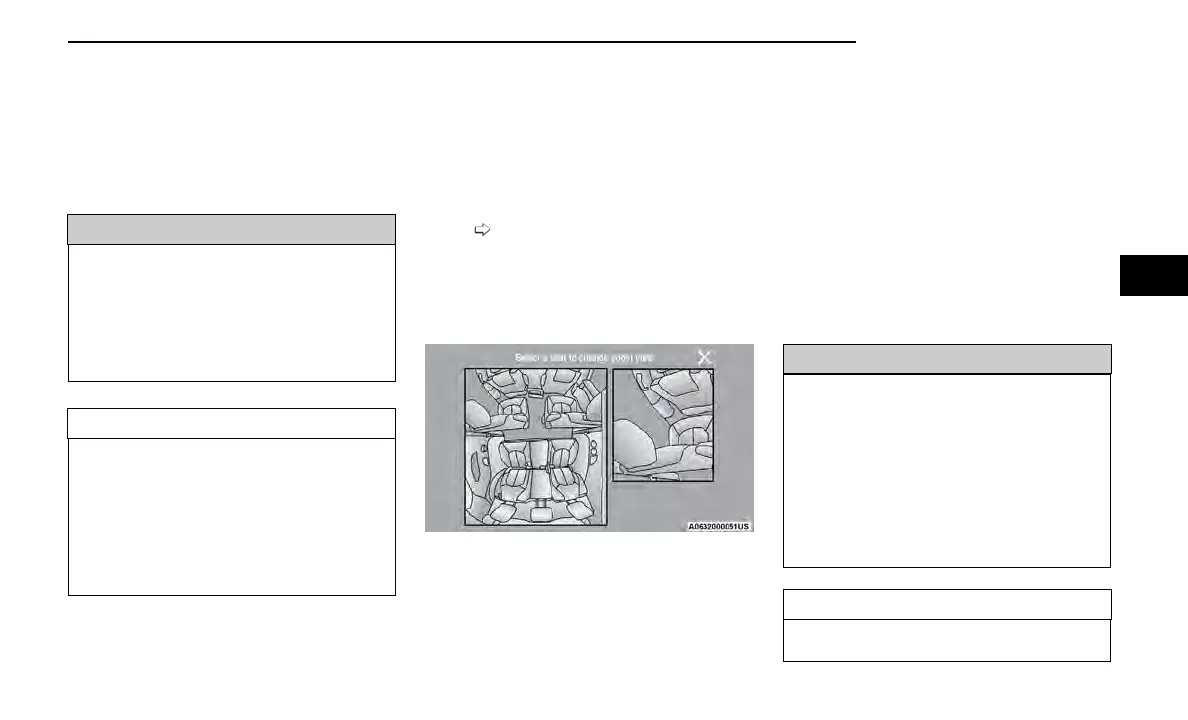
The display will show the entire vehicle cabin view on
the left side of the display, and a zoomed-in view of a
selected seat on the right side of the display.
To change the seat shown in the zoomed-in view, press
a different seat location on the left side of the display.
The zoomed-in view will then show the new seat loca-
tion. By default, the second row driver’s side seat will
be displayed in the zoomed-in view.
The display will appear in color in well-lit conditions and
will appear black and white in low-light conditions.
If the driver shifts into REVERSE or presses the touch-
screen X button, the view will close. Otherwise, the
FamCam view will remain on the display.
NOTE:
When FamCam is turned off, the selected seat in the
zoomed-in view on the right side of the display will be
retained. The next time the feature is activated, the
same seat will be shown in the zoomed-in view.
REFUELING THE VEHICLE
There is no fuel filler cap. Two flapper doors inside the
pipe seal the system.
WARNING!
•
Never have any smoking materials lit in or near the
vehicle when the fuel door is open or the tank is
being filled.
•
Never add fuel when the engine is running. This is
in violation of most state and federal fire regula-
tions and may cause the Malfunction Indicator
Light to turn on.
•
A fire may result if fuel is pumped into a portable
container that is inside of a vehicle. You could be
burned. Always place fuel containers on the
ground while filling.
CAUTION!
To avoid fuel spillage and overfilling, do not “top off”
the fuel tank after filling.
FamCam Display (7 Passenger Vehicle Shown)
STARTING AND OPERATING 157
4






 To Next Page