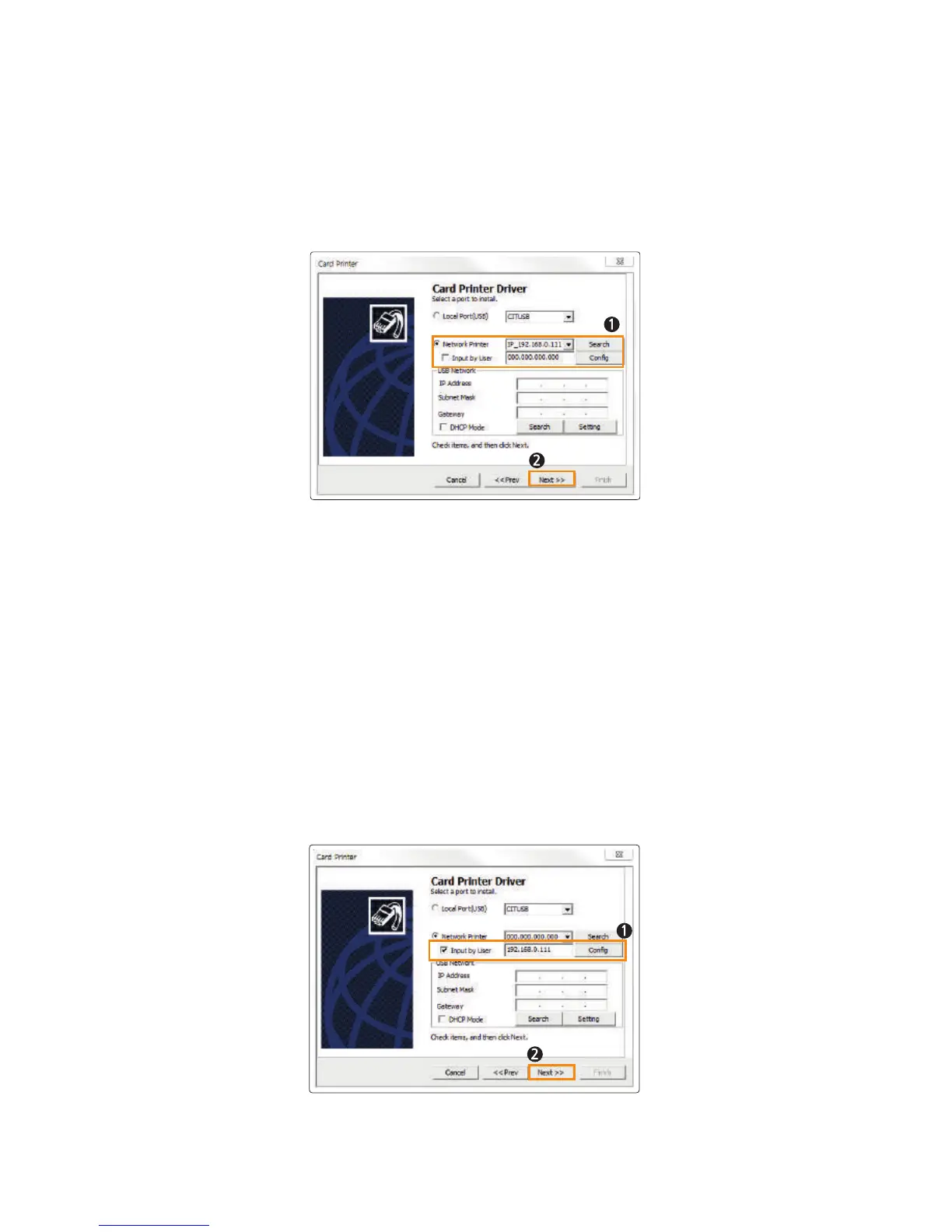
Select “Network Printer” and the printer IP address will be displayed if it is
connected to the network. Click “Next” to continue.
5. Install Network Printer
5-2. Manual Installation
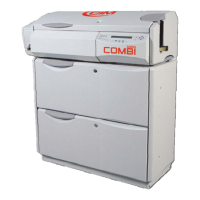
If the printer's IP address is not shown as in the picture, then check the
following.
(Make sure that the printer is in the same IP range.)
(1) If they are in the same IP range
For example, if your PC's IP address is 192.168.0.xxx, then the printer's IP
address must be 192.168.0.yyy.
If they are not in the same IP range, check "Input by user" and enter the
printer's IP address. Then, click "Next" to proceed.
5-1. Auto Installation
37
CIM User Guide Manual


 To Next Page