14 FAQs
14.1 How can I find the IP address or name of my LQ
unit?
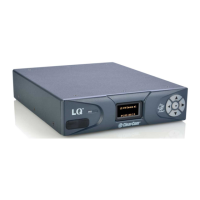
The name and IP address of an LQ device can be found on the front panel display
of the units and also in the Web GUI. The IP address and name of a unit can only
be changed via the CCM (Web-based Core Configuration Manager).
14.2 What does a solid red light on the front panel
keypad indicate?
A solid red light on the keypad shows that the unit has lost its IP connection to the
Link-Master.
1) Make sure that the Link-Master’s IP address is reachable from the network
point where the Link-Member is connected.
14.3 What does a flashing red light on the front panel
keypad indicate?
A flashing red light shows that there is an ID conflict within the LQ-Group, meaning
that two LQ units are trying to connect to a Link-Group using the same link ID.
To resolve this you will need to undo the unit’s link to the Link-Master and then re-
apply the linking process to an available ID:
1) Within a Web browser, enter the IP address of the LQ device which is showing
the flashing red LED. This takes you to the Core Configuration Manager (CCM)
for that unit.
2) Navigate to the device’s Linking page (Home > Linking).
3) Click the Change Role to Link-Master button and click Apply Changes.
4) Now reconfigure the link and the link ID. To do this, click the Change Role to
Link-Member button, and enter the Link-Master IP. Click the blue check
mark or <Enter>.
5) Select an available ID slot (available IDs will be highlighted in blue) and click
Apply Changes.


 To Next Page