EasyManua.ls Logo

Codonics Virtua - User Manual

Codonics Virtua
210 pages
Print Icon
To Next Page IconTo Next Page
Loading...
®
USER’S MANUAL
17991 Englewood Drive
Middleburg Heights, OH 44130 US A
(440) 243-1198
(440) 243-1334 Fax
Email
i
nfo@codonics.com
www.codonics.com
Virtua
Virtua
TM
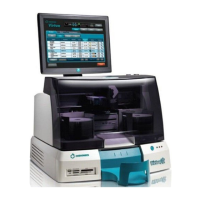
Medical Disc Publisher

Table of Contents

Other manuals for Codonics Virtua

Questions and Answers

Summary

Introduction

Product Features

Overview of the Codonics Virtua Medical Disc Publisher's capabilities and system design.

Hardware Features

Details about the physical components and their specifications.

Operational Features

Describes the system's functional capabilities and user interaction methods.

Setting Up the Hardware

Finding a Location for the Device

Guidelines for selecting a suitable and safe placement for the device.

Unpacking the Device

Instructions for safely removing the device and its components from packaging.

Controller and Recorder Components

Identification of front and rear components of the Controller and Recorder.

Connecting Cables and Power Cords

Steps for connecting essential cables and power supply for operation.

Installing the Ink Cartridge

Procedure for inserting and securing the ink cartridge into the printer.

Powering On the Device

Steps to initiate the device's startup sequence and prepare for use.

Setting Up the Software

Calibrating the Touch Screen

Procedure to ensure accurate touch input response on the display.

Logging In

Process for accessing the system using preconfigured user accounts.

Setting Up User Accounts

Instructions for creating, modifying, and managing user access and privileges.

Setting Up the System Profile

Configuration of device-specific settings like media type assignments.

Setting Up Site Profiles

Configuration of site-specific information for labels and output files.

Setting the Network Parameters

Configuration of IP address, subnet, gateway, and DICOM port.

Setting Up Job Profiles

Defining parameters for recording studies, including media and viewer options.

Setting Up Query;Retrieve

Configuration for querying and retrieving studies from DICOM devices.

Sending and Retrieving Studies to Virtua

Configuring a Typical DICOM Host

Settings required on external DICOM systems to send studies to Virtua.

Sending Studies to Record to Disc

Method for transferring studies to Virtua for recording onto media.

Querying and Retrieving Studies

Process for searching and retrieving medical studies from DICOM sources.

Query Criteria Guidelines

Rules and tips for constructing effective search queries for studies.

Recording and Labeling a Disc

Jobs

Explanation of jobs and how they control data recording and disc creation.

Auto Mode

Unattended recording and labeling of studies based on Job Profile settings.

Manual Mode

User-interactive process for selecting and recording studies from the Studies list.

Job Options

Customizing settings for recording jobs like media type, copies, and viewer.

Working with Studies

How Studies Are Stored and Removed

Explanation of Virtua's automatic management of studies on the hard drive.

Filtering, Sorting, and Scrolling Through the Studies List

Methods for navigating and organizing the list of studies.

Study Status Indicators

Icons and their meanings indicating the current state of each study.

Selecting Studies

Process for choosing specific studies for recording or other actions.

Displaying Study Details

Viewing comprehensive information about a selected study.

Deleting Studies Manually

Procedure for removing unrecorded studies from the Studies list.

Working with Jobs

Working with the Discs Queue

Navigating and filtering the list of queued and completed recording jobs.

Job Status Indicators

Icons showing the status of recording jobs (queued, recorded, error).

Displaying Detailed Job Information

Viewing comprehensive details about a specific recording job.

Deleting a Job Manually

Procedure for removing a job from the queue or completed list.

Working with Labels

Disc Label Design Families

Overview of label layouts and graphical patterns for disc printing.

Preinstalled Label Design Families

Lists standard disc label design families available on the SmartDrive.

Adding a Custom Disc Label

Steps to create and integrate a new custom label design.

Study Fields Included on Labels

Configuration of which study information appears on printed disc labels.

Working with Locales

Locale-Related Features

System features supporting regional information display, including language.

User Interface

Information on language support for site and DICOM demographic data.

Tier 1 and Tier 2 Regions

Supported locales and their configuration codes, with support levels.

Setting Up the Locale Profile

Procedure to configure regional settings for display elements and functions.

Maintenance

Backing Up SmartDrive Disc Log Files

Procedure to save system log files for compliance and backup.

Ordering Disc and Print Supplies

Information on how to order consumables like discs and ink cartridges.

Cleaning the Device

Instructions for cleaning the device enclosure and touch screen.

Identifying the Disc Drives

Utility to correct misidentification of top and bottom disc drives.

Installing Software

Guidance on reinstalling or upgrading the device software.

Preparing the Device for Shipping

Steps for safely packing the device for transport or service.

Device Status and Troubleshooting

Dashboard Indicators

Overview of graphical indicators on the dashboard for device status.

Interpreting LED Status Indicators

Explanation of the meaning of LED lights on the device.

Displaying Device Status Details

Viewing detailed information about the device's status.

Troubleshooting Common Problems

Guide to identifying and resolving common issues with the device.

Displaying Support Information

Accessing help screens with contact and version information.

Aligning the Ink Cartridge

Procedure to correct ink cartridge misalignment and improve print quality.

Cleaning the Ink Cartridge

Procedure to resolve print issues caused by a clogged ink cartridge.

Calibrating the Robotic Disc Transport

Utility to correct misalignment in the disc handling mechanism.

Allowing Remote Access

Enabling remote access for technical support and troubleshooting.

System Logs

Information on accessing system logs for diagnostic purposes.

Recording Log Files to a Disc

Procedure to save system logs onto a disc for sharing with support.

Hazardous Material Information

Materials of Construction

Listing of materials used in the device's construction and potential hazardous substances.

Manufacturing

Information regarding manufacturing processes and ozone-depleting substances.

Specifications

Specifications (English)

Technical specifications for all models of the Virtua device.

Additional Specifications-Virtua-1-PS1

Model-specific technical details and regulatory compliance for Virtua-1-PS1.

Additional Specifications-Virtua-1-PS2

Model-specific technical details and regulatory compliance for Virtua-1-PS2.

Codonics Virtua Specifications

General IconGeneral
ModelCodonics Virtua
CategoryDisc Duplicator
Supported Disc TypesCD-R, DVD-R
Print Resolution300 dpi
ConnectivityUSB, Ethernet
Operating System CompatibilityWindows, Mac OS
Print TechnologyThermal
Disc Capacity100

Related product manuals