ENVIRONMENTS
31
Comau Robotics Product Instruction
wished list, by means of the related contextual key (par. 4.2.2 Contextual keys on
page 31)
– to view whichever Log file, open the File System window, choose the wished Log
file, in the suitable device (Control Unit or PC) and folder, then open it by double
clicking on its name. RoboShop opens a Logger environment session and
displays such a file.
The displayed Log list can be sorted by the content of any wished column (e.g.
Timestamp, Error Code, etc), simply clicking on the name of the wished column. Click
again to invert the order.
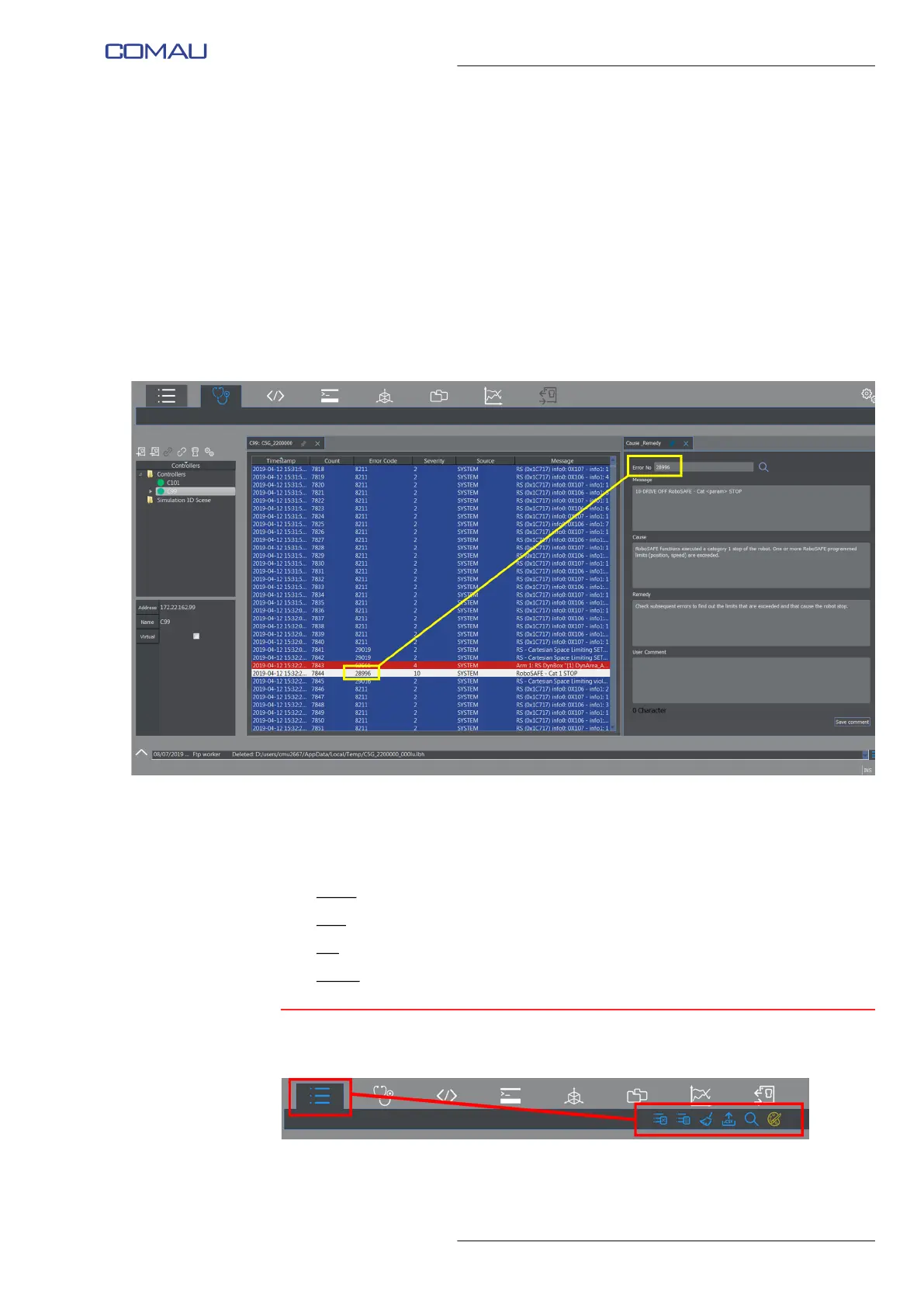
By double clicking on a Log list element, the Cause&Remedy environment is opened
displaying the selected error information, as shown in the following figure.
Each element in the Log list has its own background colour, to indicate the message
severity.
The background can be:
– green
: INFORMATIONAL message. The system is NOT in ALARM state
– blue
: WARNING message
– red: ERROR message. The system is in ALARM state
– purple
: FATAL message. The system is in FATAL ERROR state.
4.2.2 Contextual keys
Once the environment is opened, the following contextual keys are enabled (figure
above):


 To Next Page